
Guide: How to start using DataImpulse Proxies in PhantomBuster

What is PhantomBuster?
PhantomBuster is a popular automation platform for easier management of social media activities. It is cloud-based and uses pre-built automation scripts, called Phantoms. Every task can be performed with a separate execution environment and a unique IP. It’s perfect for web data collection, as most major platforms (Instagram, LinkedIn, Google, Facebook, etc) are already supported, so you can scrape whatever you want. However, for a safe and private scaping environment, it’s preferable to pair this tool with our ethically-sourced proxies.
This data extraction platform works best for:
- web scraping
- lead generation
- profile enrichment
- social media automation
And no coding skills required. That’s an investment that truly pays off. Here is the short list of features and benefits offered by Phantombuster:
- Ready-to-use automation tools
- Cloud-based execution
- Supports major platforms and websites
- Suitable for web scraping and data collection
- Helps automate repetitive marketing and growth tasks
- Scales easily as your workload grows
- Beginner-friendly interface
- Custom scripts and workflows
However, the platform can become less efficient for high-volume scraping or complex automation that needs precise network or request management.
Integrate DataImpulse Proxies into PhantomBuster — Main Steps
1. First of all, sign up for DataImpulse and start using the features on your dashboard. Go to the Proxy section and choose the plan you need. Make a note of the proxy credentials (login, password, host, port) provided by DataImpulse. We’ll need this info for the next steps.
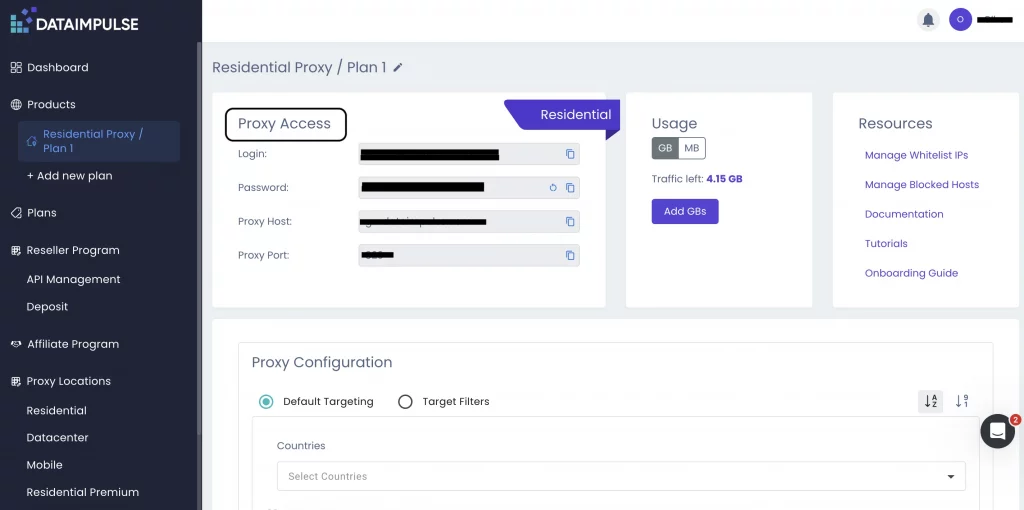
Not sure where to find your credentials? Check your DataImpulse dashboard or reach out to customer support for help.
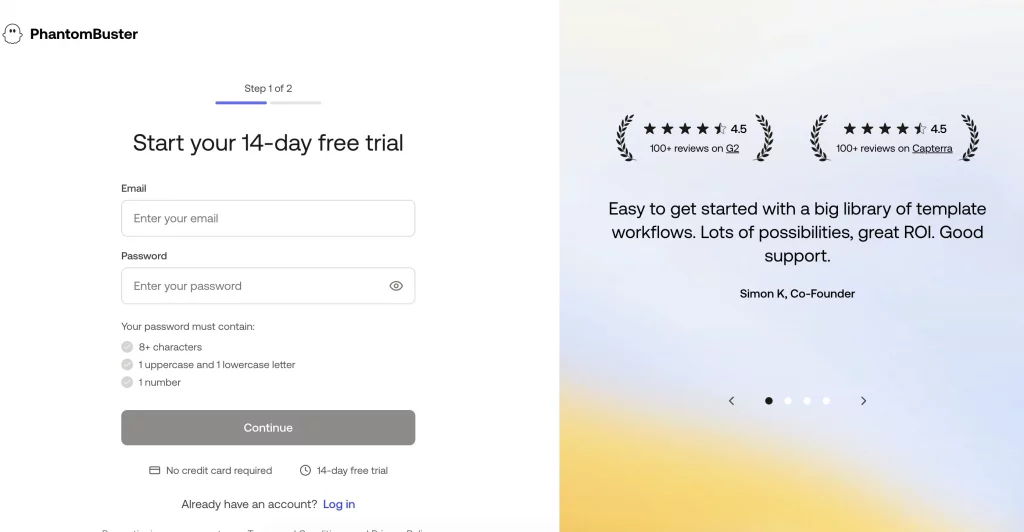
2. Then, visit the PhantomBuster website. We’re using macOS (M1-series) in this tutorial. Click ‘Start Free Trial’. Enter your email, create a strong password, and click ‘Continue’.
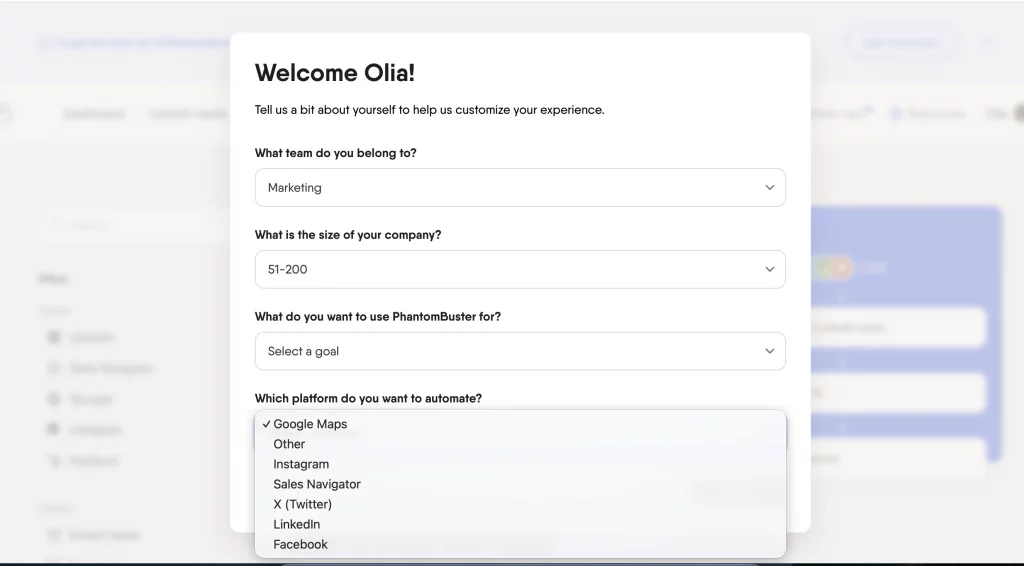
3. Complete some information about yourself and specify your primary goal on the platform.
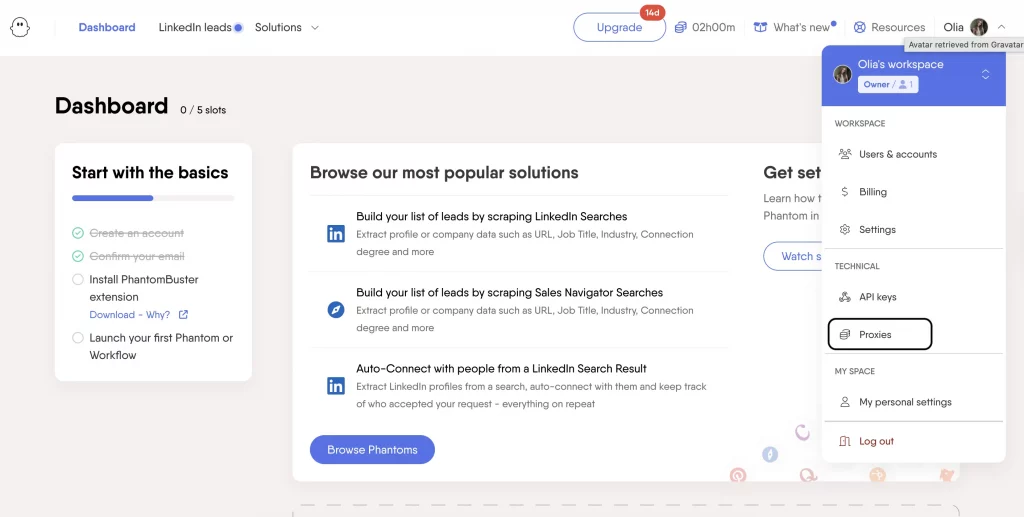
4. On your PhantomBuster dashboard, go to your profile and click Proxies from the technical menu.
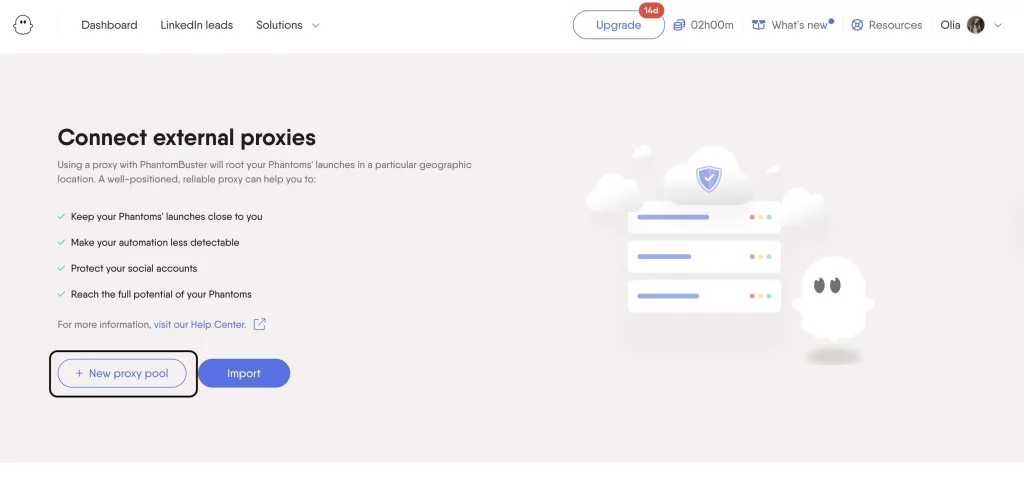
5. Create a new proxy pool.
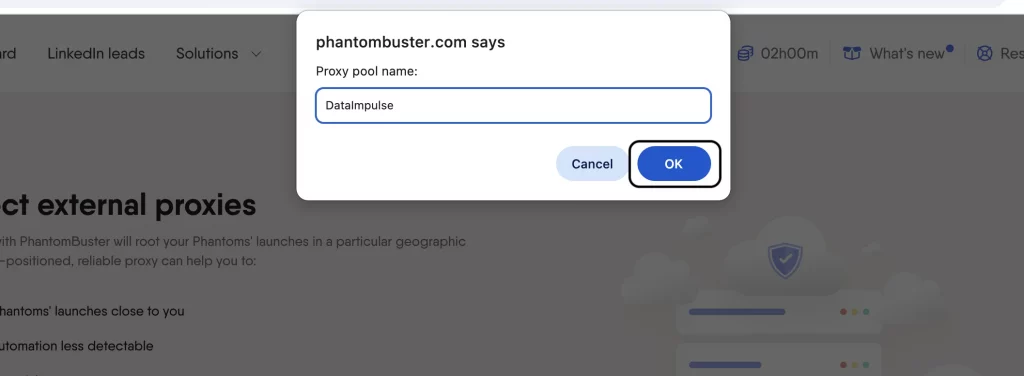
6. Name and save the pool.
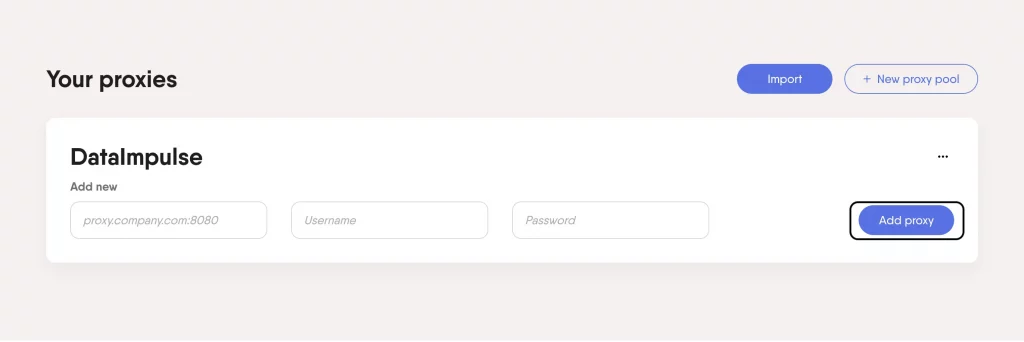
7. Copy proxy details (host, port, login/username, password) from your DataImpulse dashboard and paste them in these fields. Click ‘Add proxy’.
Proxy: SOCKS5, or you can use the HTTP protocol
Host and port: gw.dataimpulse.com:823
Login: your DataImpulse username
Password: your DataImpulse password
8. After that, go to Solutions, select your platform (it’s LinkedIn in our case), and then choose a Phantom to automate the task you want.
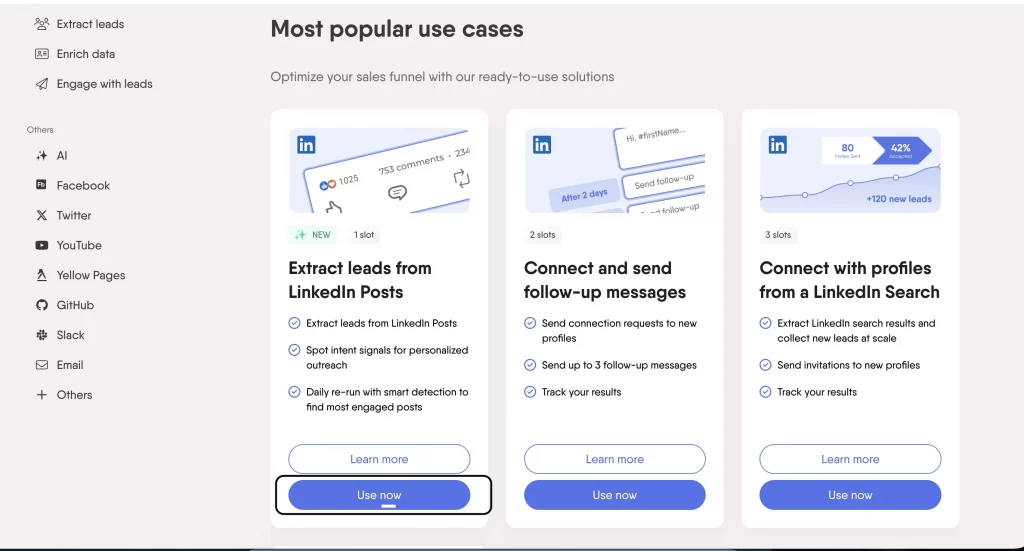
9. The next steps are to choose the source to scrape and connect your account to LinkedIn. Make sure the URL you enter is correct.
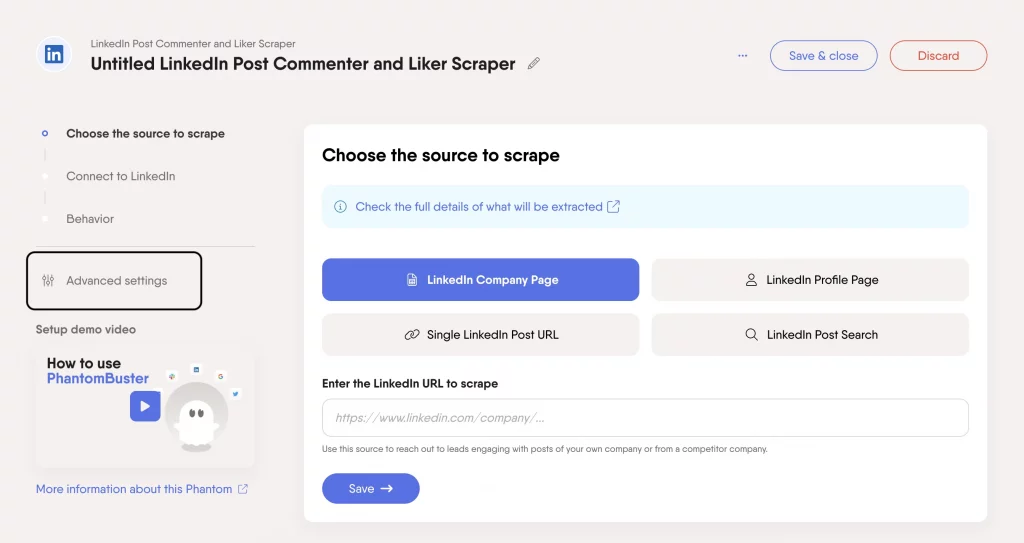
10. Go to Advanced Settings and select Proxies. Save your settings, then save the entire project with all completed steps. That’s it!
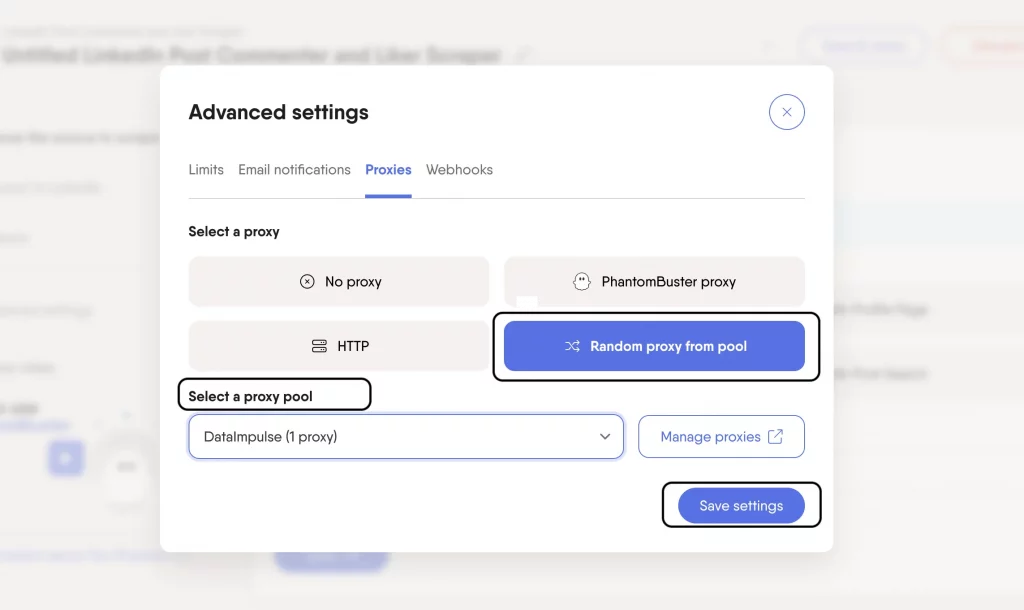
If you want to disable the proxy, just go to the Proxies section under your Profile and choose Delete near the chosen proxy pool.
Setup complete! Congratulations on getting everything ready.
*This tutorial is intended for educational purposes only. We do not encourage or endorse any actions that violate platform policies, terms of service, or applicable laws. Users should always act responsibly and at their own risk.

 State/City/Zip/ASN Targeting