
Find leads with extra invisibility and reliability: Connect DataImpulse proxies to TexAu

What is TexAu?
TexAu is an automation tool for building connections with the right people. That means it’s mostly used for sales and marketing purposes. They offer a 14-day free trial so users can try running their first automation at no charge. If you already use Zapier or Make, you’ll find TexAu especially useful thanks to its built-in integrations. There is also a collection of pre-built automation templates. Working on email campaigns can become easier as it connects you with AI, which can help you personalize your messages and replies.
Key features of TexAu are:
- Multi-channel outreach
- No-code automation for lead generation
- Ready-made automation recipes for LinkedIn, Twitter (X), email, and more
- Cloud-based execution
- CSV import/export
- Strong scheduling
- Webhook & API access for custom integrations
- Real-time task monitoring and logs
- Native integration with Reply, Lemlist, Dropcontact, Hunter, and more
Despite its useful automation capabilities, TexAu does have a few weaknesses. New users may face a learning curve, and automation speed depends on platform restrictions and safe usage limits. Some users also mention that customer support can be slow at times, and more detailed documentation would be helpful for getting the most out of the platform.

Set up DataImpulse Proxies in TexAu — What are the steps?
1. First of all, sign up for DataImpulse and start using the features on your dashboard. Go to the Proxy section and choose the plan you need. Make a note of the proxy credentials (login, password, host, port) provided by DataImpulse. We’ll need this info for the next steps.
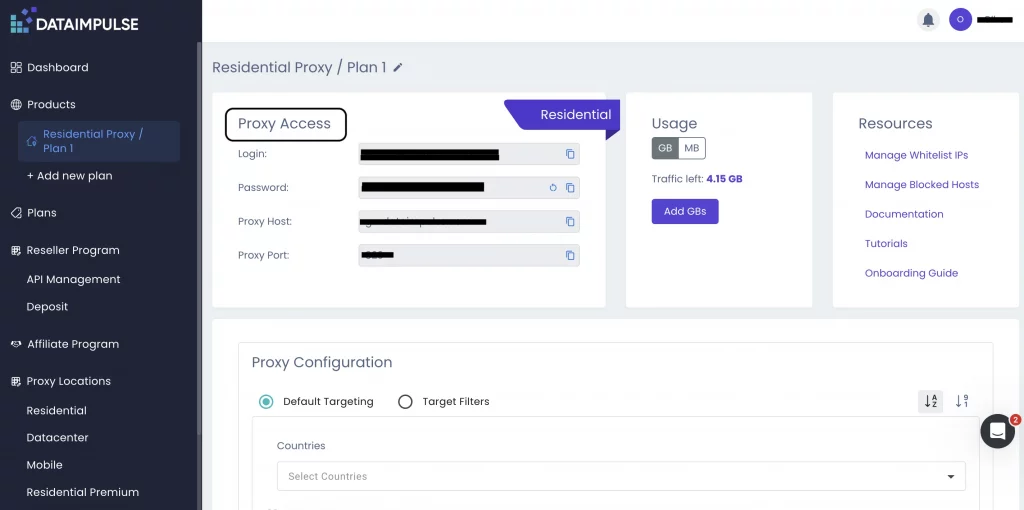
Not sure where to find your credentials? Check your DataImpulse dashboard or reach out to customer support for help.
2. Open the TeaxAu website and click Get started for free. Provide your email address, phone number (for password reset), and create a strong password. Tick ‘I have read and agreed to the Terms and Conditions’ and finish the registration process.

3. After successful registration, you’ll be redirected to the ‘Tell us a little more about you’ section. You’ll get questions about your role, company size, goal, and platform that you’d like to automate. You can complete all the info or just skip it. There is also an opportunity to install TexAu Chrome Extension (optional).

4. On your TexAu dashboard, go to Settings and select Proxies from the menu. Click +New Proxy.
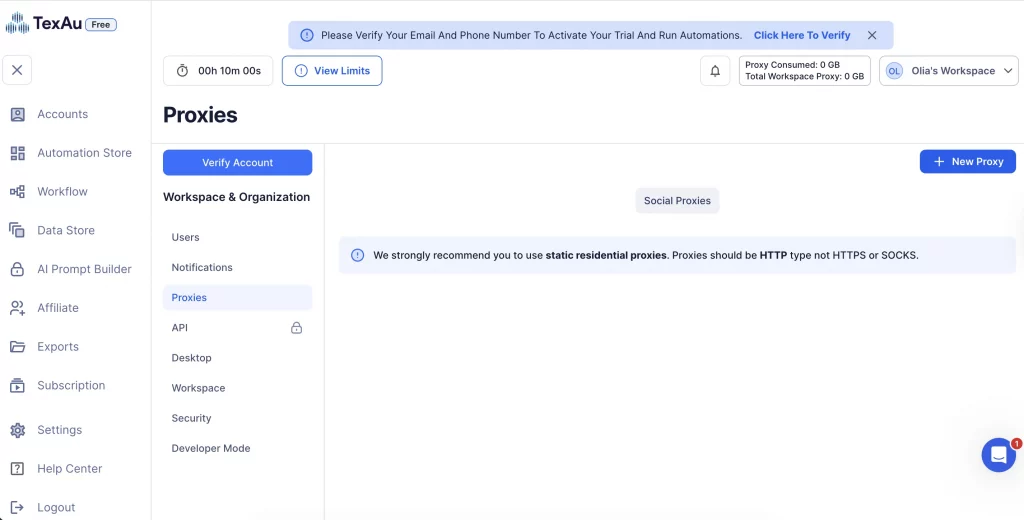
5. For this step, you need your proxy credentials from the DataImpulse dashboard.
Domain and port: gw.dataimpulse.com:823
Username: your DataImpulse proxy login
Password: your DataImpulse proxy password
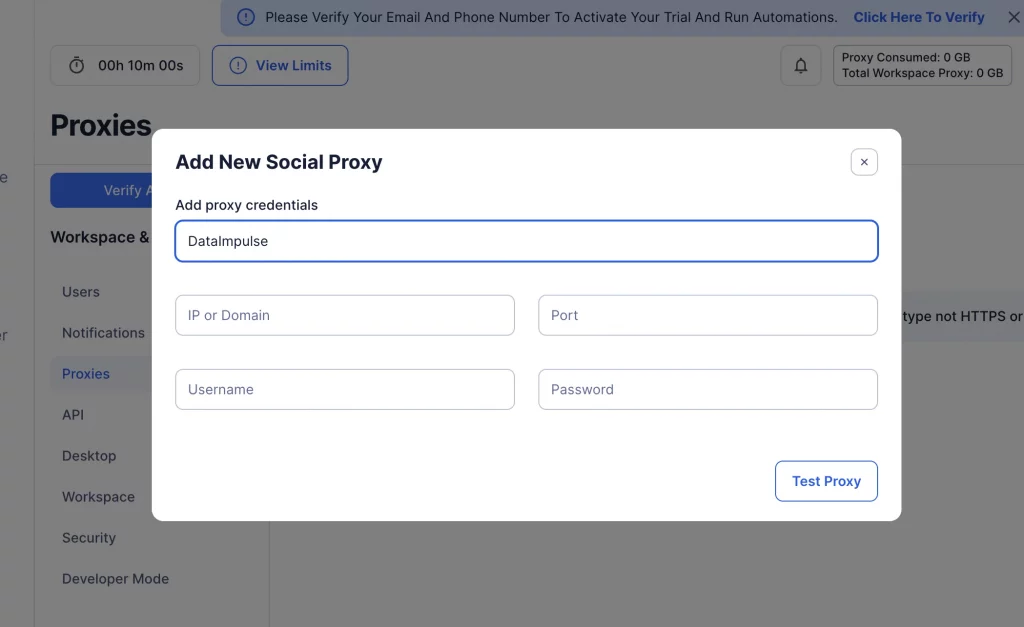
6. Next, click Test proxy to make sure it’s functional. And finally Save proxy to keep the proxy configuration.

7. And that’s it. Apply a proxy to the relevant workflows or accounts before running them.
Our ethically sourced proxies are fully compatible with TexAu. Hope this guide will help you configure everything quickly and correctly.
DataImpulse provides top residential, mobile, and datacenter proxies for any practical use case: web scraping, automation, social media management, and much more. If you need any assistance with the DataImpulse dashboard, read our step-by-step guide, so nothing catches you off guard. For more support, contact our 24/7 professional team; they’re always there for you.
*This tutorial is intended for educational purposes only. We do not encourage or endorse any actions that violate platform policies, terms of service, or applicable laws. Users should always act responsibly and at their own risk.

 State/City/Zip/ASN Targeting