How to run multiple accounts on global platforms using DataImpulse proxies in Hubstudio

What is the Hubstudio browser?
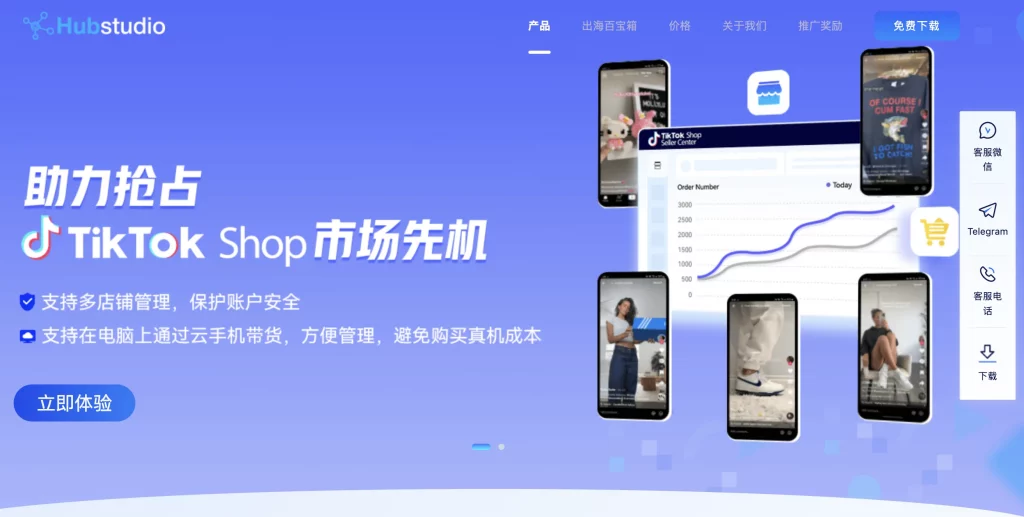
Developed by Zixun Technology, Hubstudio presents safe multiple social media accounts management on one device. It uses Chromium kernel, so it works like Chrome on the inside, using the same rendering and JavaScript engines. The platform works across Windows, macOS, Android, and iOS. There is a free plan, so you can try and decide whether you want to move forward with Hubstudio or not.
Main characteristics of the Hubstudio browser:
- Advanced fingerprinting technologies (canvas, WebGL, and WebRTC fingerprinting)
- Integration with HTTP/HTTPS and SOCKS proxies
- Unlimited permanent free browser environments
- Role-based access control with flexible permission allocation
- Cloud phone services
- Browser plugins support and the ability to upload custom extensions
- Activity log tracking
- Compatible with such platforms as Facebook, TikTok, Google, PayPal, Gmail, etc.
- SSL data encryption and more.
One of the biggest risks when using Hubstudio is misconfiguration. The browser gives users a lot of control over fingerprints, time zones, languages, and other tech settings. However, with no proper knowledge, some inconsistencies can pop up. For example, using a proxy from one country while the browser profile shows a different time zone. Even a small mismatch can result in account restrictions or bans. Thus, don’t forget to review the docs before proceeding.
While visiting their official website, we noticed that there is no English localization and no language selector. It is predominantly Chinese. Such inconvenience can create further difficulties with navigation and overall user experience.
Set up DataImpulse Proxies in Hubstudio — Key steps
1. First of all, sign up for DataImpulse and start using the features on your dashboard. Go to the Proxy section and choose the plan you need. Make a note of the proxy credentials (login, password, host, port) provided by DataImpulse. We’ll need this info for the next steps.
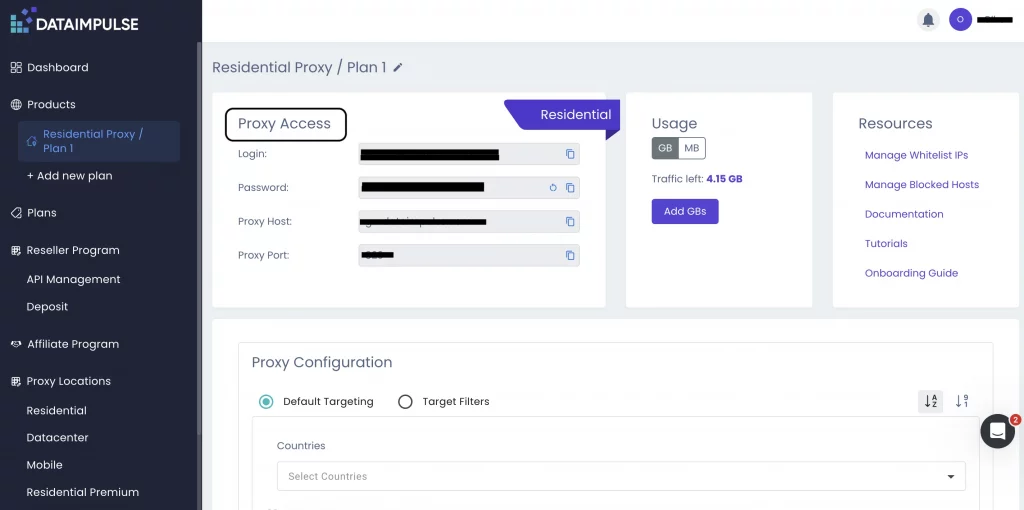
Not sure where to find your credentials? Check your DataImpulse dashboard or reach out to customer support for help.
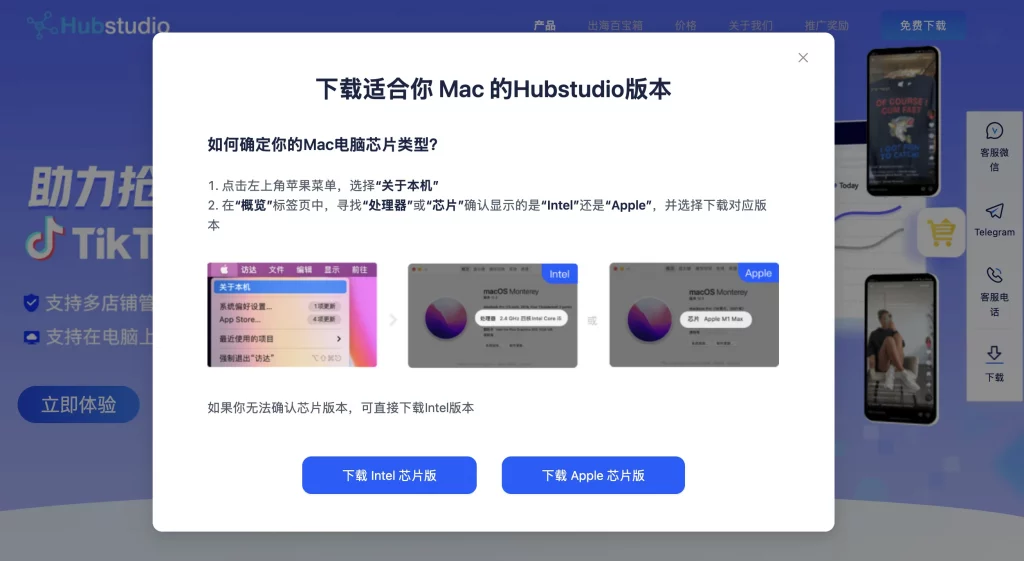
2. Open the Hubstudio official website and download the app for your operating system (macOS in our case).
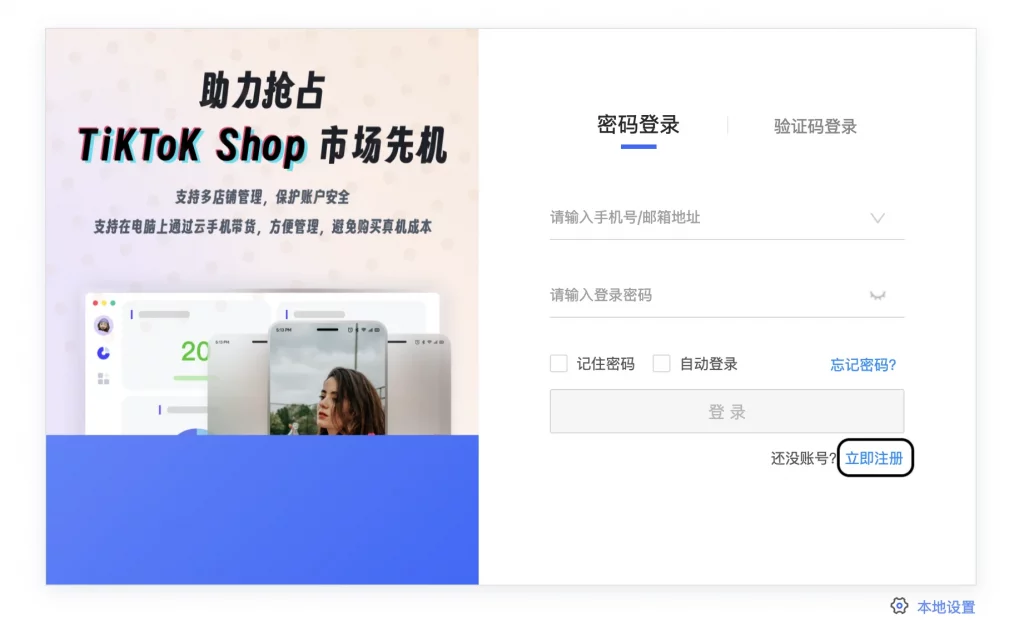
3. Once launched, you’ll see the window with the request to log in. We don’t have a Hubstudio account yet, so we’re going to create one. Simply click Register (as shown in the picture below), add your email, verify it, and make up a strong password.
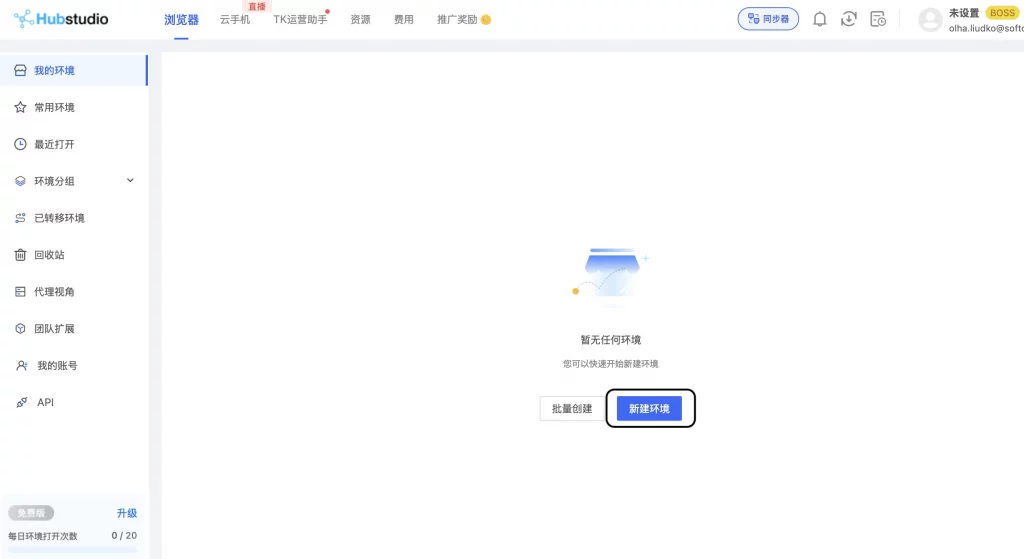
4. After registration, open the app and click Create a new profile.
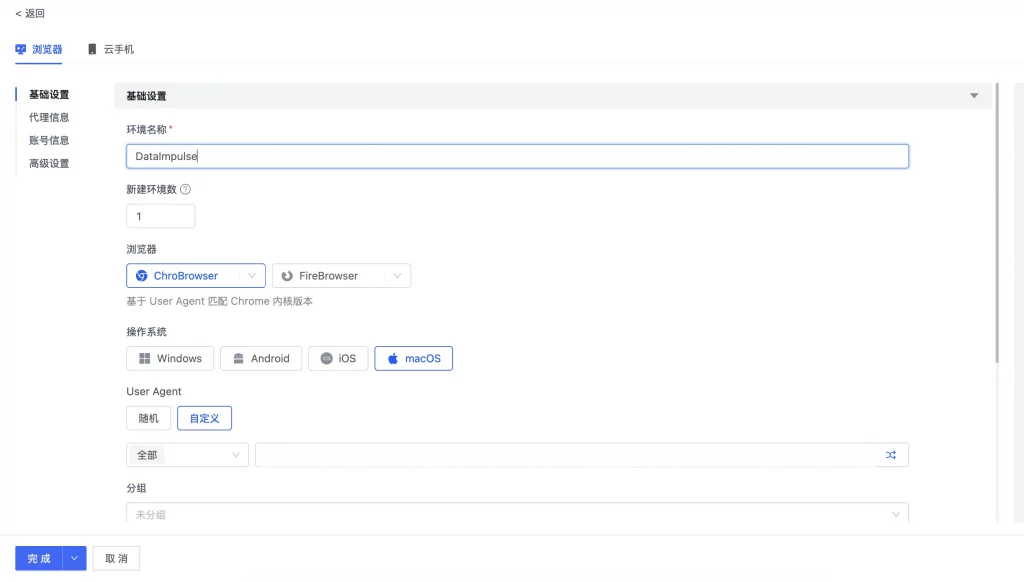
5. After that, you’ll be redirected to configure the settings for the freshly-created profile. You can name it, choose browser version (ChroBrowser/FireBrowser), OS, and user agent.
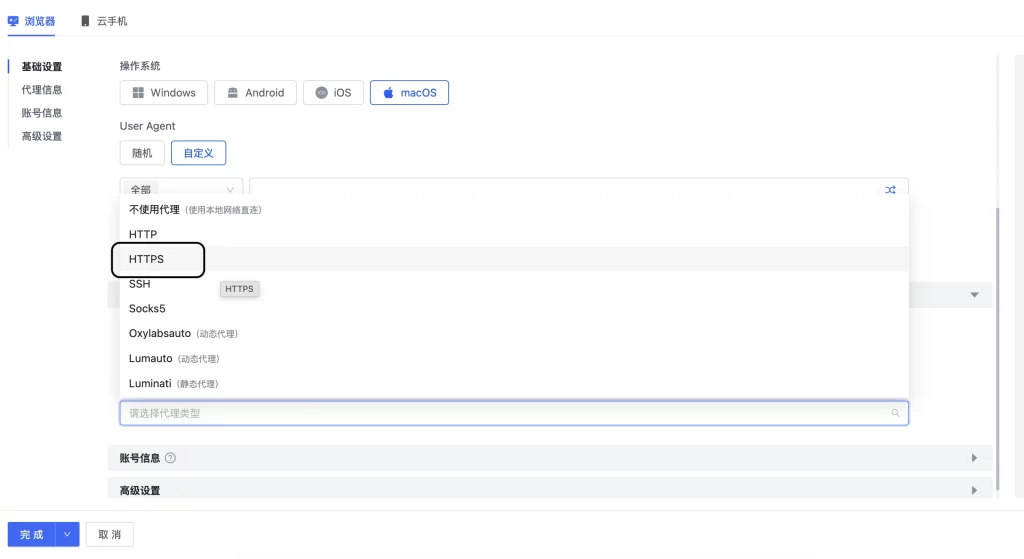
6. Click Proxy settings, choose HTTPS/SOCKS5, and paste your proxy credentials from DataImpulse dashboard.
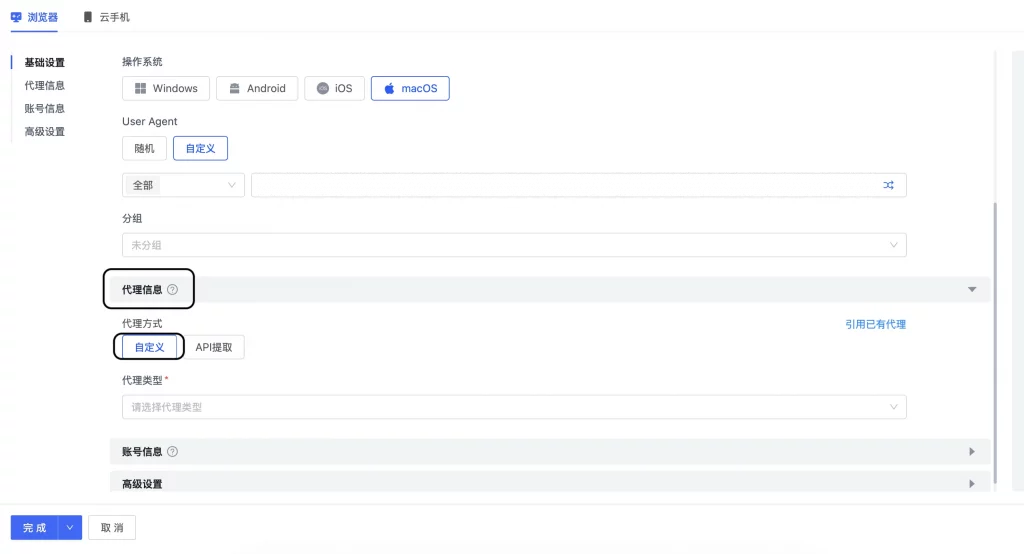
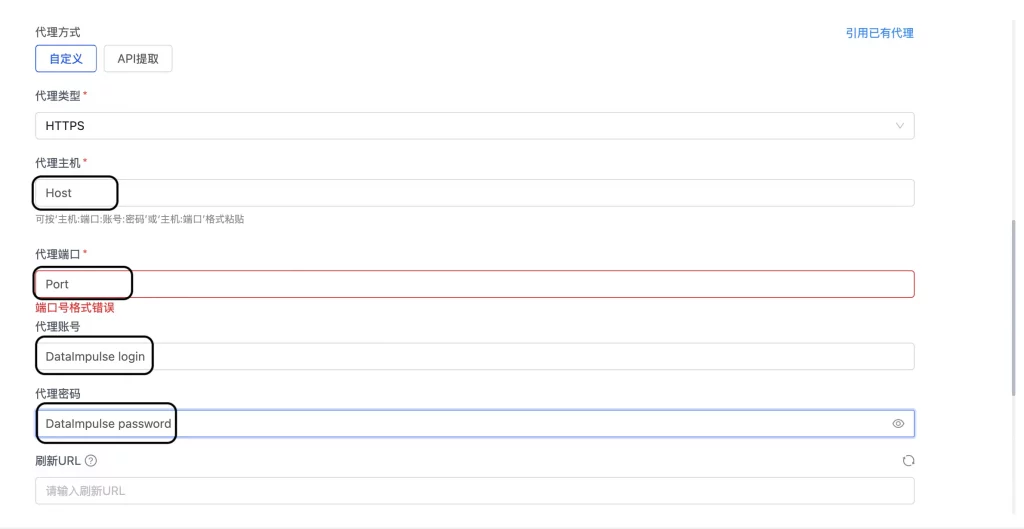
Host: gw.dataimpulse.com
Port: 823
User: Your DataImpulse login
Password: Your DataImpulse password
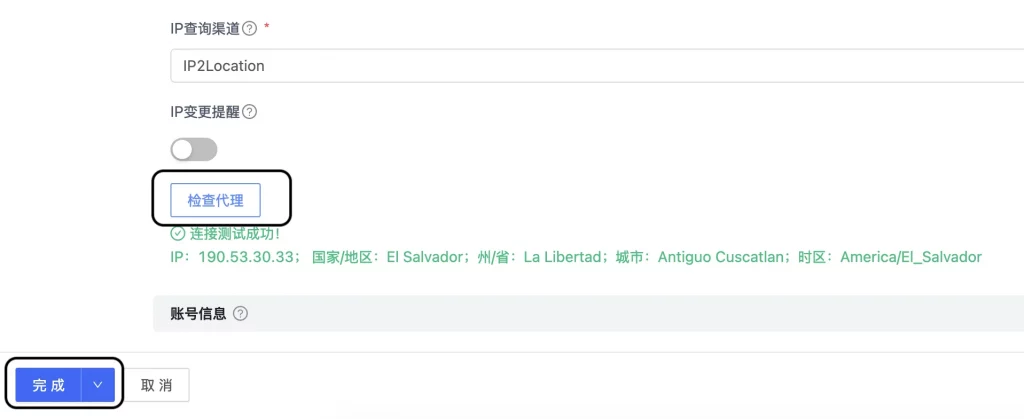
7. Select the proxy tool and click Check Proxy to verify the connection. Once you receive a successful result, click Save Profile to complete the setup.
8. Run the profile and enjoy your session. You can also check your new IP to make sure all the settings were configured correctly.

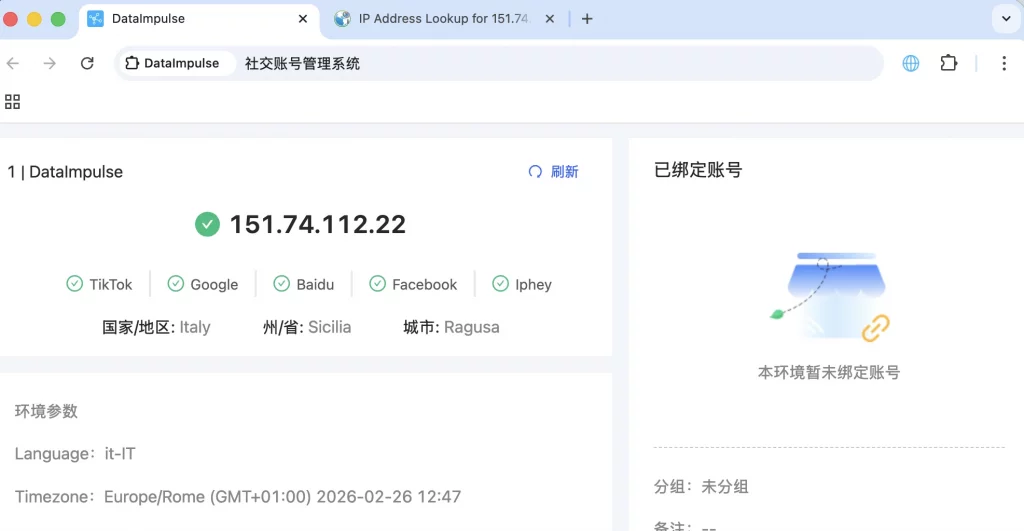
That is the final result, hope you got it.
DataImpulse provides top residential, mobile, and datacenter proxies for any practical use case: web scraping, automation, social media management, and much more. If you need any assistance with the DataImpulse dashboard, read our step-by-step guide, so nothing catches you off guard. For more support, contact our 24/7 professional team; they’re always there for you.
*This tutorial is intended for educational purposes only. We do not encourage or endorse any actions that violate platform policies, terms of service, or applicable laws. Users should always act responsibly and at their own risk.

 State/City/Zip/ASN Targeting