
How to connect DataImpulse Proxies to Nstbrowser: quick steps

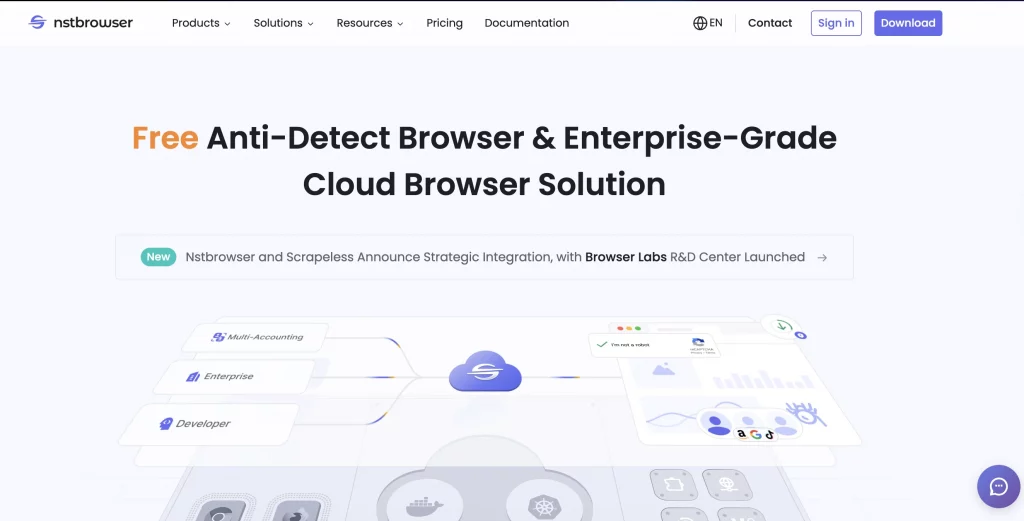
What is Nstbrowser?
Nstbrowser is a free-of-charge anti-detect platform with a cloud cluster and browser fingerprint. They offer a free plan if you’re not sure at first. If you’d like more features, there is a professional plan, which costs $30, and an enterprise one for $60. Their technical team of 150 people helps customers with customized solutions. Nstbrowser has a dedicated server for flexible configuration and stronger isolation. Self-hosting via Docker allows deployment on your own server or cloud environment; this way, users can control all service management.
This browser works best for:
- Testing campaigns in digital marketing
- Staying invisible while analysing competitors’ market
- Sales or support simultaneous tasks
Some of the main characteristics of Nstbrowser are:
- Pay-as-you-go plan
- Free API access
- Multi-profile management
- Compatible with Puppeteer, Playwright, and Selenium
- Cloud synchronization feature
- A wide range of customization options
- Nstbrowser RPA
- SSL transmission and storage encryption technologies, 2FA
- 24/7 customer service team
What are the weaknesses of Nstbrowser? Some customers mention a few complexities when logging into their accounts, and slow support response. Also, if you want to work on some high-volume enterprise operations, better look for another option.
Set up DataImpulse Proxies in Nstbrowser — What to do?
1. First of all, sign up for DataImpulse and start using the features on your dashboard. Go to the Proxy section and choose the plan you need. Make a note of the proxy credentials (login, password, host, port) provided by DataImpulse. We’ll need this info for the next steps.
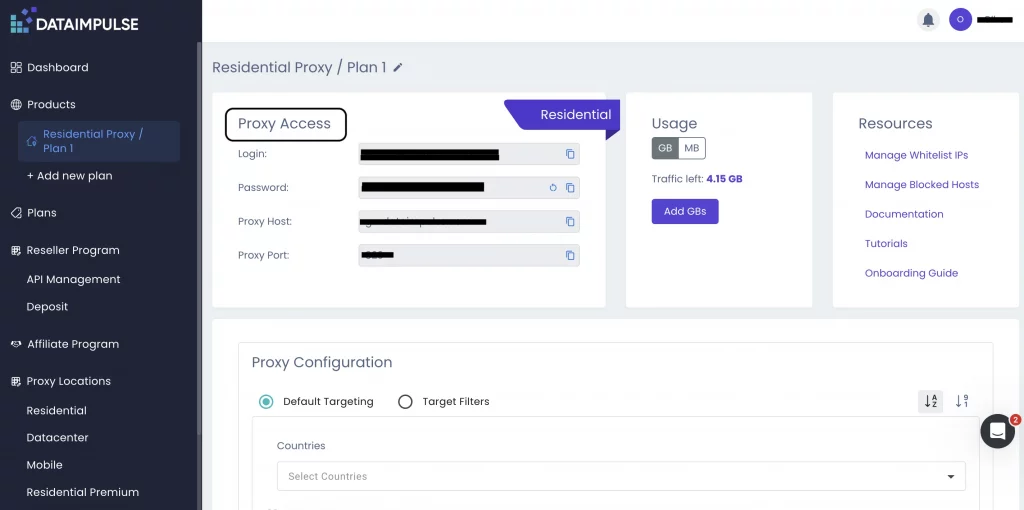
Not sure where to find your credentials? Check your DataImpulse dashboard or reach out to customer support for help.
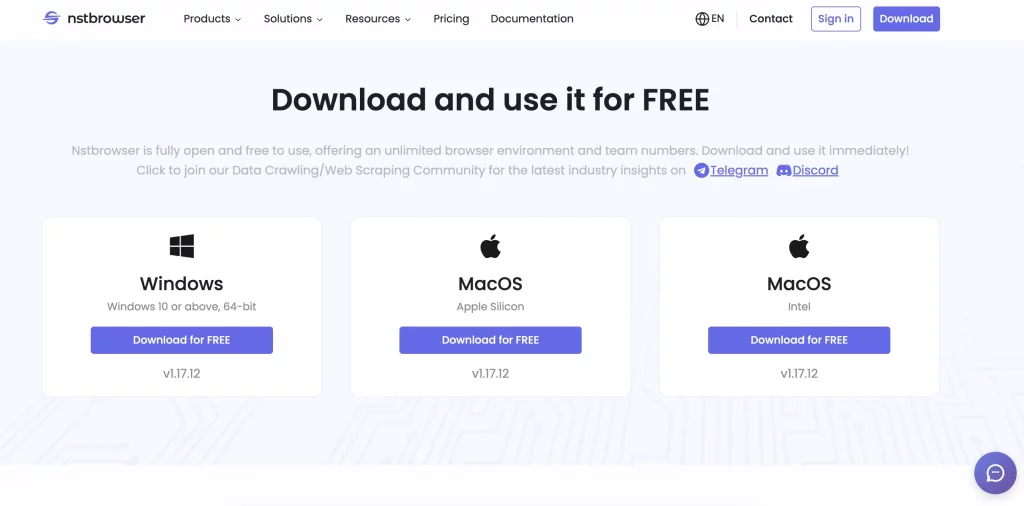
2. Check out the Nstbrowser website and download it for free. Choose your operating system; in our case, it’s MacOS. Sign up and verify your email. We recommend checking the spam folder.
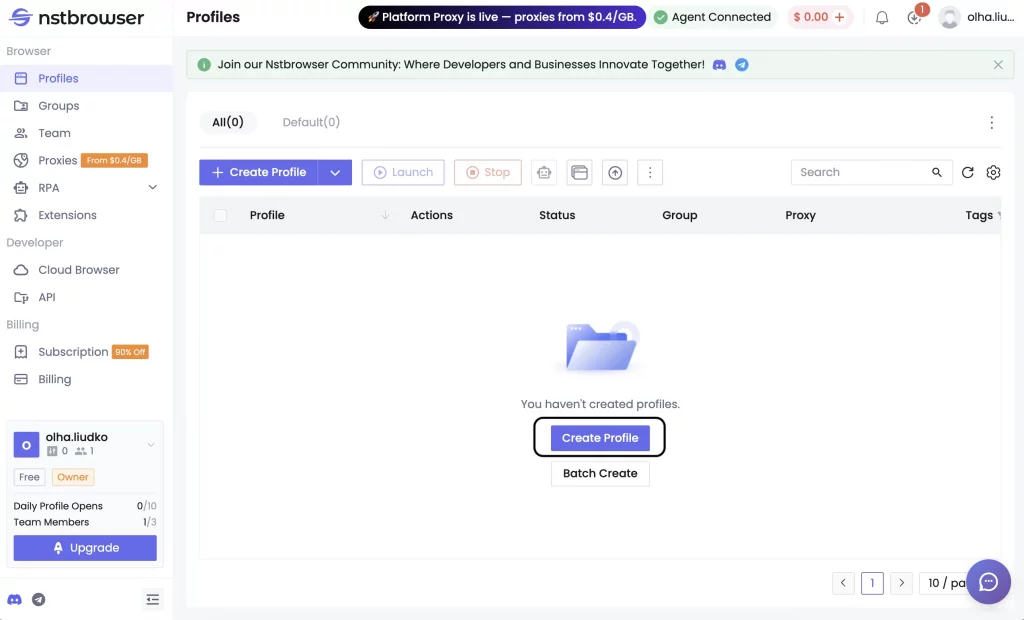
3. After signing up, let’s move to the key step: creating your profile. Firstly, click the Create profile button on the main dashboard page.
4. Fill in all the details for your profile. Name it and choose the operating system you want to work with.
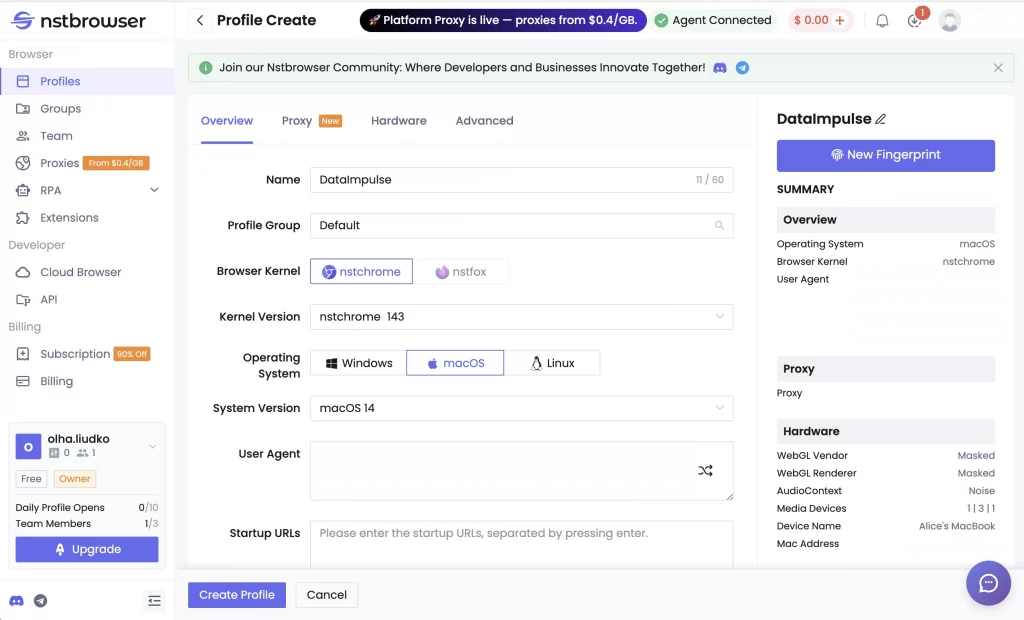
5. Go to the Proxy section at the top of the page and choose the Custom proxy option. Enter proxy URL. You can find it on your DataImpulse dashboard under Basic URL example.
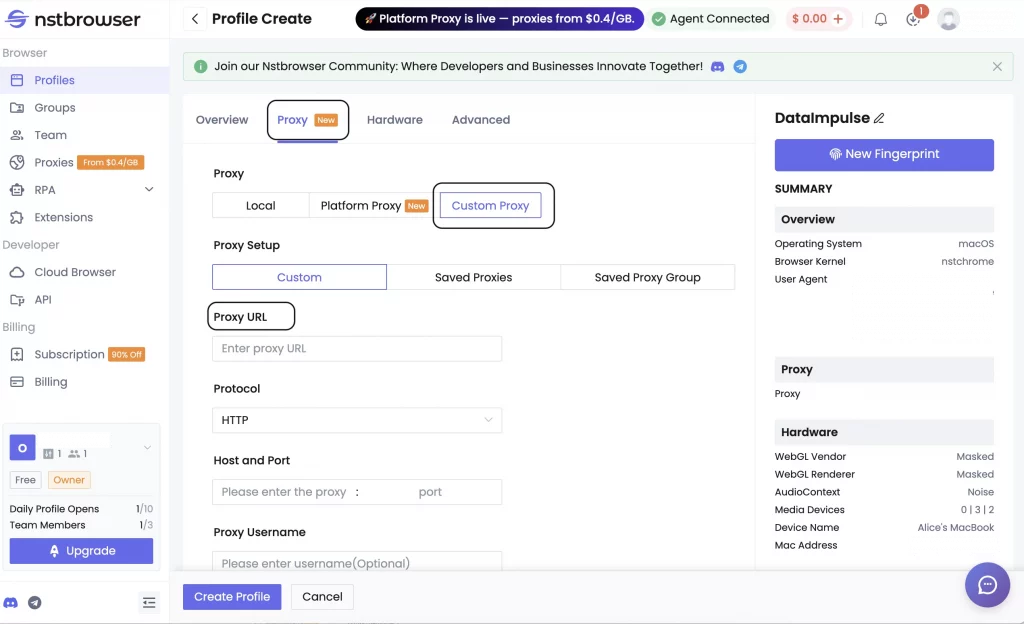
6. Select Protocol, the possible ones are HTTP, HTTPS, and SOCKS5. Then, copy your personal proxy details (host, port, login/username, password) and paste them in these fields.
Proxy: SOCKS5, or you can use the HTTP protocol
Host and port: gw.dataimpulse.com:823
Login: your DataImpulse username
Password: your DataImpulse password
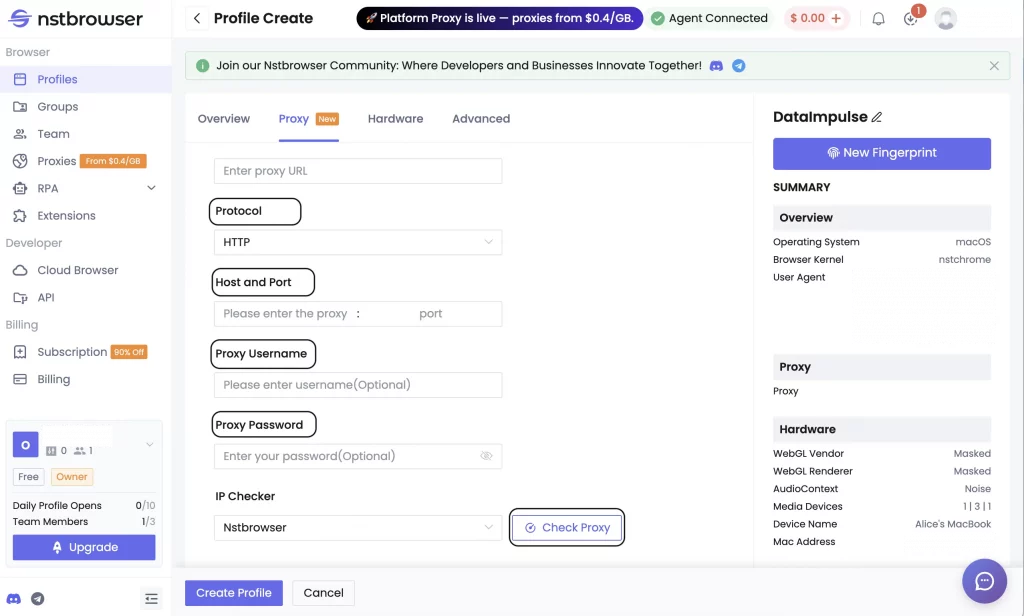
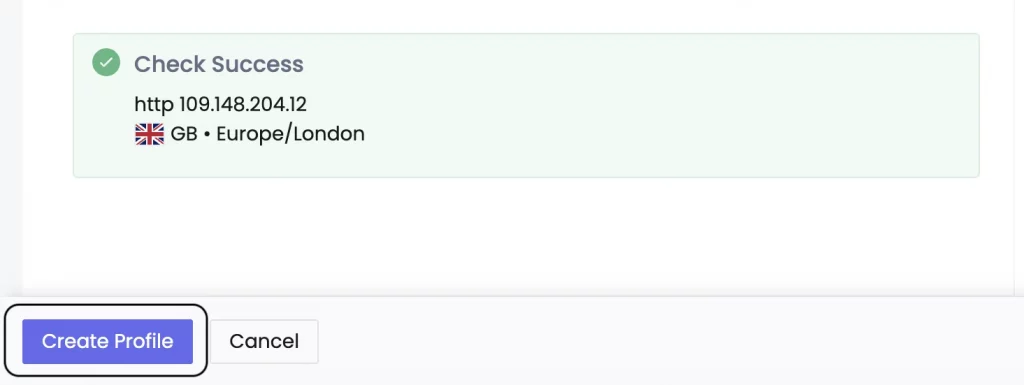
7. The next step is to check if your proxy works as needed. Choose IP checker from the drop-down menu, and click Check Proxy. You can also check IP and browser details in the Advanced Settings. After all these steps, click Create Profile.
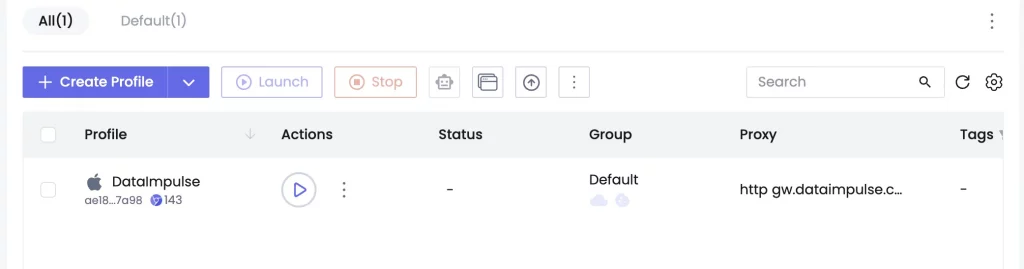
8. Finally, press the Play button and start browsing online.
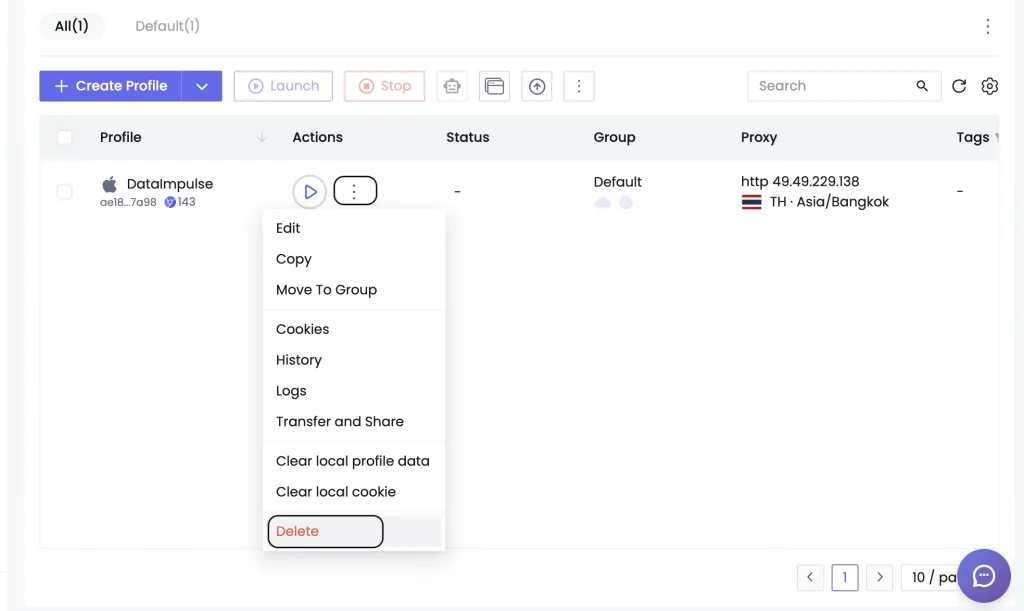
9. To disable the profile, click the three dots near the Play button and hit Delete.
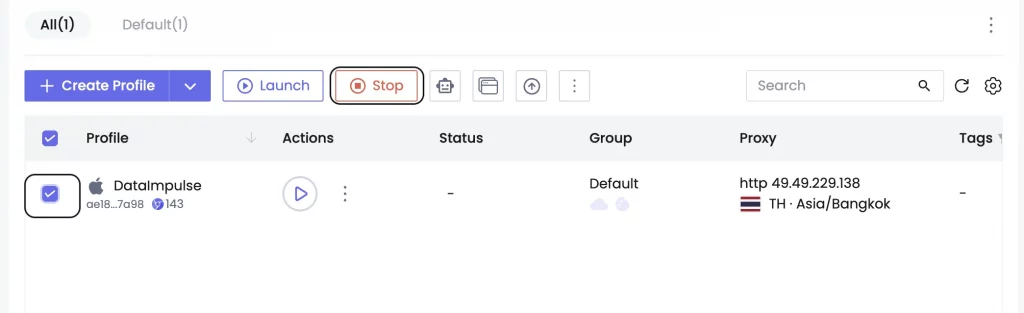
10. If you just want to stop it, then tick the box right near the Profile name and click Stop.
You’ve got it.
Our company provides ethically sourced residential, mobile, and datacenter proxies for any practical use case: web scraping, automation, social media management, and much more.
If you need any assistance with the DataImpulse dashboard, read our step-by-step guide, so nothing catches you off guard. For more support, contact our professional team; they’re always there for you.
*This tutorial is intended for educational purposes only. We do not encourage or endorse any actions that violate platform policies, terms of service, or applicable laws. Users should always act responsibly and at their own risk.

 State/City/Zip/ASN Targeting