
Integrate DataImpulse proxies with XLogin browser
XLogin browser is an anti-detect browser that offers distinct fingerprints, repetitive tasks automation, and more, with the opportunity to try all its features for free with a 3-day trial.
Combining it with DataImpulse proxies will add another layer of anonymity and security, making it hard to track your activities or disrupt your marketing strategy.
With XLogin, you can save up to 3000 profiles, create sub-profiles, share and transfer profiles, and more to make your work effective. The browser is a real help to professionals in web scraping, digital marketing, SEO, and others.
Key Facts
- XLogin is an anti-detect browser used for multiple accounts management. It creates isolated browser profiles with unique digital fingerprints.
- XLogin is a desktop tool and is typically used on Windows. The company offers a 3-day free trial.
- DataImpulse is a provider of residential, mobile, and datacenter proxies across 195+ countries. This tutorial explains how to use XLogin with proxies.
- To get started, download XLogin as a free trial, open the app, create a new profile, go to proxy settings, enter the necessary proxy details, and save them.
- XLogin users choose DataImpulse for easy-to-configure, ethically-sourced residential proxies.
Set up proxies in XLogin:
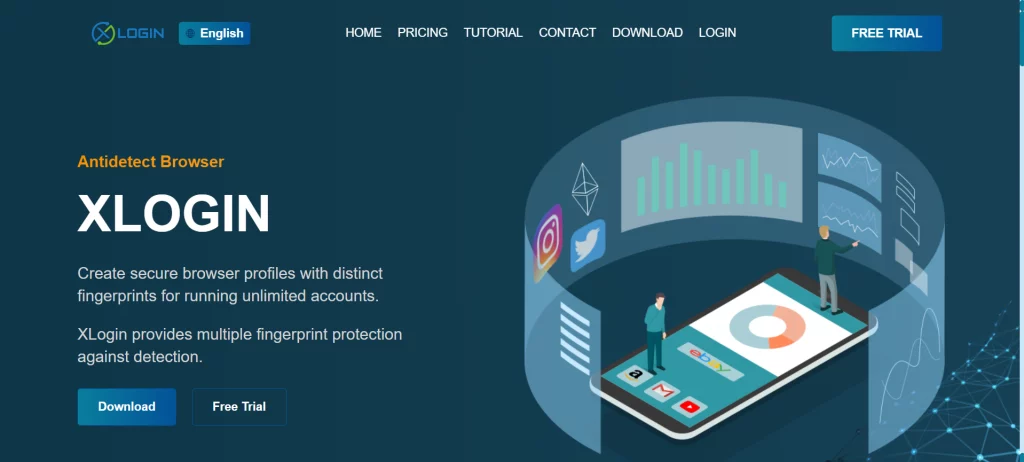
- Go to the official website https://xlogin.us/ and click the blue “Free Trial” button at the top-right corner.
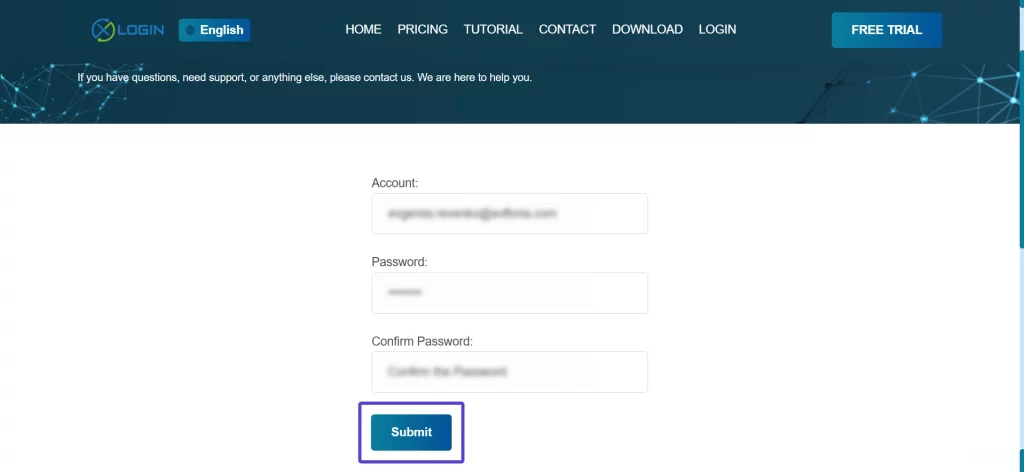
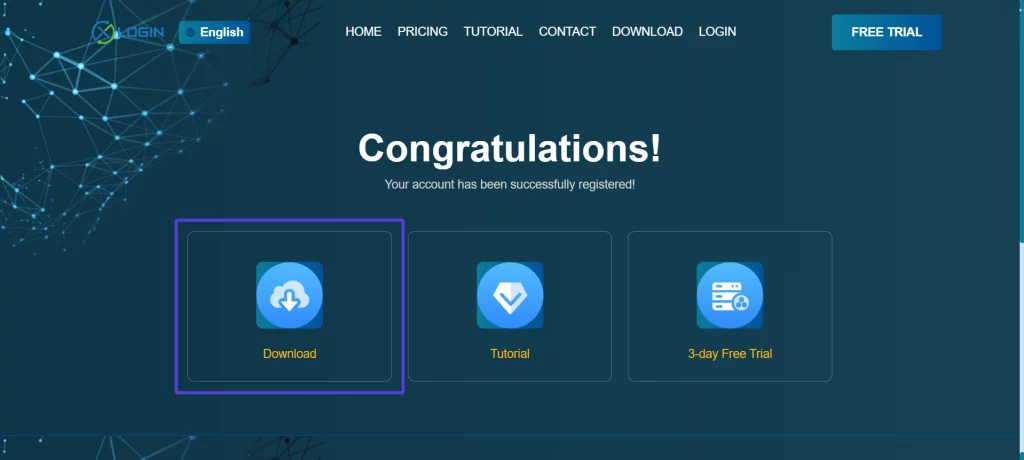
Register, and choose the “Download” option on the next page.
Note: The Xlogin browser may ask you to turn off anti-virus software or Windows Security. If you don’t want to do it, you may be asked to add XLogin to your anti-virus software or Windows security trust list. Please consider all the possible risks of using this browser. DataImpulse doesn’t bear the responsibility for any outcomes.
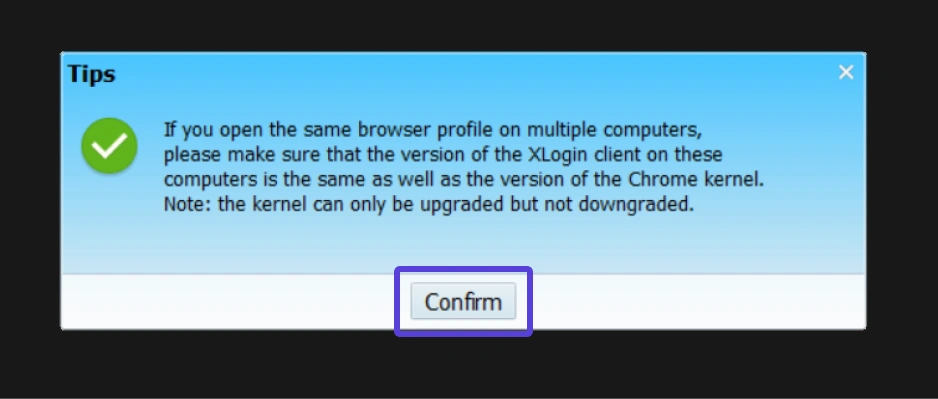
Follow the installation manager’s instructions and accept the terms of use.
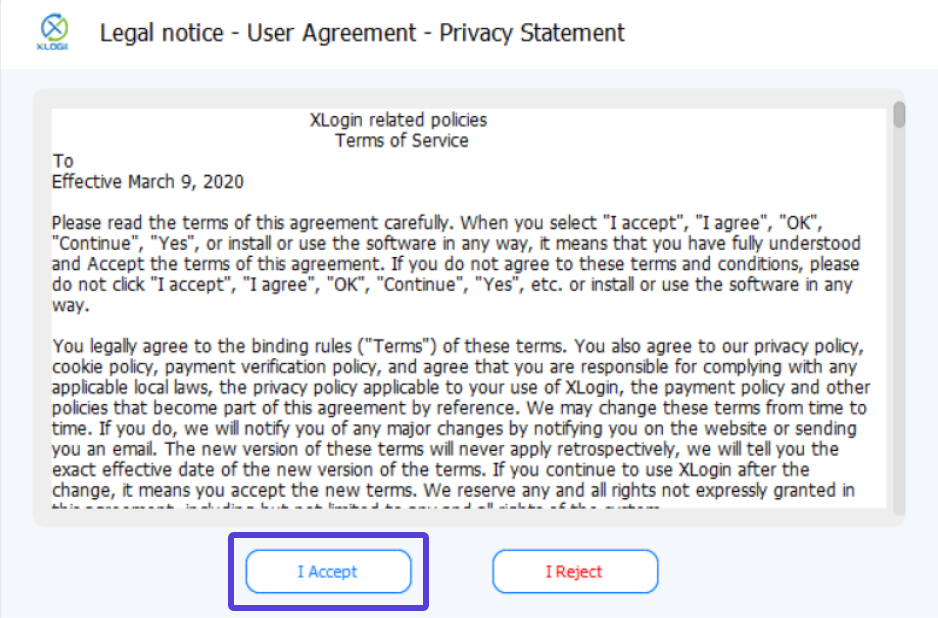
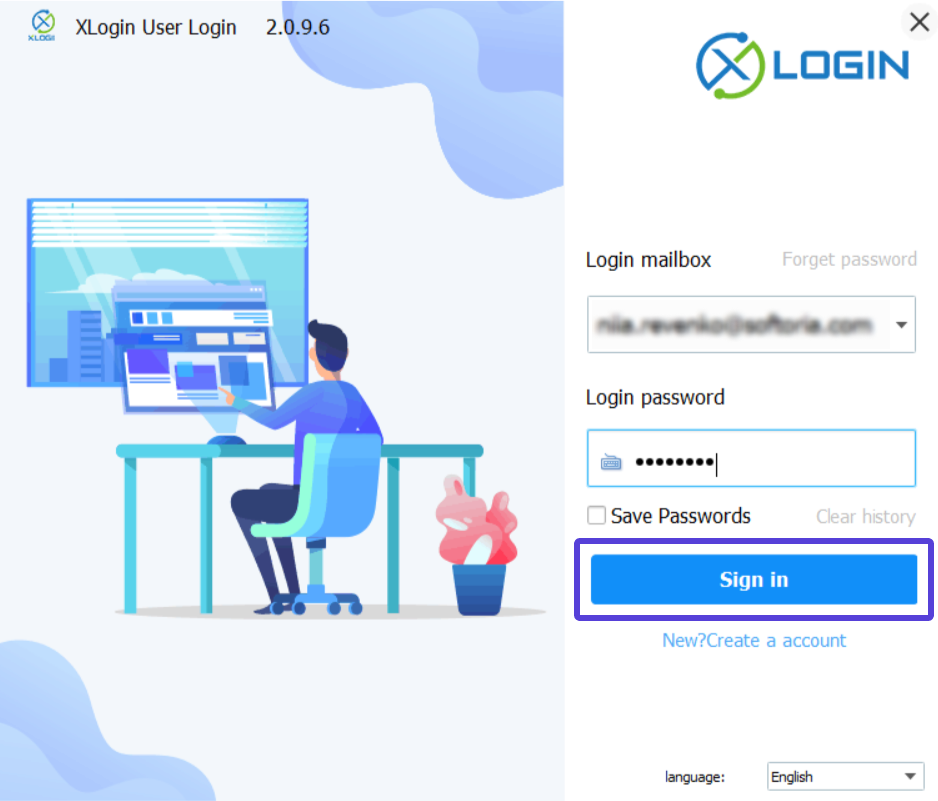
Once you’re done and the browser opens, log in using the same login and password you used while registering an account.
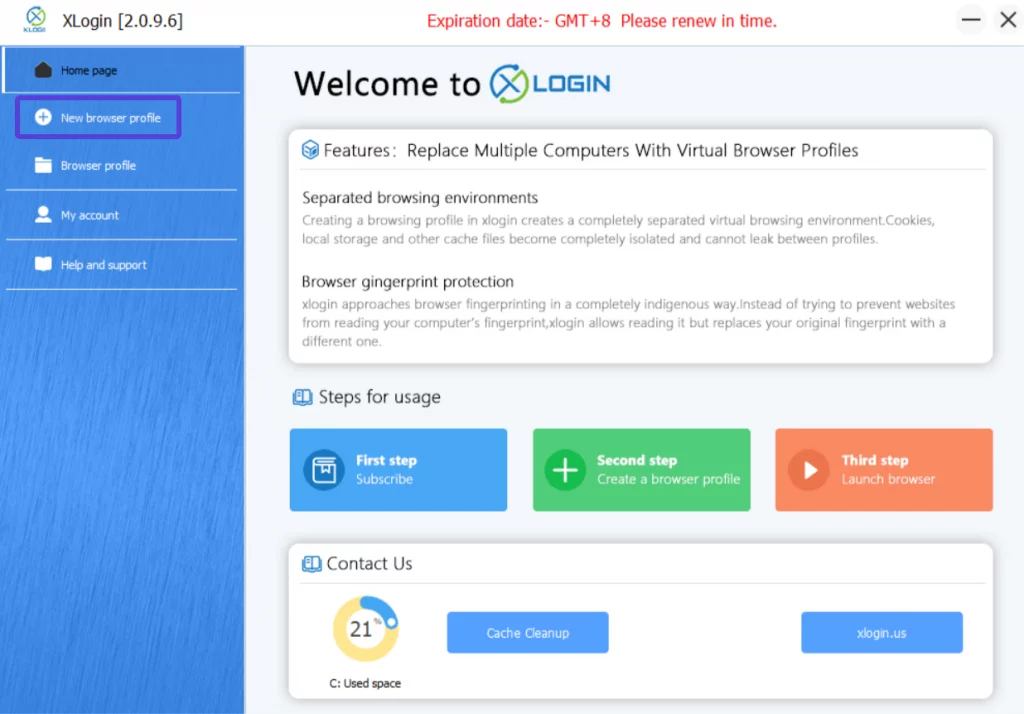
- Choose “New browser profile” from the left-side menu on the welcome page.
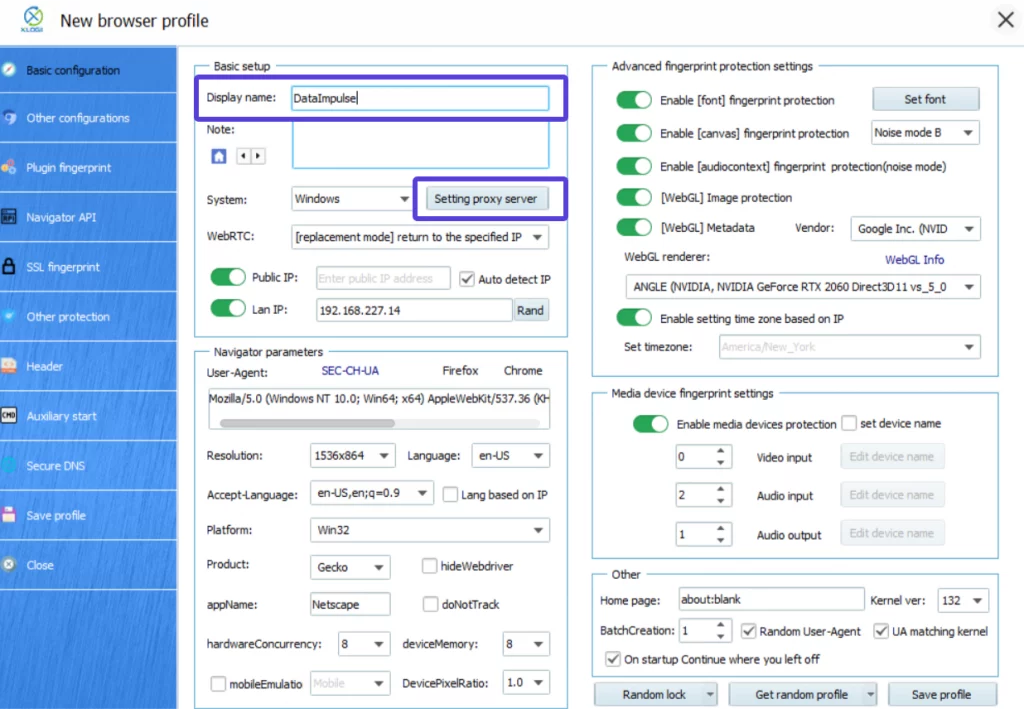
- Enter the profile name in the “Display name” section, then go to “Setting proxy server.”
- Toggle a switcher next to the “Enable proxy server” option, choose a proxy type, and enter DataImpulse credentials from the corresponding plan’s page. If you don’t know where to look for it, check out our detailed manual on managing your DataImpulse account. You can test proxies to make sure they work. Then, press “Save.”
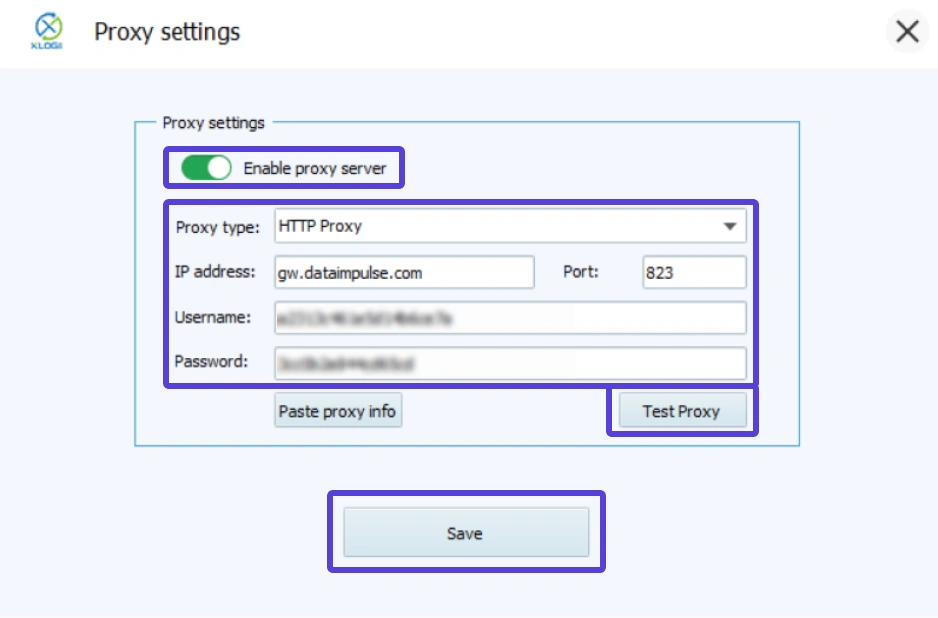
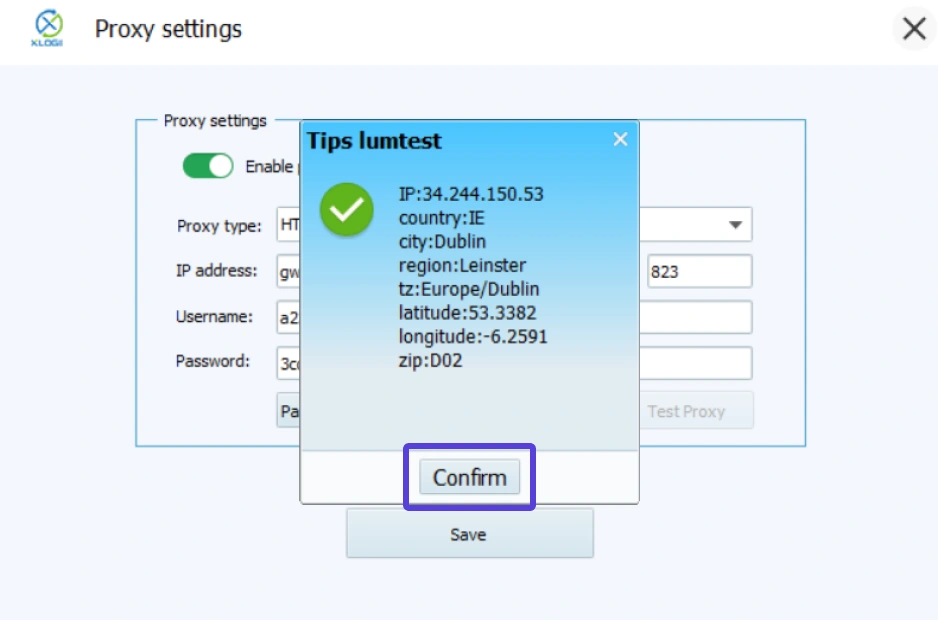
- After you adjust other settings, press “Save profile” in the bottom right corner.
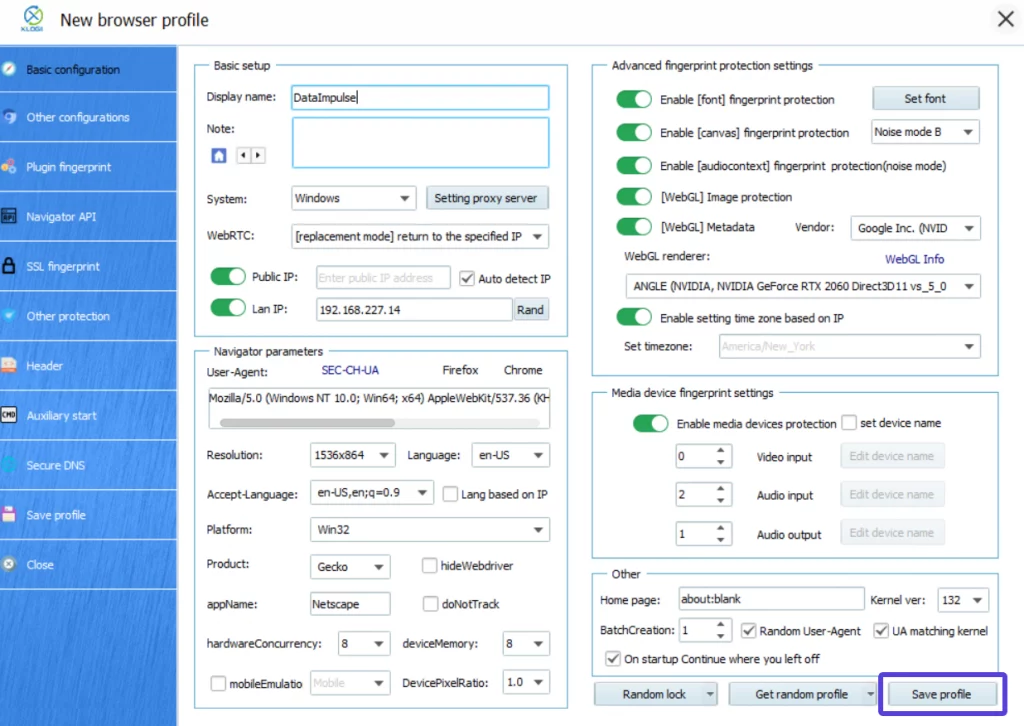
That’s all! You can now manage as many accounts as you need without worrying about possible disruption.
FAQ
Do I need a proxy to use XLogin?
XLogin can run without a proxy, but it is created for multi-account management, where proxies are vital. With no proxy, there is a risk of linking accounts.
Which type of proxy works best for XLogin?
Residential and mobile proxies work best because they provide IPs that look more natural. DataImpulse has a large network of more than 90 million ethically-sourced residential IPs and 16M+ mobile proxies. Traffic doesn’t expire.
How can I add a DataImpulse proxy to XLogin?
After downloading XLogin, open a browser profile, go to the proxy settings section, and enter the host, port, login, and password from the DataImpulse dashboard. Save the configuration.
My proxy is not connecting. What should I do?
Double-check your proxy configuration details or switch to another endpoint. If you’re using DataImpulse proxies, you can contact our expert team 24/7 via chat or email.
How do I check if my proxy works in XLogin?
Launch the profile and visit one of the IP checker websites to make sure the displayed IP matches the proxy location.

 State/City/Zip/ASN Targeting