
Configure Shadowrocket with proxies on your iPhone
Shadowrocket is a feature-rich iOS app that empowers you to take control of your internet browsing experience. It acts as a powerful proxy tool, allowing you to configure and manage proxy connections on your iPhone.
With Shadowrocket, you can enhance your privacy, establish smooth access, and enjoy a faster and more secure internet connection. Whether you’re a casual user or an advanced proxy enthusiast, Shadowrocket provides a user-friendly interface to customize and optimize your proxy settings.
Shadowrocket is exclusively designed for iOS devices, making it unavailable for Mac or Windows. You can easily acquire Shadowrocket by accessing the App Store on your iOS device. Once you locate the app, proceed to download and install it, enabling you to harness the power of Shadowrocket for your browsing needs.
Here’s how to set up DataImpulse proxies in Shadowrocket for more efficient performance.
Key Facts
- Shadowrocket is an iOS app with a user-friendly interface and is used to manage proxy connections on your iPhone.
- Shadowrocket doesn’t work on Android, macOS, or Windows. It is available on the App Store.
- DataImpulse is a provider of residential, mobile, and datacenter proxies across 195+ countries. This tutorial explains how to use Shadowrocket with proxies.
- To get started, download Shadowrocket, open the app, add a server, enter the necessary proxy details, and activate the proxy.
- Shadowrocket users choose DataImpulse for stable connections and a reliable global IP pool.
Setting up Shadowrocket with Proxies
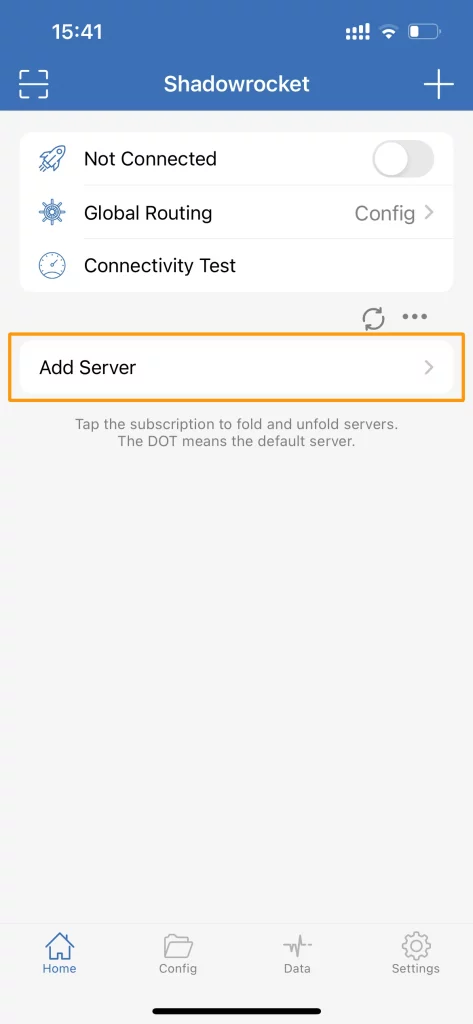
1. Add a server:
To begin using proxies with Shadowrocket, open the Shadowrocket app and select “Add Server.”
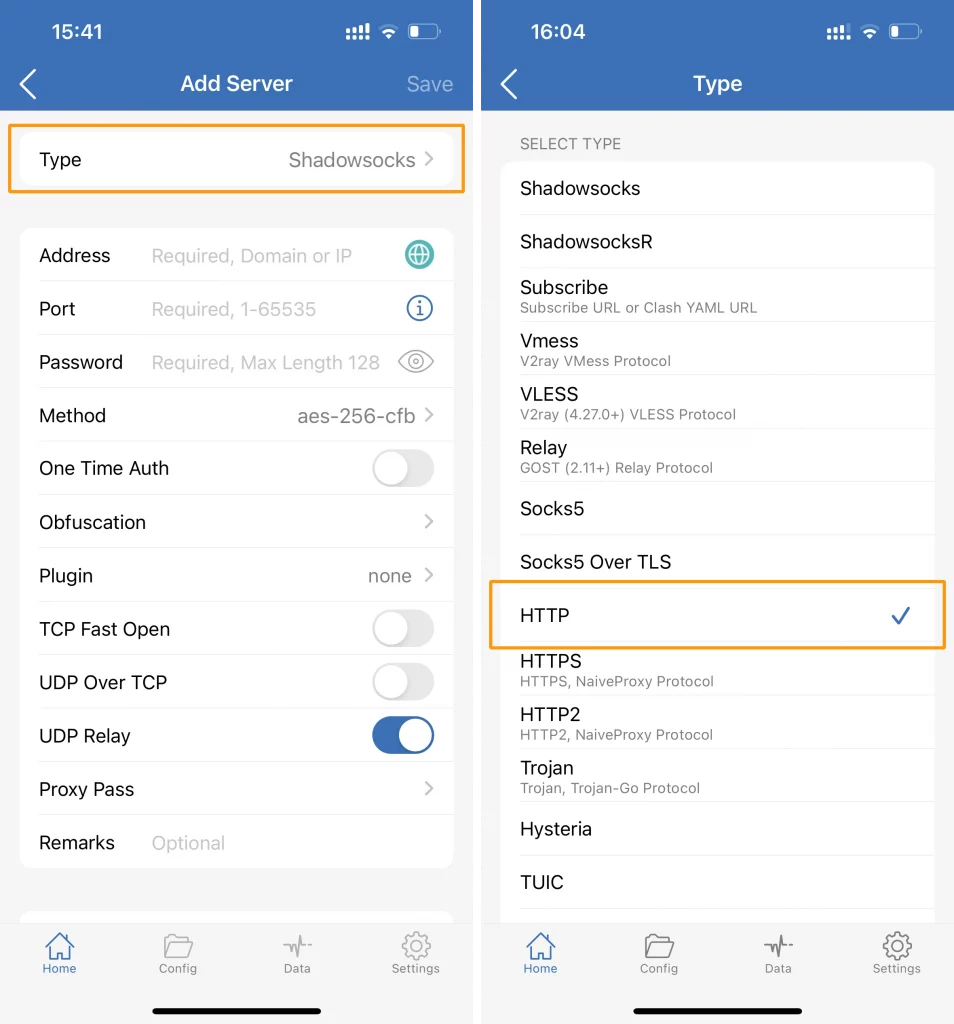
2. In the next window, tap on “Type.” Choose “HTTP” and return to the previous screen.
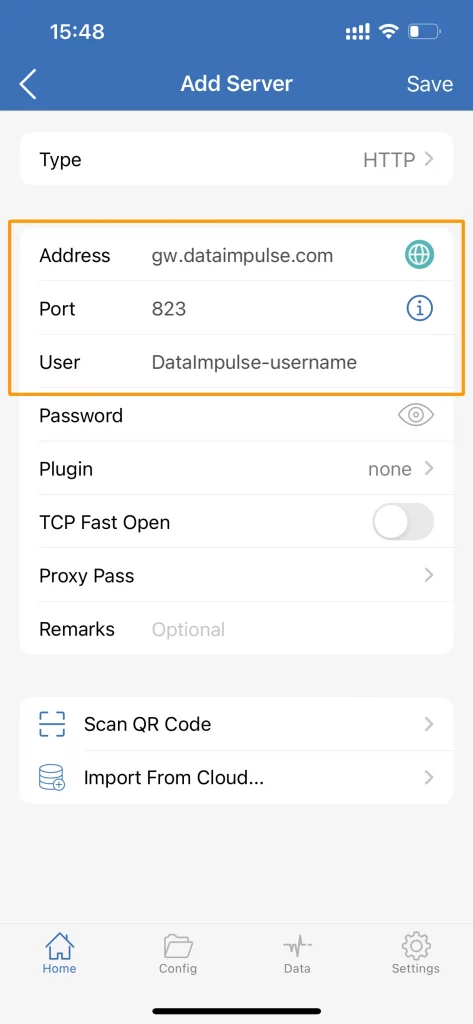
3. Enter proxy and authentication information: Enter the necessary proxy details and authentication information in the provided fields.
Connection type: HTTP proxy
New address: gw.dataimpulse.com
Port: 823
4. Activate the proxy: Once you have filled in the proxy details, you can activate the proxy by toggling the switch under “Not Connected.”
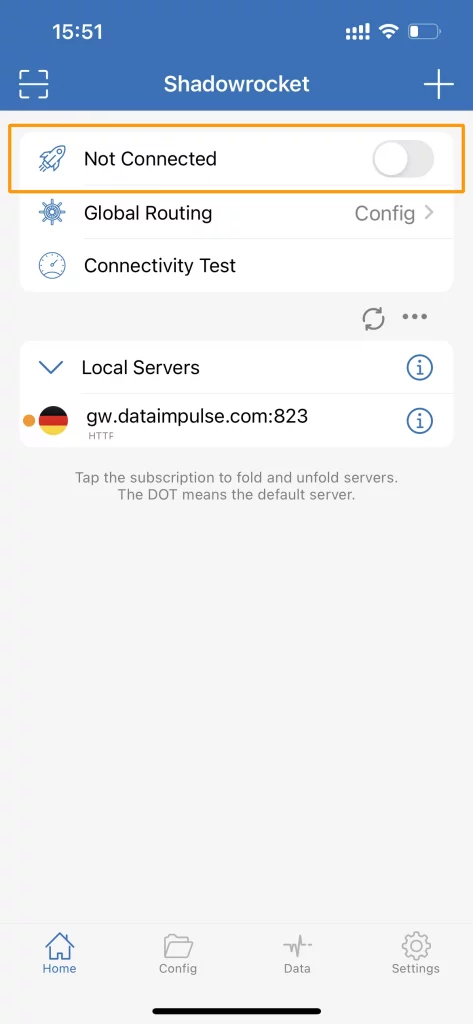
5. If this is your first time using Shadowrocket, you may receive an iOS prompt to add Shadowrocket to your VPN configurations and install the VPN profile. Tap “Add” and then “OK.” You will need to enter your iPhone passcode to confirm.
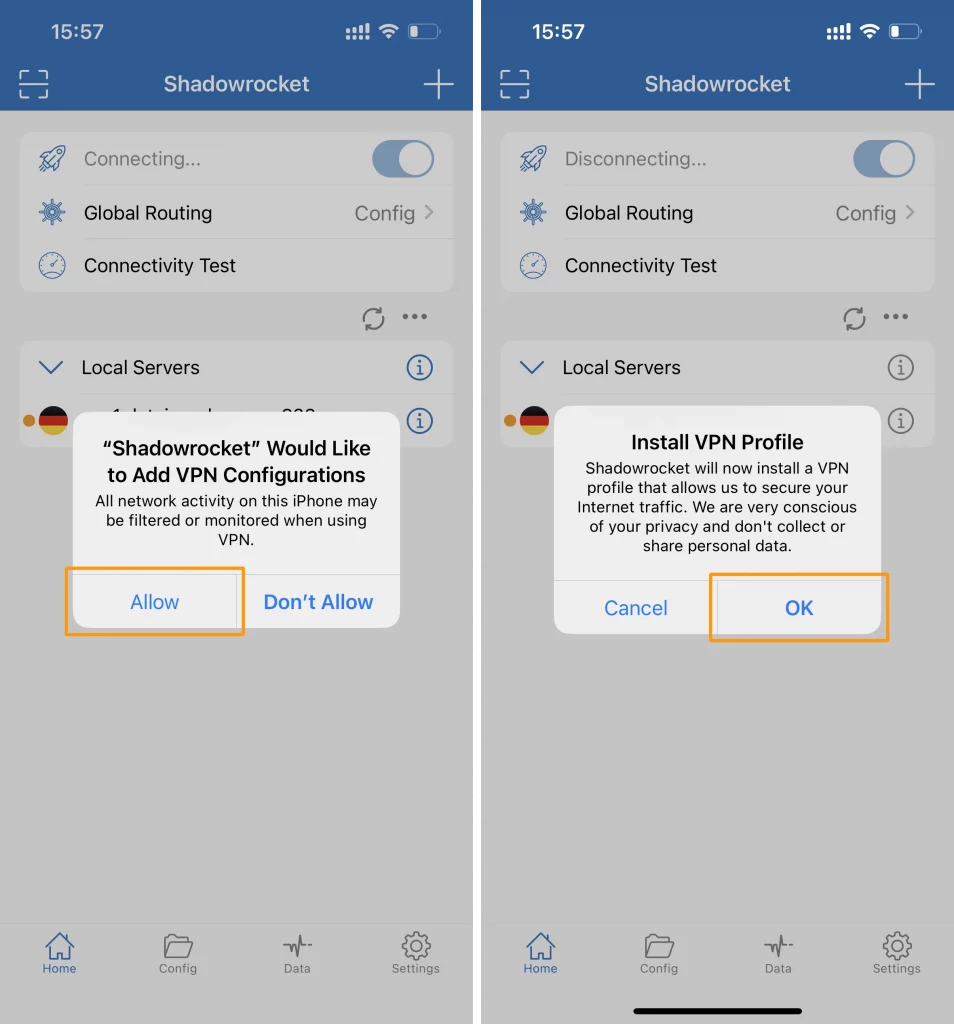
That’s it! The toggle at the top of the app should now be activated, indicating that your proxy is enabled.
FAQ
Do I need a proxy to use Shadowrocket?
No, you can use Shadowrocket without a proxy. However, the proxy helps you manage different IPs for various apps or accounts.
Which type of proxy works best for Shadowrocket?
SOCKS5 or HTTPS proxies are the most common among other types. Many users prefer residential proxies for low detection rates and anonymity. DataImpulse has a large network of more than 90 million ethically-sourced residential IPs with non-expiring traffic.
How can I add a DataImpulse proxy to Shadowrocket?
After downloading Shadowrocket from an App Store, go to ‘Add server’ and enter proxy details from the DataImpulse dashboard. Once done, activate the profile, and DataImpulse will route traffic through the selected proxy.
My proxy is not connecting. What should I do?
Double-check your proxy configuration details or switch to another endpoint. If you’re using DataImpulse proxies, you can contact our expert team 24/7 via chat or email.
How do I check if my proxy works in Shadowrocket?
Launch the profile and visit one of the IP checker websites to make sure the displayed IP matches the proxy location.

 State/City/Zip/ASN Targeting