
How to configure proxies in Psiphon Pro
Psiphon Pro is a cross-platform app that allows you to get over censorship and blocks and enjoy the free Internet. It is an official app that you can get from trusted sources like the Play Store. The app is quick to install and it doesn’t need much space. It also blocks access to suspicious websites. You can have all of this, even with a free version.
Paired with DataImpulse proxies, it helps you ensure stable access to necessary content, popular social media, and more and stay in touch with the world, latest trends, and news.
In this tutorial, we focus on configuring proxies with Psiphon for Android. However, the process is pretty similar for iOS and your personal computer.
Key Facts
- Psiphon Pro is a tool that uses SSH and HTTP protocols to secure your internet connections for unrestricted browsing.
- Psiphon Pro supports Windows, Android, and iOS, with additional availability options for macOS.
- DataImpulse is a provider of residential, mobile, and datacenter proxies across 195+ countries. This tutorial explains how to use Psiphon Pro with proxies.
- To get started, download Psiphon Pro from the Play Store, open the app, choose proxy settings, enter the necessary proxy details, and activate the proxy.
- Psiphon Pro users choose DataImpulse for high-speed connections and consistent access.
How to set up DataImpulse proxies in Psiphon Pro
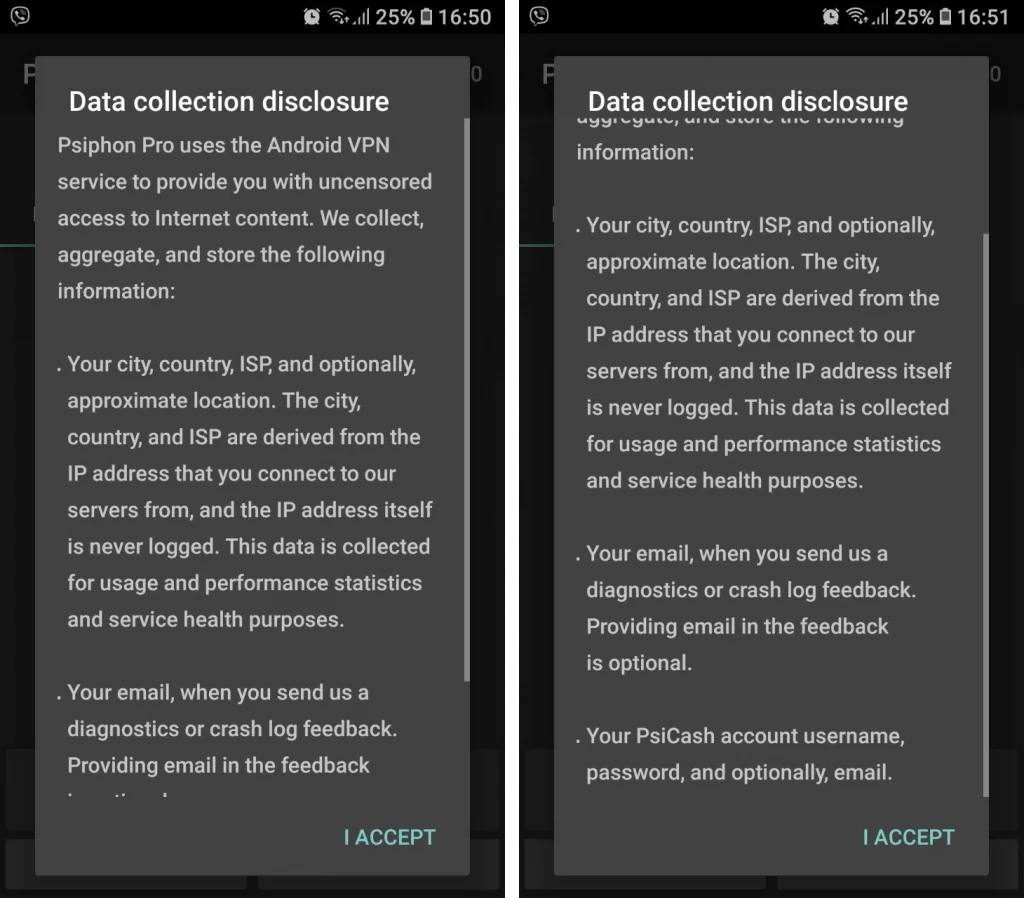
1. First, open your DataImpulse dashboard and navigate to the necessary plan tab. You will have to copy your credentials from here. Then, go to the Play Store and download the app. When you launch it for the first time, you will see a note on what types of data the app collects. To continue, press “I accept.”
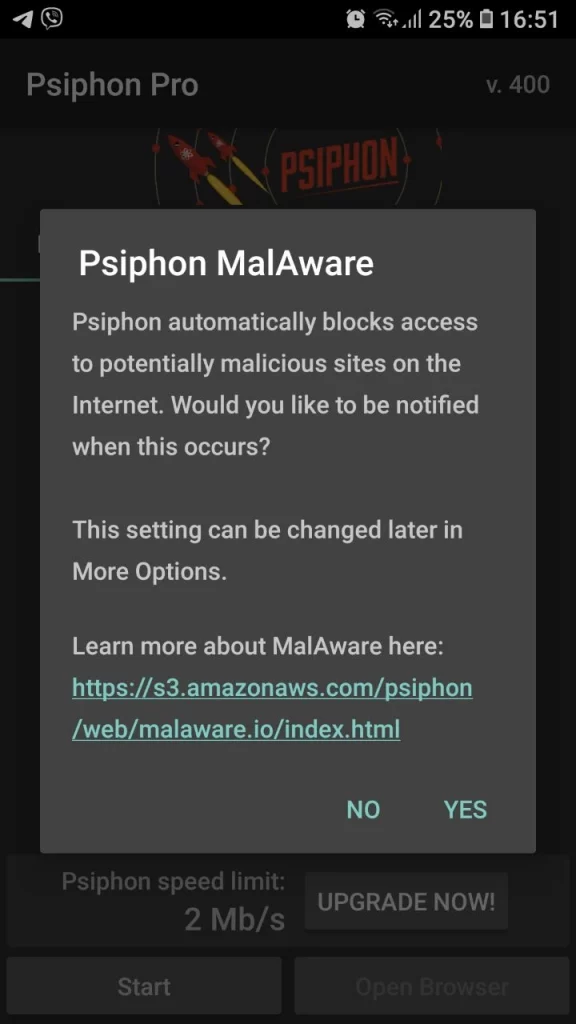
2. Then, the app will ask whether it should notify you when it blocks access to a suspicious website. Press “Yes” or “No”.
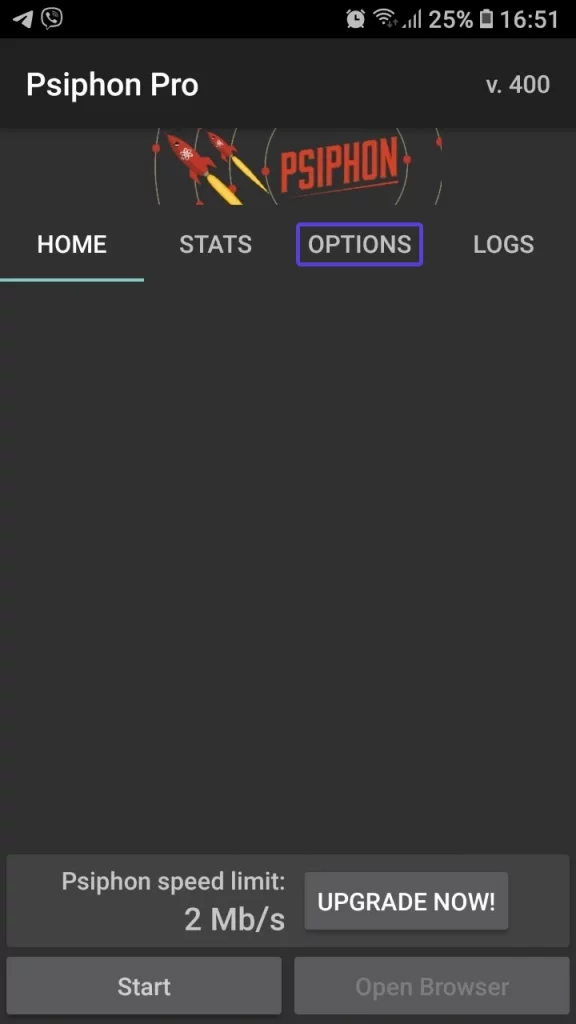
3. After that, you will end up on the “Home” tab, and here you need to switch to the “Options” tab.
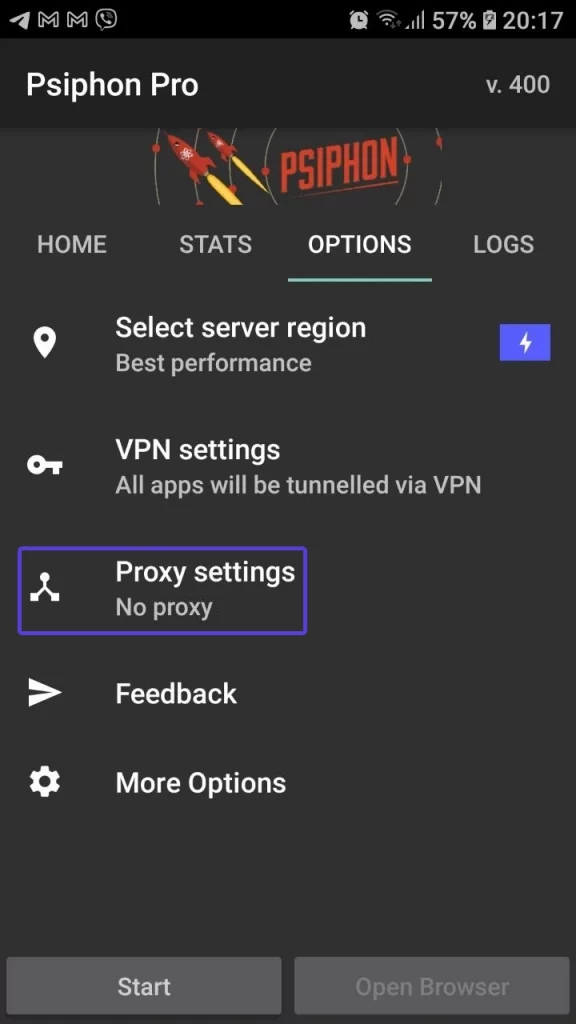
4. Now, choose the “Proxy settings” line.
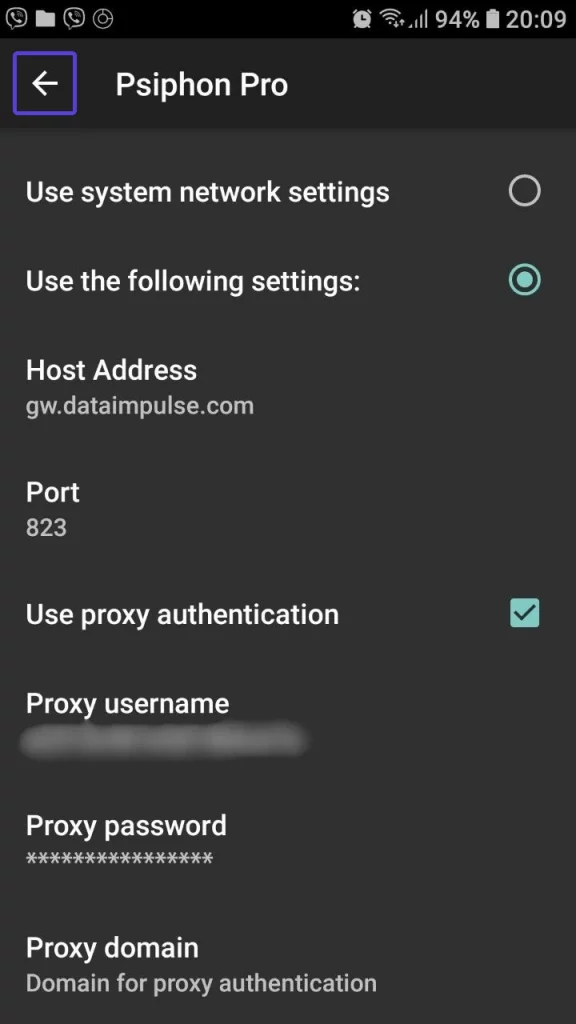
5. If the “Connect through an HTTP Proxy” feature isn’t active, enable it. Then, choose the “Use the following settings” option.
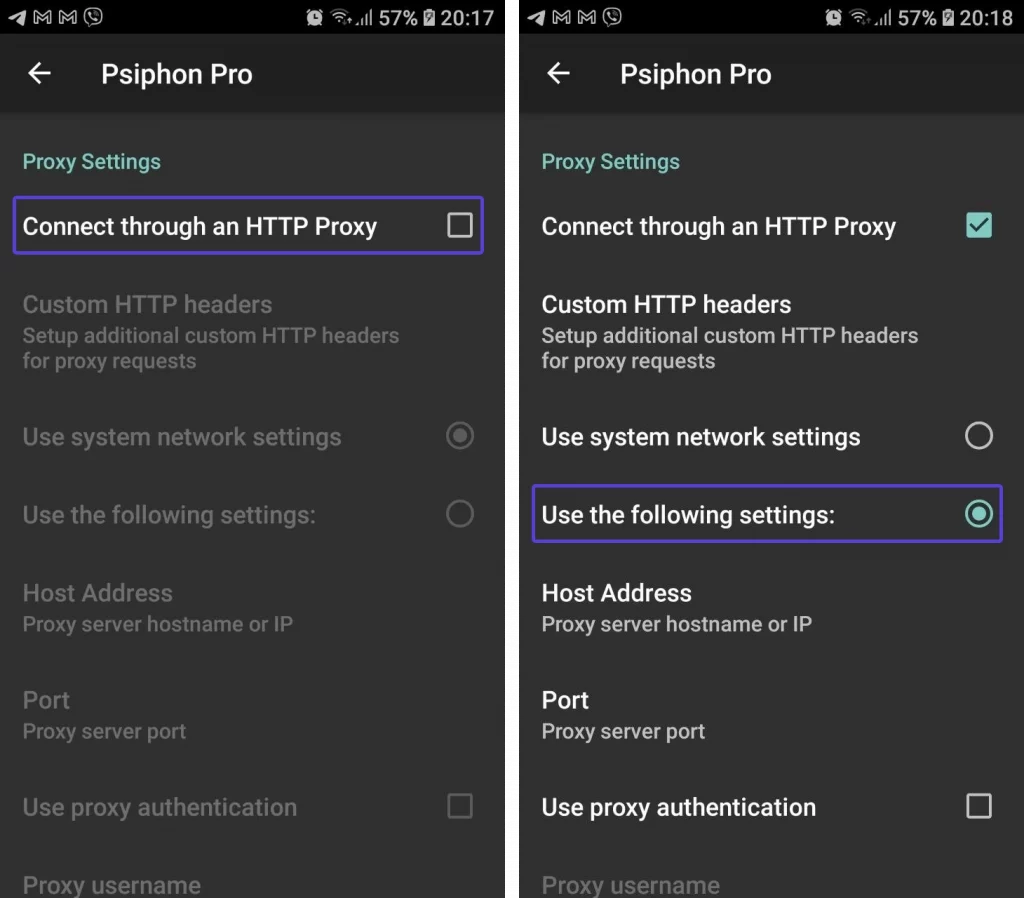
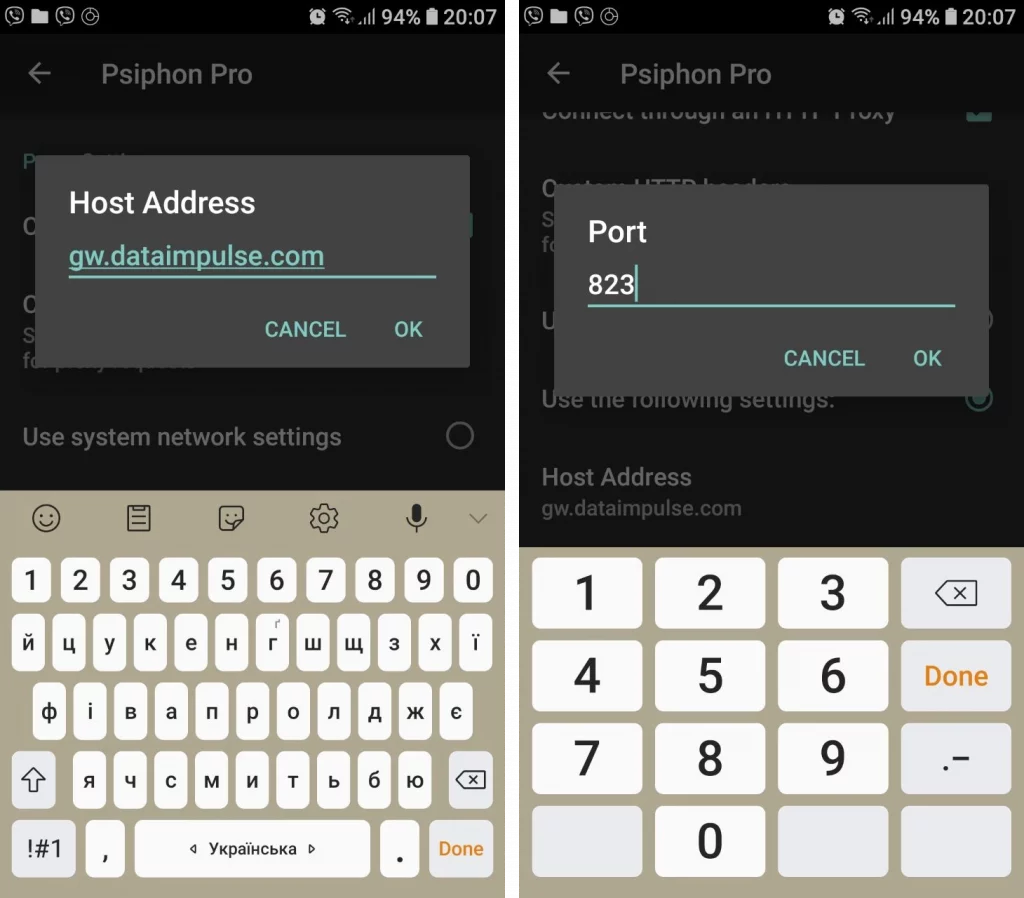
6. Fill in the “Host Address” and “Port” fields. Click “Ok” to save settings.
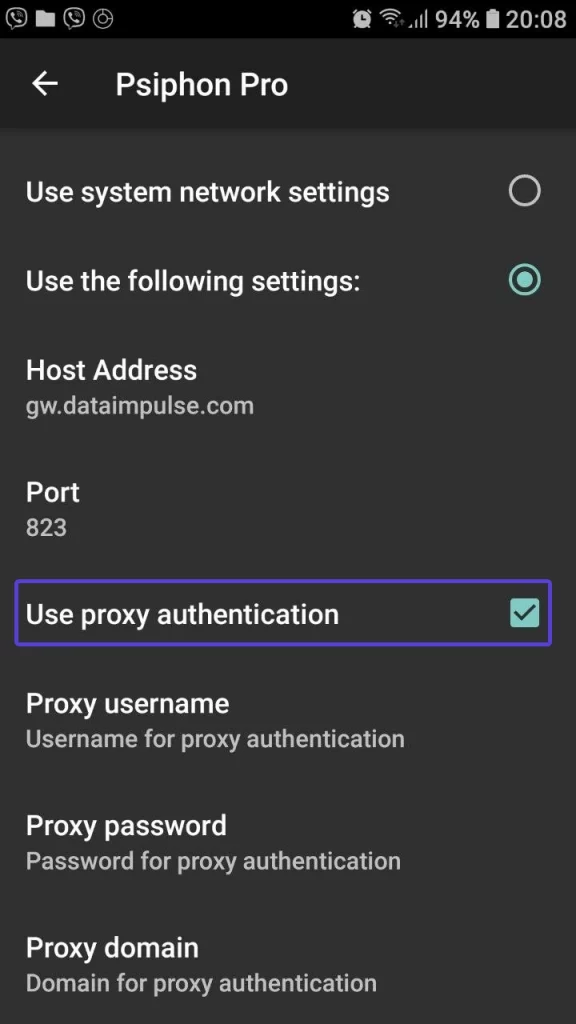
7. Next, enable the “Use proxy authentication” feature. When you do so, the next fields will become available.
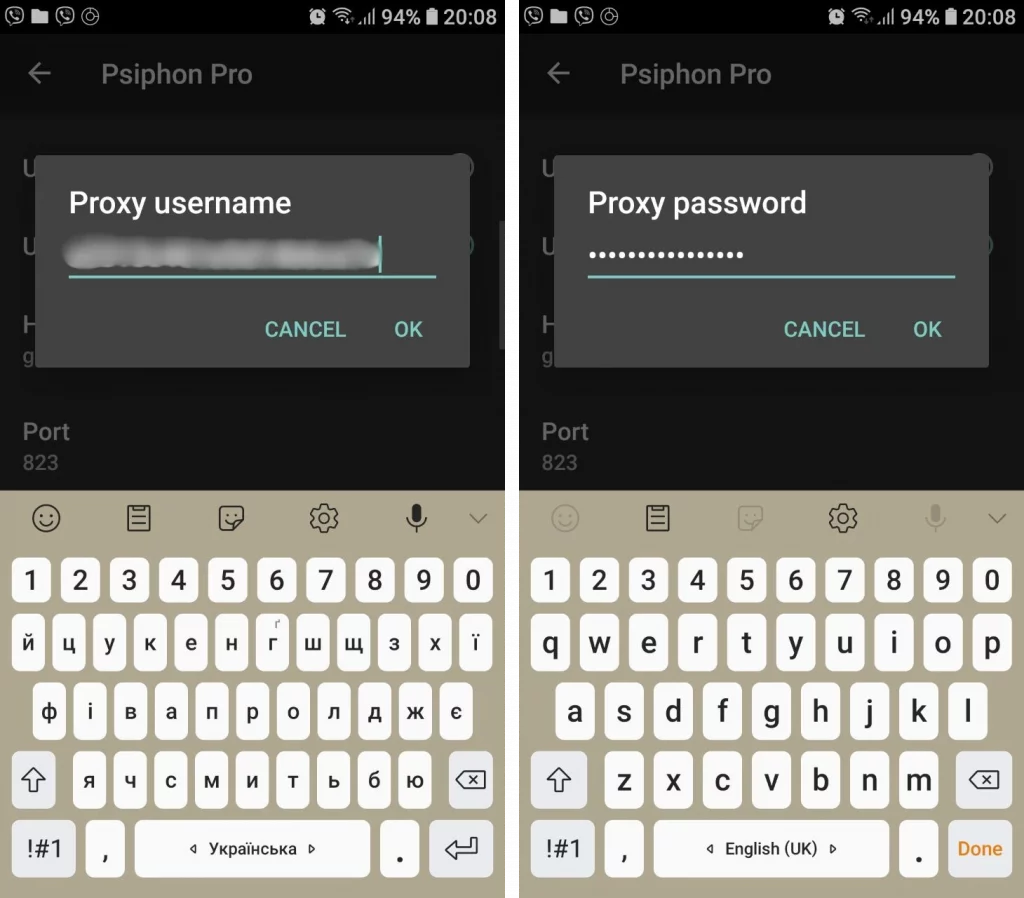
8. Paste your login into the “Proxy username” field and your password into the “Proxy password” field.
9. After that, press the arrow sign in the top-left part of the screen to go back. The app will save your settings automatically.
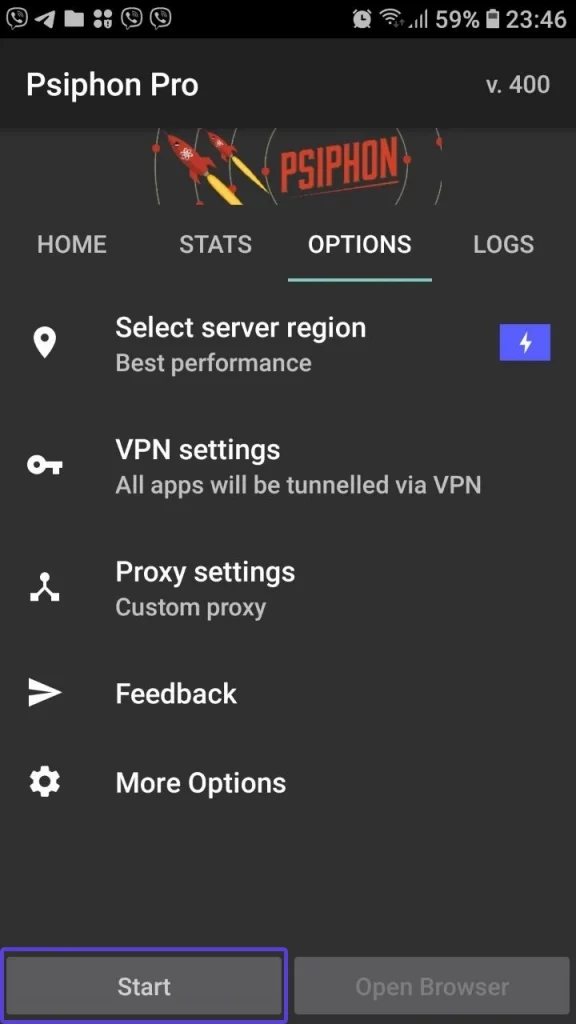
10. The final step is to press the “Start” button in the bottom-left corner of the screen.
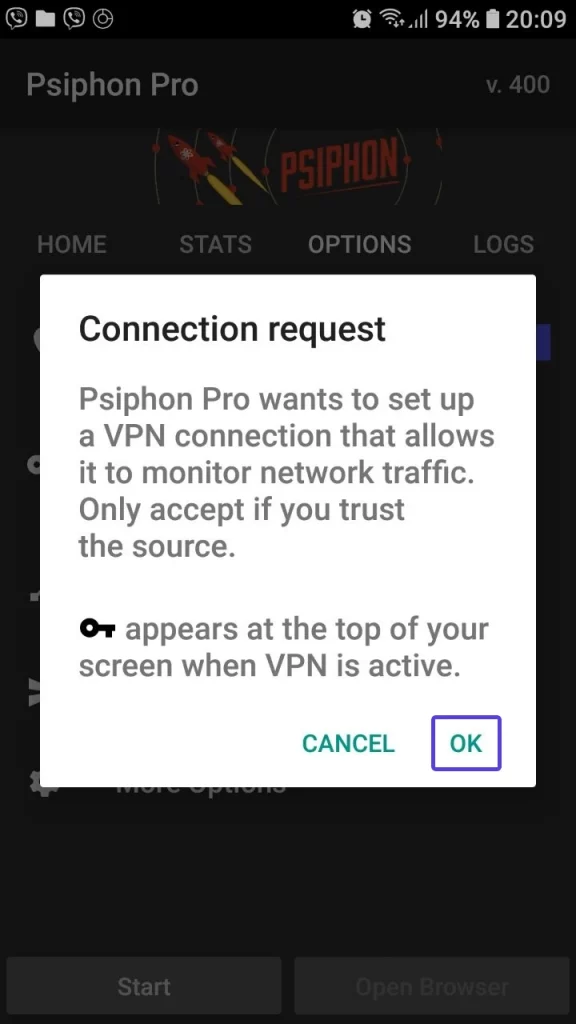
Once you do so, the app may ask for your permission to create a tunnel. Click “OK” to proceed.
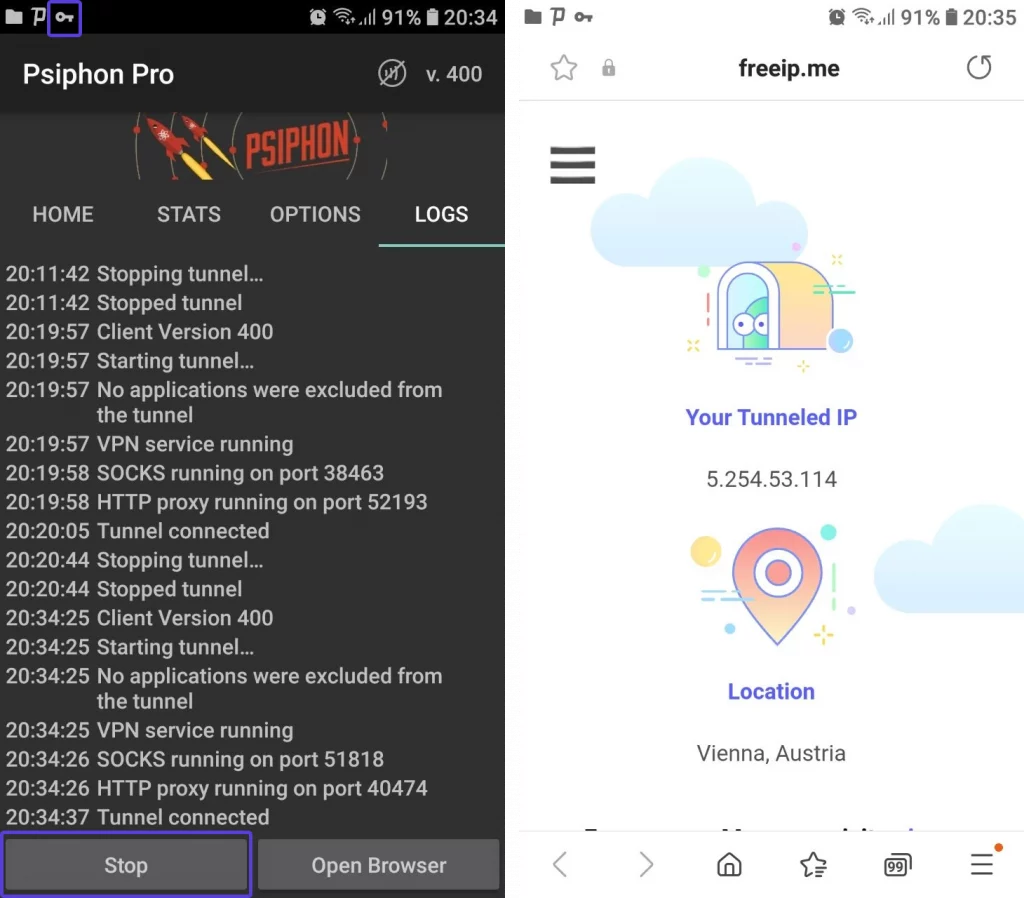
If everything works correctly, you will see a key sign on the notification bar. The app will redirect you to the browser page that shows your tunneled IP and location. If you go back to the app, you will see a detailed text description of what it is doing right now. To stop the app, press the “Stop” button.
That’s what it takes to configure proxies in Psiphon! Now, you can surf the Net without stumbling upon an unreliable connection.
FAQ
Do I need a proxy to use Psiphon Pro?
No, Psiphon Pro operates without a proxy by default. However, the proxy improves routing control and helps you access specific IP locations.
Which type of proxy works best for Psiphon Pro?
Many users prefer residential proxies for low detection rates and anonymity. DataImpulse has a large network of more than 90 million ethically-sourced residential IPs with non-expiring traffic.
How can I add a DataImpulse proxy to Psiphon Pro?
After downloading Psiphon Pro, go to the proxy configuration section and enter proxy details from the DataImpulse dashboard. Once done, activate the profile, and DataImpulse will route traffic through the selected proxy.
My proxy is not connecting. What should I do?
Double-check your proxy configuration details or switch to another endpoint. If you’re using DataImpulse proxies, you can contact our expert team 24/7 via chat or email.
How do I check if my proxy works in Psiphon Pro?
Launch the profile and visit one of the IP checker websites to make sure the displayed IP matches the proxy location.

 State/City/Zip/ASN Targeting