
How to Set Up a Proxy in SessionBox
Dealing with extensive web usage using standard browsers can be challenging, especially considering the lack of identity protection. However, there are alternative options available that can enhance your browsing experience by providing faster speed, scalability, and improved security measures.
SessionBox offers a secure and anonymous way to manage numerous active web browsing sessions. It enables you to use multiple accounts simultaneously within a single window, ensuring privacy and anonymity. Additionally, SessionBox allows you to utilize proxies for each session, enhancing your browsing experience by making it untraceable.*

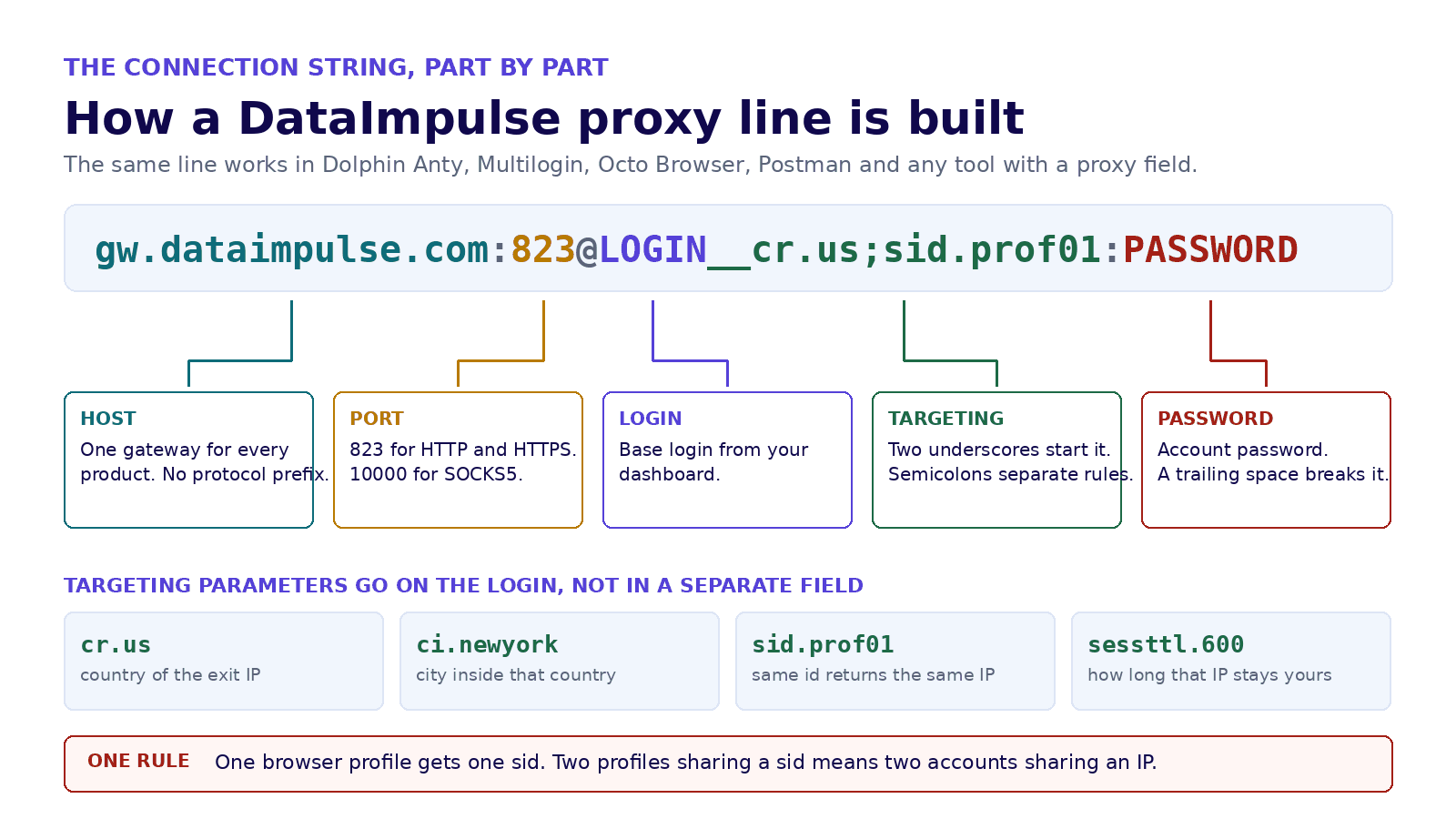
SessionBox needs four values: host, port, login and password. Paste them in this form, or in separate fields if the tool asks for them separately:
Below: the exact format with country targeting, the setup steps, how to confirm the exit IP, and what every error message means.
What you need before you start
A SessionBox account, a DataImpulse plan with traffic on it, and your proxy credentials from the dashboard.
| Field | Value | Notes |
|---|---|---|
| Host | gw.dataimpulse.com | one gateway for residential and mobile |
| Port | 823 for HTTP and HTTPS, 10000 for SOCKS5 | the protocol and the port must match |
| Login | your base login, with targeting appended | LOGIN__cr.us;sid.prof01 |
| Password | from the dashboard | a trailing space is the most common cause of a failed test |
SessionBox proxy format
Everything lives in one line, and targeting is appended to the login rather than set in a separate field. Two
underscores start the parameters, semicolons separate them.
If SessionBox asks for host, port, login and password in separate fields, split the same line: the host is
gw.dataimpulse.com, the port is 823, and the whole LOGIN__cr.us;sid.prof01 part goes into the username field.
Setting up a proxy in SessionBox, step by step
What is SessionBox?
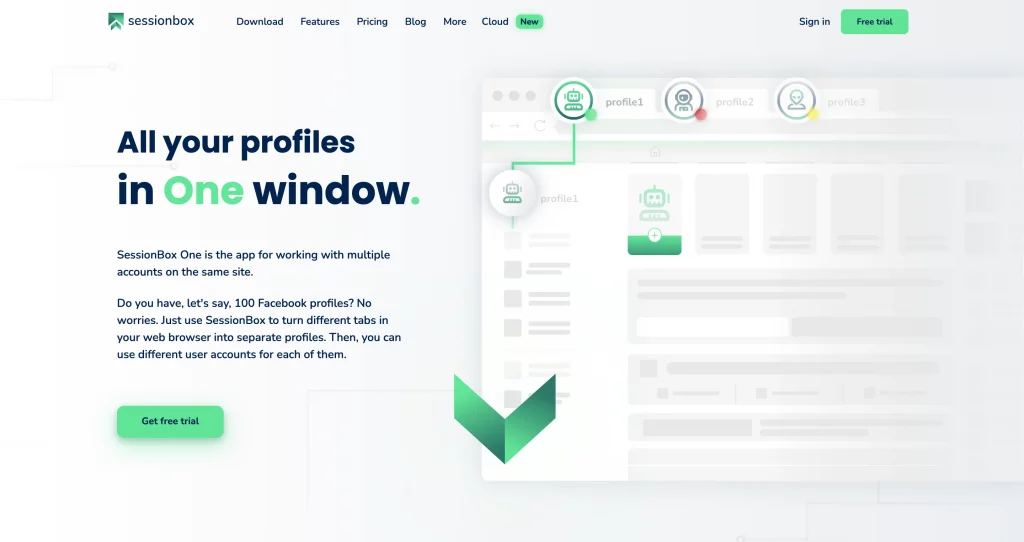
SessionBox is a browser extension and software that simplifies multiple account management. Users can run multiple accounts on the same platform at once, without needing additional browsers or private sessions. It prevents browser fingerprinting by generating a distinct fingerprint for each session, so websites can’t track your activity. SessionBox is a great solution for social media managers switching between client profiles, marketers testing ad campaigns, or support teams handling customer tickets.
Benefits of using SessionBox:
- Proxy anonymization;
- Profile isolation in the same window;
- Controlled access and direct sharing;
- Fingerprint protection mechanism;
- Collaboration with Shared Spaces;
- Unlimited secure synchronization;
- Automation and API access;
- Bulk profile creation and much more!
Proxy Configuration Steps
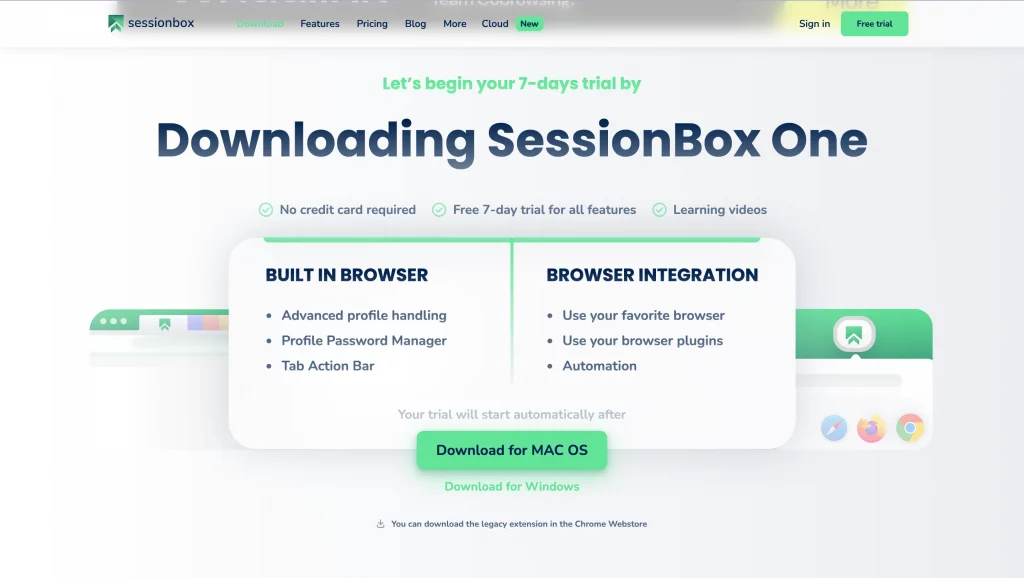
- Visit https://sessionbox.io/ and start a Free trial. Choose your operating system. For this guide, we’re using macOS M-series. Just click the appropriate download button, and the process will begin immediately.
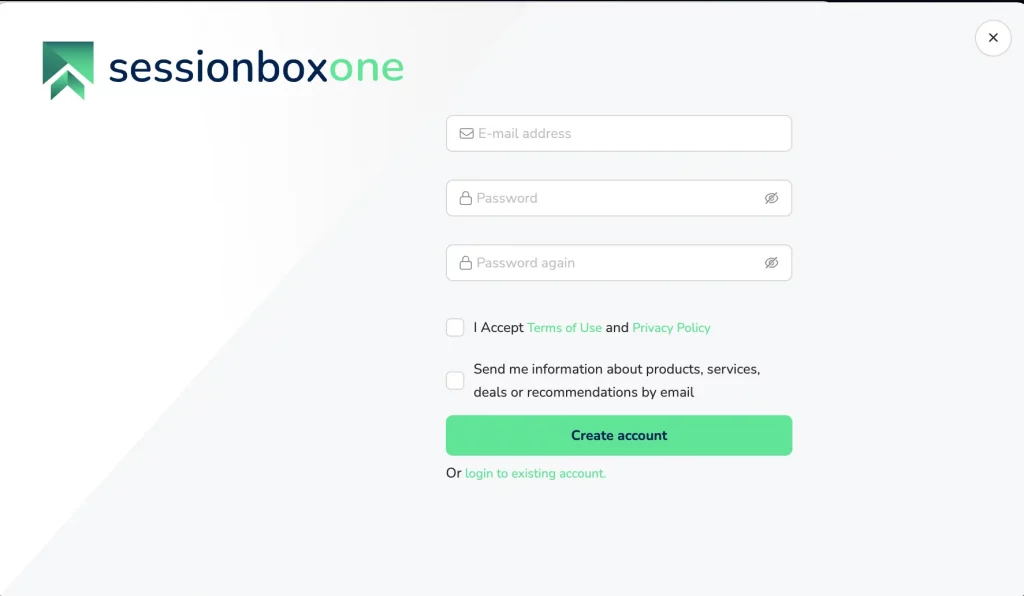
2. Create your account by entering Email and making up a secure password. Accept Terms of Use and Privacy Policy.
3. The next step is to “+Create” a profile.
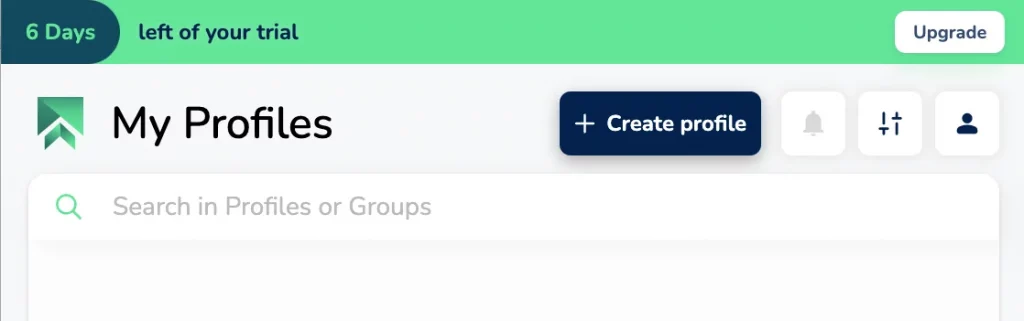
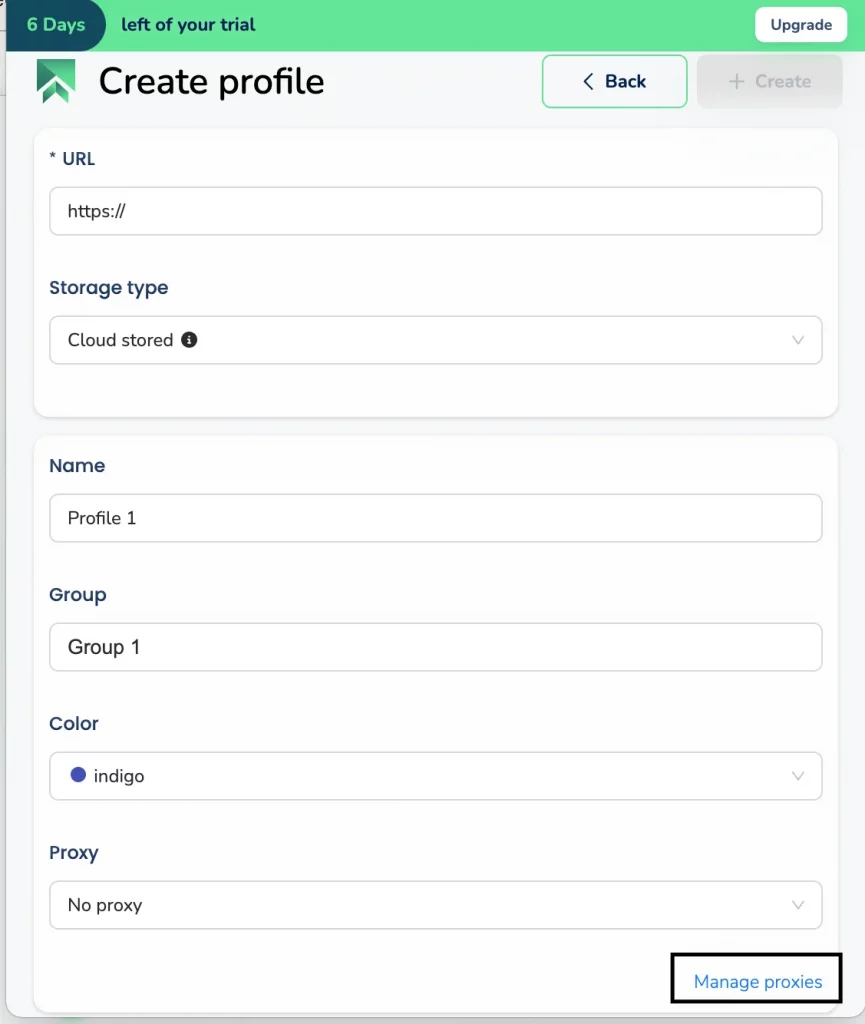
4. Go to the “Manage Proxies” section and click “Add proxies.” This will give you the option to enter proxy details manually.
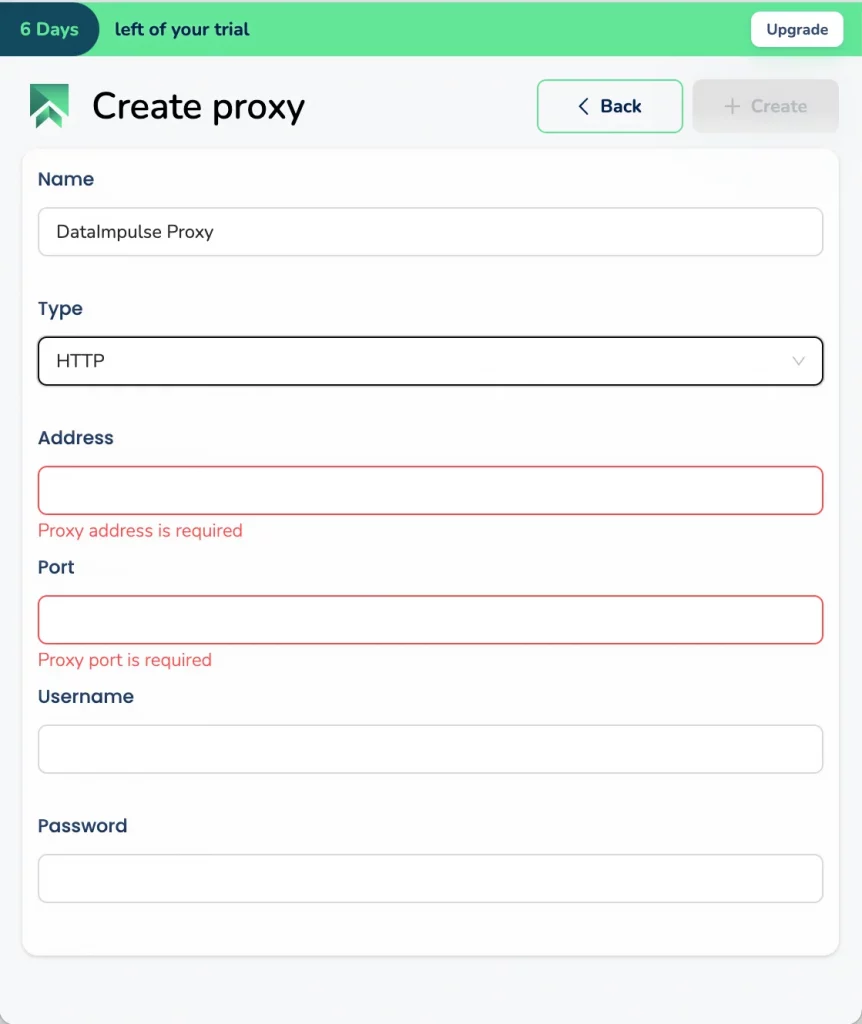
5. Fill out the form with your DataImpulse credentials. You’ll find your host, port, login, and password within your Plan on your DataImpulse dashboard. Finally, click the “Create” button.
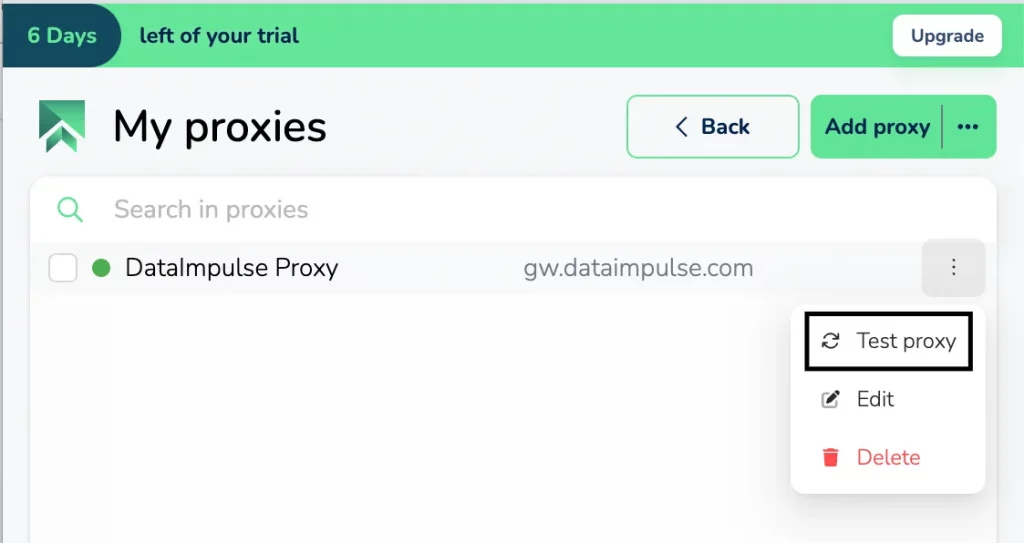
6. Now it’s time to test your proxy connection. Click “Test Proxy“. If all goes well, a green light will show it’s working.
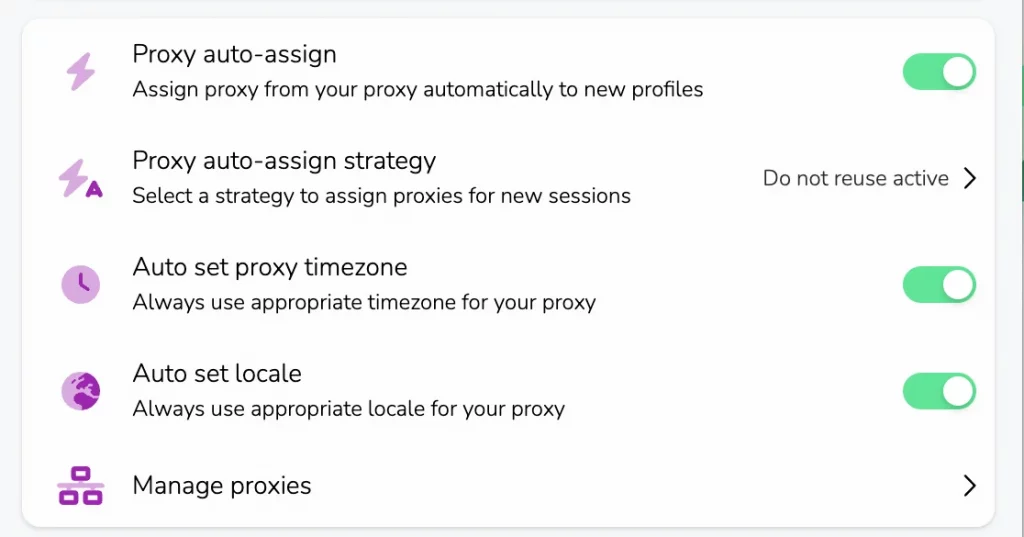
7. After adding your proxy, head back to the Settings section to enable automatic assignment. Several parameters can be customized here. You can modify the automatic assignment strategy, or configure a single proxy for all sessions.
8. After these steps, you’ll be finally redirected to the browser with your preferred and installed proxy.
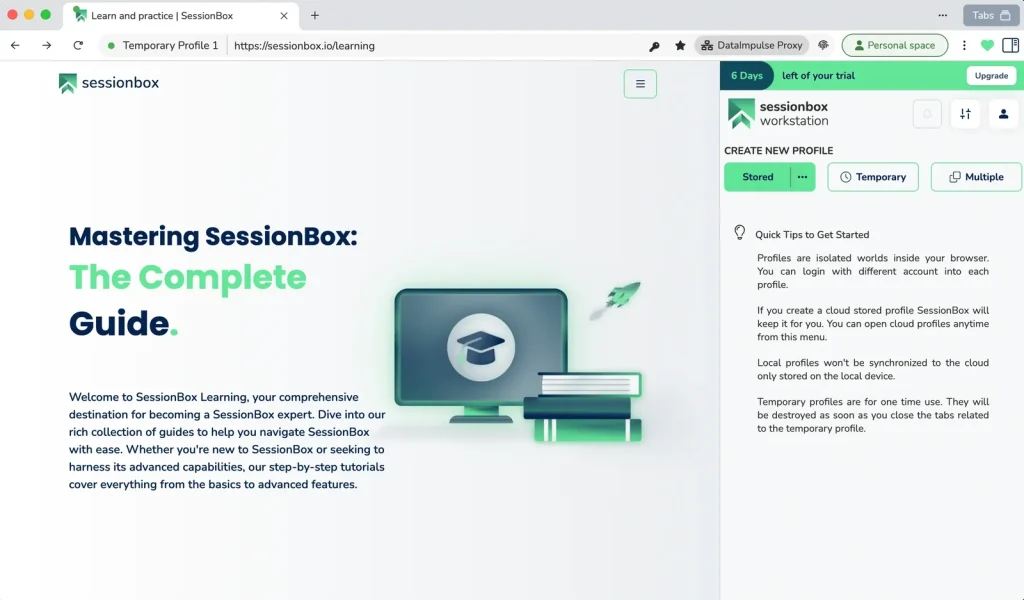
That’s it! Your setup is complete, and you’re ready to take advantage of all features.
Here’s how to configure proxies in the SessionBox extension:
Please note that the proxy integration process is the same for Chrome, Opera, and Firefox extensions.
- Open the SessionBox extension and click on the three horizontal lines to open the menu. Then, select “Settings”.
- Go to the Proxy tab and click on “Add New” to create a new profile.
- Give your profile a name and select the desired connection type (HTTP, HTTPS, SOCKS5, or SOCKS4). Then, enter the Address and Port of the proxy server you want to use.
For instance, if you want to use Residential Proxies from DataImpulse, use the following details:
Type: HTTP
Address: gw.dataimpulse.com
Port: 823
Please follow the instructions below for setting up Residential Proxies in the Workstation section. The configuration process for DataImpulse proxies remains the same across different use cases.
- Scroll down within the same window to provide your DataImpulse sub-user’s username and password. After entering the credentials, click on the Save button to save the settings.
- Once you have added the proxy, you need to assign it to a new session. Visit any website and open the add-on once again. Click on the New Stored Session button to create a new session.
- After opening a new tab, go back to the add-on and click on the three dots next to your newly created session. From the menu, choose Settings.
- In the Settings, navigate to the Other tab. Under the Proxy section, select the profile you have created.
That’s it! Your new session should now be using a different IP address than your own. To verify if the proxy is working correctly, you can visit a website that displays your current IP address.
SessionBox vs. Multilogin
SessionBox and Multilogin are two distinct solutions with varying features and pricing structures. However, SessionBox can be considered as a viable alternative to Multilogin. Both platforms provide features like managing multiple browser profiles, integrating with proxies, controlling browser fingerprints, and facilitating team collaboration. Notably, SessionBox offers a cost-effective option compared to the relatively higher-priced Multilogin.
How to check the proxy actually works
A green test button only means the credentials authenticated. It does not mean you got the country you asked for.
- Exit IP: open an IP lookup service through SessionBox and compare country and city with your targeting.
- Timezone and locale: they should follow the exit node, not your own machine.
- Stickiness: reconnect and check that the same session id returns the same address.
A wrong country on the first request or two is normal while the session settles. If it is still wrong after three
attempts, the targeting parameter is malformed.
SessionBox proxy not working: errors and fixes
| What you see | What it actually is | Fix |
|---|---|---|
| 407 Proxy Authentication Required | wrong password, or no traffic left | re-copy the password without spaces, check the balance |
| Connection failed or refused | protocol and port do not match, or a typo in the host | 823 for HTTP, 10000 for SOCKS5, host without a protocol prefix |
| Test passes, wrong country | targeting written into the wrong field | parameters belong on the login after two underscores |
| IP changes mid session | no session id, or the TTL expired | add sid and sessttl, and remember sessttl is in seconds |
| Two profiles show the same IP | the same session id reused | one profile, one sid, forever |
Rotating, sticky or mobile: which one for which job
| Job | Setup | Why |
|---|---|---|
| One account per profile, long sessions | sticky: sid plus sessttl | the platform sees one stable location |
| Registering many accounts | sticky, a new sid per profile | each account needs its own IP history |
| Scraping or checking pages at volume | rotating: no sid | a fresh IP per request spreads the load |
| Mobile first platforms | mobile pool, sticky | carrier IPs carry more trust on app centric platforms |
Mobile proxies use the same host, port and login format. Only the pool behind your login changes.
FAQ
How do I add a proxy to SessionBox?
Open the proxy settings, choose HTTP, and enter gw.dataimpulse.com as the host with port 823, then your login and password from the dashboard. If SessionBox takes one line, paste gw.dataimpulse.com:823@LOGIN:PASSWORD.
What proxy format does SessionBox use?
Host, port, login and password. Country and session parameters are appended to the login after two underscores, for example LOGIN__cr.us;sid.prof01, not entered in a separate field.
Why does the SessionBox proxy test fail?
Most often the password carries a trailing space, or the port does not match the protocol. Use 823 for HTTP and HTTPS and 10000 for SOCKS5, and copy the credentials straight from the dashboard.
Can I use mobile proxies with SessionBox?
Yes. The host, the port and the login format are identical. Only the pool your plan gives you is different.
Can two SessionBox profiles share one proxy?
Technically yes, in practice never do it. Two profiles on one IP link the accounts together. Give each profile its own session id.
The same connection line works in our other setups: Dolphin Anty, Puppeteer and Multilogin. See how residential proxies and mobile proxies differ before you pick a pool.

 State/City/Zip/ASN Targeting