

In this Article
Repeat the -H flag once per header. curl does not take a list, and a second -H never overwrites the first, so the order you write them is the order they are sent.
Whether you scrape the web or use an API, it’s all about sending HTTP requests and getting responses. The more specified your request is, the more precise data you get. That’s why you need headers. They come as key-value pairs separated by a column and are parts of an HTTP response that carry additional details, such as content type or caching instructions. Headers help you get the details you need or filter responses so you never see irrelevant ones. In this article, we’ll learn the practical basics of sending HTTP headers with cURL and how it can help you with your tasks.
Why cURL?
Now that you know what HTTP headers are, let’s briefly discuss cURL. It’s a command-line, easy-to-use tool for transferring data to the target server and back to your computer, which makes it a well-suited tool for sending headers. Among its advantages are the following:
- It’s lightweight
- Supports many protocols, including HTTP(S), SMTP, FTP, and more
- Doesn’t require additional libraries
- Is compatible with the most-used operating systems like Windows, Linux, and macOS
- Is free to use and often comes pre-installed
- Has detailed documentation and a huge community of users, so if you face difficulties, you will quickly find a solution.
That’s why cURL is so widely utilized, even with numerous other tools that allow sending HTTP headers.
When to send HTTP headers
Now that you’re familiar with all the instruments let’s examine the use cases for sending HTTP headers.
- Authentication and authorization
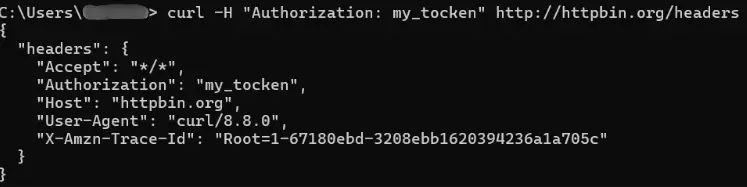
When you call an API or request some content that requires authorization, you may need to provide a token or whatever to get data. Sending the Authorization header with cURL will give the necessary information for a server to let you in. You need to use the -H option in your request. Below, you can see an example of the cURL request to httpbin.org, which is a special request and response service.
- Content negotiation
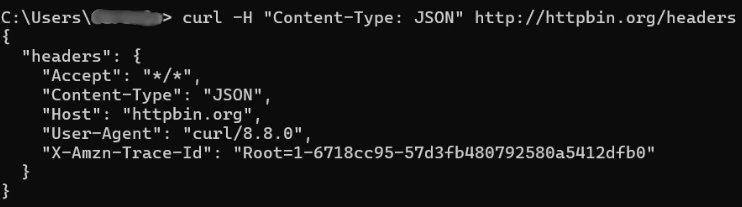
When you send content in a specific format like JSON or XML and need a server to interpret it correctly, you need to include the Content-type HTTP header in your request. The target server will know how to process the content to minimize the possibility of errors or delays.
- CORS (Cross-origin resource sharing)
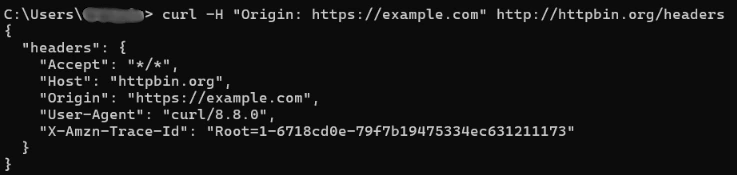
Application may grant access to services or data based on who is trying to get them. In such situations, when the origin of a request plays a crucial role, you may specify the origin in an Origin HTTP header. Please don’t confuse it with authentication; those use cases are similar and often come together. Still, they are different.
- Specifying user-agent
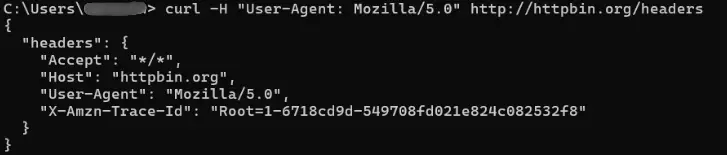
Client type – whether a mobile or web app, API, etc. – also influences the response you get. You can define the client type in your request and get the necessary response.
- Adjusting cache control settings
Managing cache settings is a must in many situations, and HTTP headers may help you with that. You only need to include a Cache-control header in your request and specify its value. Responses will be cached according to the settings you defined.
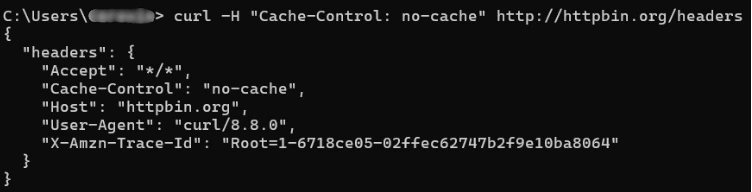
- Sending custom requests
Sometimes, apps you use require custom headers to process your request or perform actions you want. In this case, including such headers in your requests is necessary. Sometimes, such headers are required to protect against vulnerabilities and attacks. You should read the documentation before using an app to know what custom headers are available and necessary.
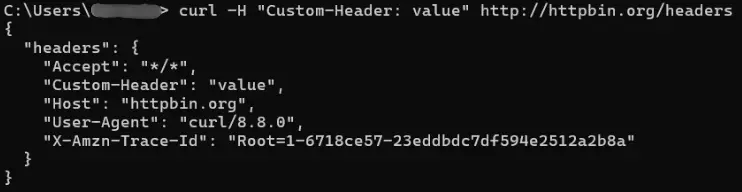
- Sending conditional requests
You should use conditional headers if you need only certain data that match specific conditions. Those headers save time by getting only the required data and save bandwidth as you don’t waste GBs loading unnecessary information. If-Match or If-Modified-Since are examples of such headers.
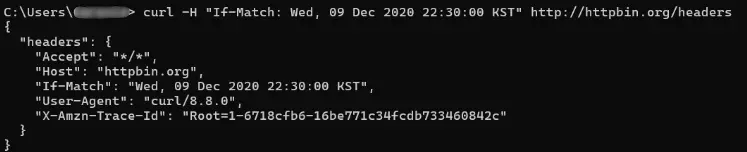
cURL: other features
- How to send multiple headers
Sometimes, you may need to send several headers regarding the same request. If this happens, you can list them all using the same cURL command. Remember to use an –H option each time you input a new key-value pair.

- How to check response headers
Seeing response headers from the target server is useful for troubleshooting and performance monitoring. They provide information about how long it took to process your request or whether there were any authentication issues. You can see them by using the -I or –head option. Both of them will show you headers only.
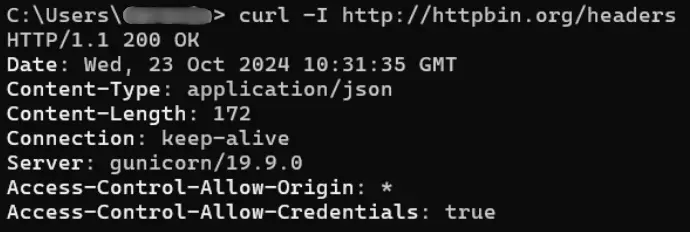
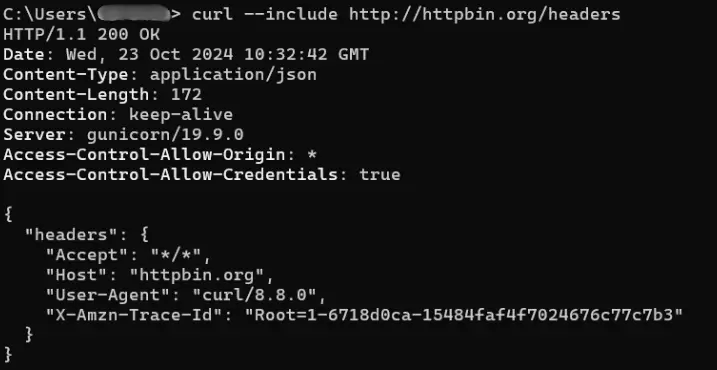
If you want to see both headers and content, use the -i or –include options.
- How to send empty headers
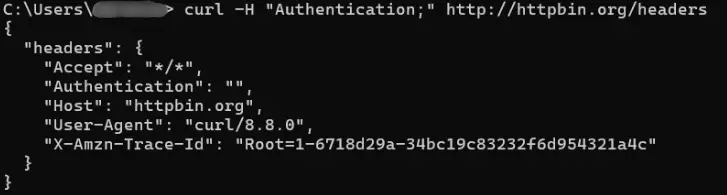
Some APIs require specific headers in the request, even if those headers don’t have any values. Sometimes, empty headers make the header act in a particular way. Developers also use them to see how a server reacts to such a situation and check that there are no loopholes waiting for hackers. To send such a header, provide its name followed by a semicolon without value.
- How to remove a header
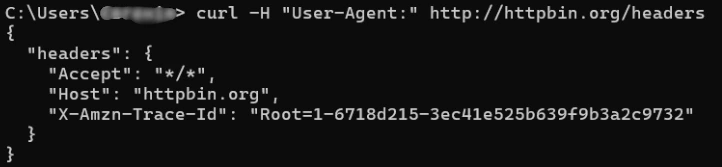
cURL adds some headers by default, such as the User-Agent header. If you don’t need it and want to remove it, type a header name followed by a colon, and don’t provide any value.
- How to activate the verbose mode
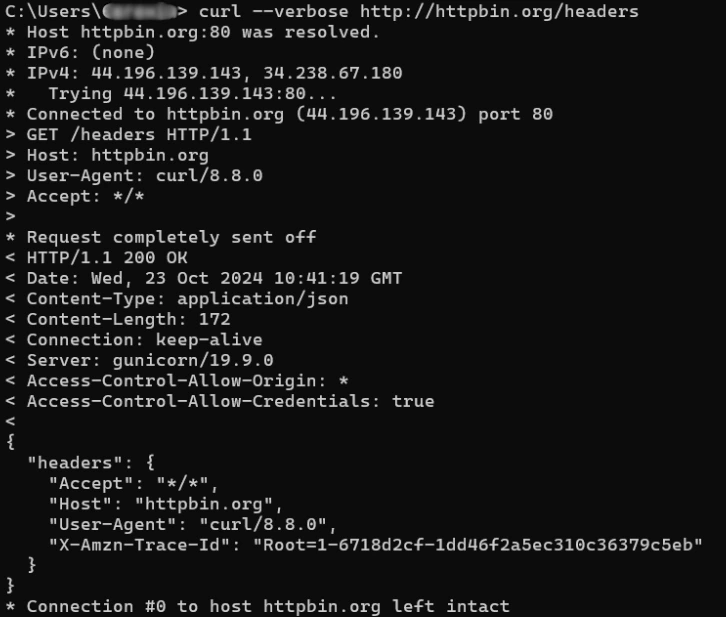
This feature is used when you need to understand how the server proceeds with your request. When this mode is activated, cURL provides you with many details, including request and response details, HTTP method, version, status code, information on the connection process, and others. This mode is useful for debugging as it provides information about each step of the communication. You can activate it using the -v or –verbose option.
- How to save headers
Debugging and performance monitoring often require saving headers to analyze them and keep records. So, you can save headers to a file and use them later. To do that:
- Use the -d or –dump-header options.
- If you need to save the content of the request as well, add -o or –output options.
- After commands, don’t forget to specify the file name where your computer should save headers.

Note: generally, HTTP headers are case-insensitive. However, sometimes APIs expect specific headers and will only work if you use capitalization. That’s why you need to carefully check documentation before sending headers.
Proxies for sending HTTP headers with cURL
When you scrape the web or conduct other activities that require sending numerous requests, you may face problems like request limits or geo-based blocks. In this case, proxies are your allies that help you ensure stable access across the globe. For example, DataImpulse offers ethically sourced proxies that are easy to integrate and use with other tools, including cURL. This way, you can send as many requests as you need without stumbling upon restrictions.
To wrap up
Sometimes, you don’t need any special or expensive tools to get data. cURL is available for free and allows you to specify your requests so that you get information-all fast and without unnecessary details. To make the process even more effective, you can combine cURL with DataImpulse proxies. We offer 1-second response time proxies at a wallet-friendly pay-as-you-go pricing model. Click on the “Try now” button in the top-right corner of the screen or contact us at [email protected].
Sending several headers at once
Each header needs its own -H. Quote the whole header, including the value, or your shell will split it at the first space.
| What you want | Flag | Example |
|---|---|---|
| One header | -H | -H “Accept: application/json” |
| Several headers | -H repeated | -H “A: 1” -H “B: 2” |
| Remove a default header | -H with an empty value | -H “User-Agent:” |
| Send an empty header | -H with a semicolon | -H “X-Trace;” |
| Read headers from a file | -K with a config file | curl -K headers.txt https://example.com |
Two defaults curl sets for you are Host and User-Agent. Overriding User-Agent is the usual reason a request starts working: many sites reject the default curl string outright.
Keeping headers in a file
Once you pass more than three or four headers, the command line stops being readable and starts being a place where typos hide. curl reads a config file with -K, one directive per line, and the same file works across scripts.
Seeing the headers that came back
Sending headers is half the job. Reading the response headers is how you find out why a request behaved the way it did.
| Goal | Flag | Note |
|---|---|---|
| Response headers only | -I | sends a HEAD request, so some servers answer differently |
| Headers plus body | -i | the safest way to see both without changing the method |
| Save headers to a file | -D headers.txt | useful when you parse them later |
| Everything, including the request | -v | shows what curl sent as well as what it received |
| Only the status code | -o /dev/null -w “%{http_code}” | for scripts and health checks |
Many requests at once, and on one connection
This is where most people arrive next, so it belongs here rather than in another article. curl can reuse a single connection for several URLs, and since version 7.66 it can run transfers in parallel.
| What you need | How | Why it matters |
|---|---|---|
| Several URLs, one connection | list the URLs in one command | keep alive is reused, so no repeated handshake |
| Transfers in parallel | –parallel | much faster on many small requests |
| Limit the parallelism | –parallel-max N | protects both your machine and the target |
| The same headers for all of them | -H before the URLs | flags apply to every URL in the command |
If you are fetching at any volume through a proxy, pace matters more than raw speed. A constant flood from one address is the pattern anti-bot systems look for, which is why our residential proxies are usually paired with a session id per worker rather than one shared connection.
The curl errors you will actually hit
| Error | What it means | What to do |
|---|---|---|
| curl: (52) Empty reply from server | the server closed the connection without answering | usually a blocked request or a wrong port, retry with -v and check the request line |
| curl: (35) SSL connect error | TLS handshake failed | check the protocol and the port, and whether the host expects HTTPS |
| curl: (7) Failed to connect | nothing is listening at that host and port | typo in the host, or the proxy port does not match the protocol |
| HTTP 407 | the proxy refused the credentials | re-copy login and password, check the balance on the plan |
| HTTP 403 with a valid request | the target rejected the network or the fingerprint | change the exit IP and set a realistic User-Agent |
FAQ
How do I set multiple headers in curl?
Repeat the -H flag once for each header, quoting each one in full. curl sends them in the order you write them, and a later -H does not replace an earlier one with the same name.
How can I see all the headers in a curl request?
Use -v to see both what curl sent and what came back, or -i to print the response headers together with the body. Use -D filename to write the response headers to a file for later parsing.
How do I curl only the headers?
Use -I, which sends a HEAD request. Be aware that some servers answer HEAD differently from GET, so if the result looks wrong, use -i with a normal GET instead.
What does curl error 52 mean?
The server accepted the connection and then closed it without sending anything. In practice it is usually a blocked request, a wrong port, or a proxy that dropped the tunnel. Run the same command with -v to see how far it got.
Can curl send multiple requests at once?
Yes. List several URLs in one command to reuse the connection, and add –parallel to run the transfers simultaneously. Use –parallel-max to cap how many run at the same time.
Working through a proxy? See the companion guide on using curl with a proxy, and the tutorials for aiohttp and Puppeteer when you outgrow the shell.

 State/City/Zip/ASN Targeting