

In this Article
IPFighter is an all-in-one proxy platform designed for users to efficiently manage their proxy lists, optimize bandwidth usage, boost connection speeds, and protect multiple accounts. It serves as a centralized hub for all proxy-related applications. Even though it may seem unusual to rely on one tool for various tasks, IPFighter is built for this.
For stable and fast connections, DataImpulse provides high-grade proxies backed by a global network. In this article, you’ll learn how to integrate them.
Key Facts
- IPFighter is an analysis platform for users who want to verify the trustworthiness of IPs. It analyses your IP, proxy, and browser fingerprints.
- Among the main features of IPFighter are proxy manager, IPv6 Infinity, proxy sharing, and bandwidth saving.
- DataImpulse is a provider of residential, mobile, and datacenter proxies across 195+ countries. This tutorial explains how to use IPFighter and proxies from DataImpulse.
- To get started, download IPFighter, create an account, and attach your DataImpulse proxy.
- IPFighter users choose DataImpulse for its budget-friendly plans, speed, and flexible targeting options.
IPFighter features
- Bandwidth Saving & Speed Boosting: Optimize data usage and enhance network speed with efficient proxy management.
- Secondary Proxy: Automatically switch to a secondary proxy for tasks like uploads or streaming, saving bandwidth.
- Proxy Manager: Manage proxies effortlessly with bulk import, tagging, expiration dates, and operational insights.
- SmartCache AI: Save bandwidth with real-time data bypass for over one million domains.
- Data Sync: Securely encrypt and sync data across devices, enabling remote collaboration (Advanced plan required).
- IPChange Detector: Detect and block sudden IP changes to maintain consistency and maintain normal traffic patterns.
- Proxy Sharing: Share proxies across all LAN-connected devices for streamlined management.
- Custom Rules: Tailor bypass and allow lists for specific websites to suit unique needs.
- IPv6 Infinity: Create unlimited, customizable IPv6 proxies with compatible configurations.
Beginner’s Guide: Getting Started with IPFighter
Step 1: Access website of IPFighter, choose the version that suits your computer, and start downloading.
Step 2: Create a new account.
Step 3: Attach your DataImpulse proxy to IPFighter and start using it.
1. Manage your proxies
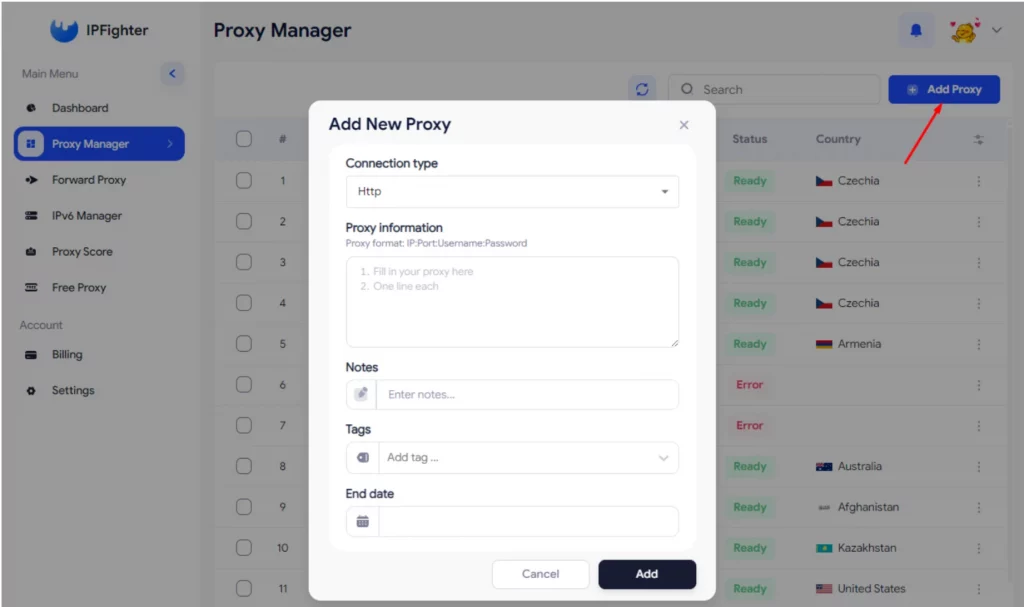
Select “Add proxy” in the upper right corner of the screen, then fill in the proxy information. Your DataImpulse credentials are within your Plan on your DataImpulse dashboard. Simply copy them.
2. Forward proxy to save bandwidth and boost speed
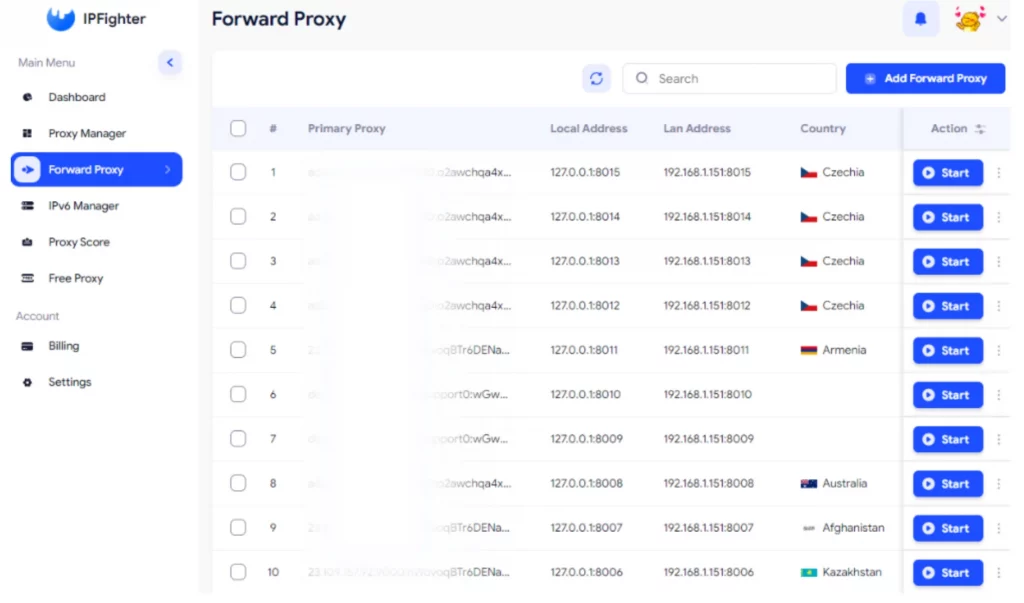
- Add the proxy you want to forward, it can be the proxy from “Proxy Manager” or you can add a new one.
- Click the “Start” button to forward the proxy.
- Copy the respective local address of each proxy and attach it to the device you want to use.
3. Check the proxy score
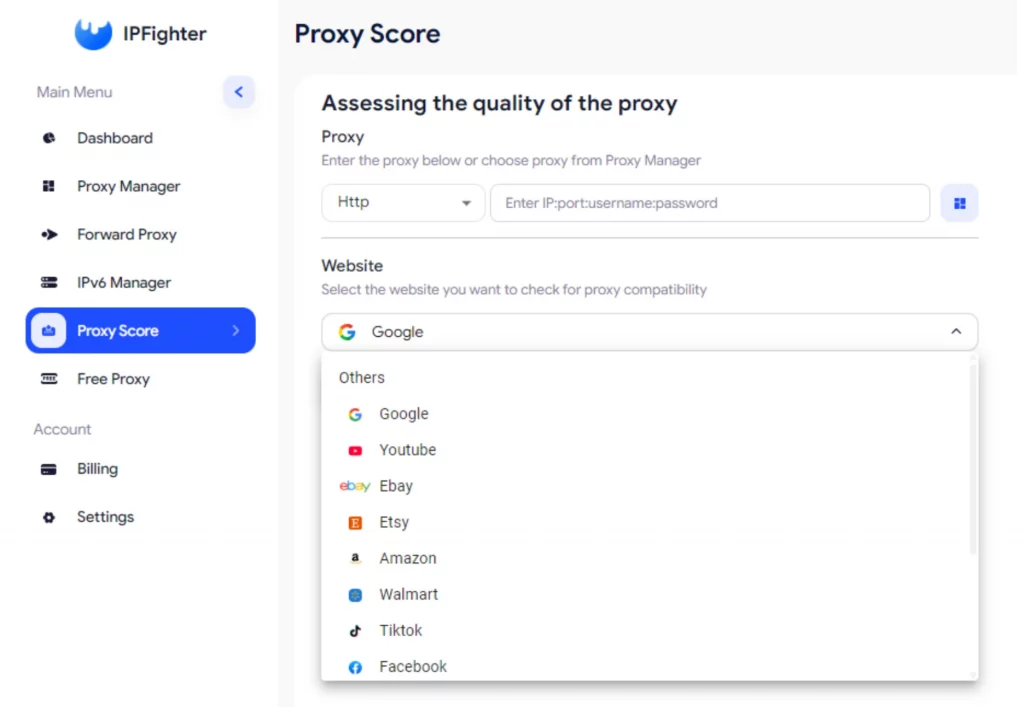
- Import any proxy from DataImpulse or select a proxy you added earlier.
- Select the specific website you want to test the proxy on.
*If you have difficulties with your DataImpulse dashboard, read our step-by-step guide.
That’s all there is to it! Managing proxies with IPFighter is straightforward—optimize bandwidth, boost speed, and verify proxy quality easily. Experience seamless anonymity and robust security.
To sum up, DataImpulse proxies improve IPFighter’s capabilities by offering global IP diversity, ensuring stable connection, and enhancing efficiency. Our pay-as-you-go flexibility, free country targeting, and customizable solutions consider various needs. Moreover, 24/7 human support and no expiry make it ideal for long-term, large-scale operations.
Upgrade IPFighter with DataImpulse proxies—more IPs, custom options, and full support!
FAQ
Do I need a proxy to use IPFighter?
Not really, you can use IPFighter with no proxy. However, the main advantage of a proxy is better anonymity and account isolation.
Which type of proxy works best for IPFighter?
Residential proxies provide real ISP-assigned IP addresses and are the most popular among other types. DataImpulse has a large network of more than 90 million ethically-sourced residential IPs with non-expiring traffic.
How can I add a DataImpulse proxy to an IPFighter profile?
After creating an account in IPFighter, open profile settings and enter credentials like host, port, login, and a password from the DataImpulse dashboard. Don’t forget to test the connection.
My proxy is not connecting. What should I do?
Double-check your proxy credentials and IP whitelist settings. If you’re using DataImpulse proxies, you can contact our expert team 24/7 via chat or email.
How do I check if my proxy works in IPFighter?
Launch the profile and visit one of the IP checker websites to make sure the displayed IP matches the proxy location. IPFighter also has a proxy test feature that you can try.