

Nekobox is an open-source proxy client for Android, especially popular in China. It offers a user-friendly interface, supports numerous - more than ten - protocols, and is easy to configure. The main purpose of its usage is to access a wide variety of content, even from areas with unstable connections. There is also a desktop counterpart for Windows and Linux called NekoRay; however, in this tutorial, we focus on the mobile version.
Key Facts
- Nekobox is a popular Android proxy client used for establishing smooth access to content across the globe.
- Nekobox is free, has an intuitive UI, supports numerous protocols, and takes little to configure. The app is especially popular in China.
- If you are currently in China, you may need to use additional tools to ensure a stable connection.
- DataImpulse is a proxy provider that offers IPs from 195 countries to support multi-region accessibility.
To configure Nekobox on your Android device, follow these simple steps:
- Download Nekobox from the GitHub official website https://github.com/MatsuriDayo/NekoBoxForAndroid/releases. We downloaded 1.4.2-arm64-v8a.apk version. Pay attention, the app is not available on Google Play, so if you come across an app resembling it, be careful not to install a fake one.
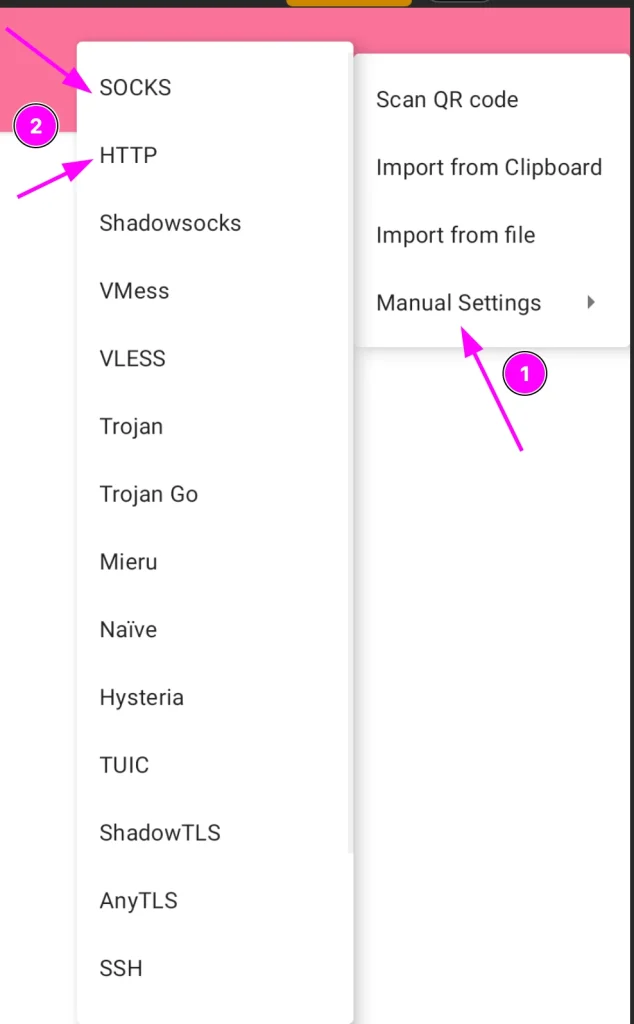
- Press the “+” sign in the top right corner of the screen.

- Choose a “Manual settings” option from a menu and then choose a necessary protocol – HTTP or SOCKS5.
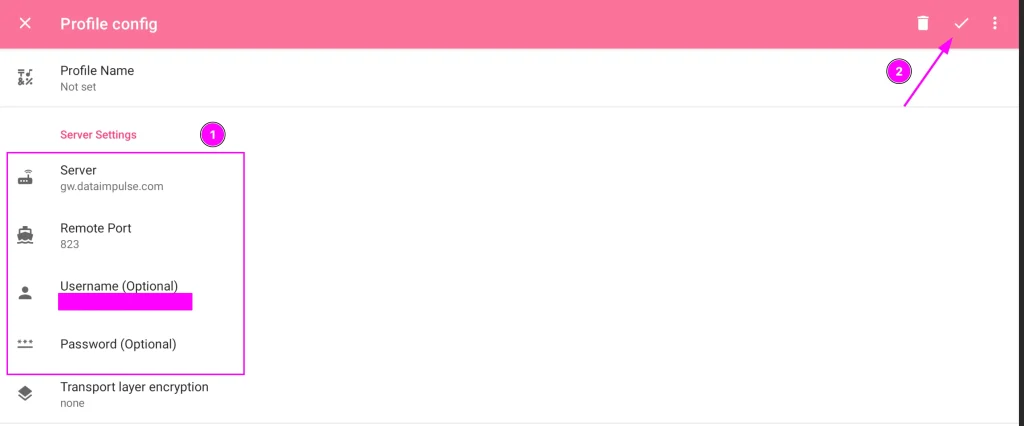
- If you opt for the HTTP protocol, enter the necessary information:
Server: gw.dataimpulse.com or 74.81.81.81
Port: 823/824 for rotating proxies or 10000-20000 for sticky proxies
Username: your DataImpulse login from the corresponding plan’s tab
Password: your DataImpulse password from the corresponding plan’s tab
Do not forget to press the check in the top right corner of the screen to save settings.
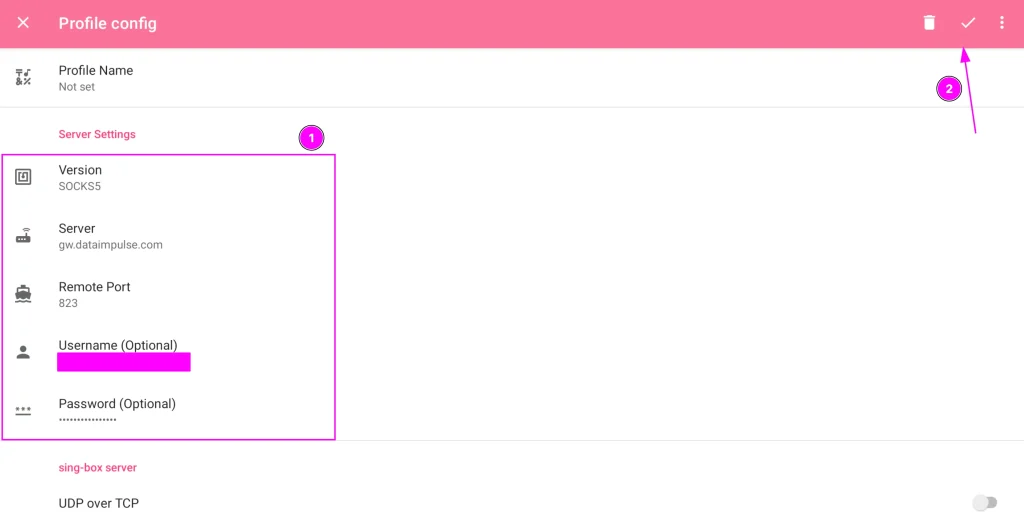
- If you want to use the SOCKS5 protocol, the configuration details look like this:
Version: SOCKS5
Server: gw.dataimpulse.com or 74.81.81.81
Port: 823/824 for rotating proxies or 10000-20000 for sticky proxies
Username: your DataImpulse login from the corresponding plan’s tab
Password: your DataImpulse password from the corresponding plan’s tab
Finally, press the check in the top right corner of the screen to save settings.
In case you hesitate which protocol to choose, check out our in-depth guide on the differences between HTTP and SOCKS5 protocols.
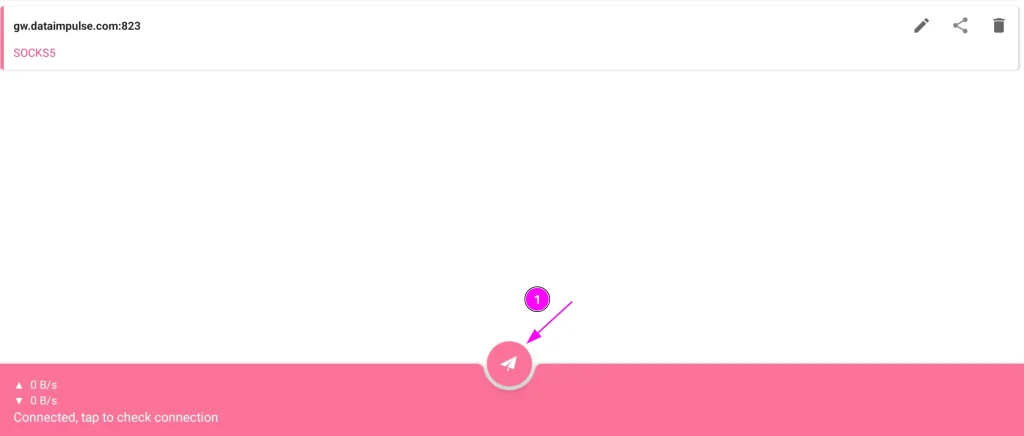
- Finally, tap the button at the bottom of the screen to start using proxies. In case there are still troubles with the connection after that, and you are currently in China, you may need to use additional tools to ensure uninterrupted access. Visit our proxy setup guide for users in China to find out what exactly to do and how.
Disclaimer: The information in this tutorial is intended for educational purposes only. DataImpulse does not encourage you to commit any actions that may go against the law. Before using any app, make sure you stay within the policies and terms.