
In this Article
The DNS_PROBE_FINISHED_NXDOMAIN error means Chrome’s DNS checks indicate that the requested domain name could not be found. Check the spelling, then compare another browser, network and DNS resolver before changing settings. A failure on one website alone does not prove the website is broken: local filtering, cached negative answers and browser DNS settings can also explain it.
Jump to the diagnostic table, Android/Samsung, Windows, Mac, iPhone or domain-owner checks.
If you see This site can’t be reached, record the error underneath it. Chromium distinguishes its DNS probe outcomes; the message alone does not identify which DNS layer needs attention.
Key Facts
- A failure on one hostname does not establish that the website is broken.
- NXDOMAIN and an empty answer for one DNS record type mean different things.
- DNS filtering can intentionally return NXDOMAIN.
- A browser’s DNS settings can differ from the operating system’s resolution path.
- Flushing a local DNS cache cannot clear an upstream resolver’s cache.
- A proxy cannot repair a nonexistent authoritative DNS name.
What does DNS_PROBE_FINISHED_NXDOMAIN mean, and who can fix it?
It indicates a name-resolution failure before the browser can obtain the requested site’s HTTP response through that connection. NXDOMAIN means a DNS name does not exist; it differs from NODATA, where an existing name lacks the requested record type.
| Role | Responsible for | Next action |
|---|---|---|
| Reader/device owner | Spelling and local/browser settings | Correct the evidenced local cause |
| Network administrator | Resolver and filtering configuration | Review resolver responses and block logs |
| Domain owner/DNS operator | Registration, delegation and authoritative records | Repair the failing hostname or delegation |
| Proxy provider | Proxy endpoint and proxy-side resolution | Investigate failures isolated to that path |
The error alone is not evidence of a virus. Pi-hole documents an NXDOMAIN blocking mode: an intentional policy can produce the same DNS status as a nonexistent name.
How to diagnose DNS_PROBE_FINISHED_NXDOMAIN before changing settings
Compare the exact hostname across browsers, networks and resolvers. Start with spelling, including the subdomain. Use the same address for each comparison and change one variable at a time.
| Symptom | Check | Meaning | Fix |
|---|---|---|---|
| One hostname fails | Compare spelling, resolvers and authoritative answers | Typo, filtering, cache or domain issue | Correct the name or follow the implicated branch |
| Chrome fails; Safari or Firefox works | Compare Secure DNS, profiles and policies | Browser resolution paths may differ | Correct that browser’s configuration |
| Wi-Fi fails; cellular works | Compare router DNS and filtering logs | Network or resolver issue is more likely | Repair resolver configuration or an approved filter rule |
| Advertising link fails | Inspect the exact hostname and block logs | Intentional filtering is possible | Open the destination directly or review the specific rule |
Independent resolvers agree on NXDOMAIN |
Check delegation and authoritative answers | Domain-side failure is more likely | Owner repairs DNS or registration |
| Only proxied requests fail | Compare local and proxy-side resolution | Proxy endpoint or resolver path is implicated | Correct configuration or contact the provider |
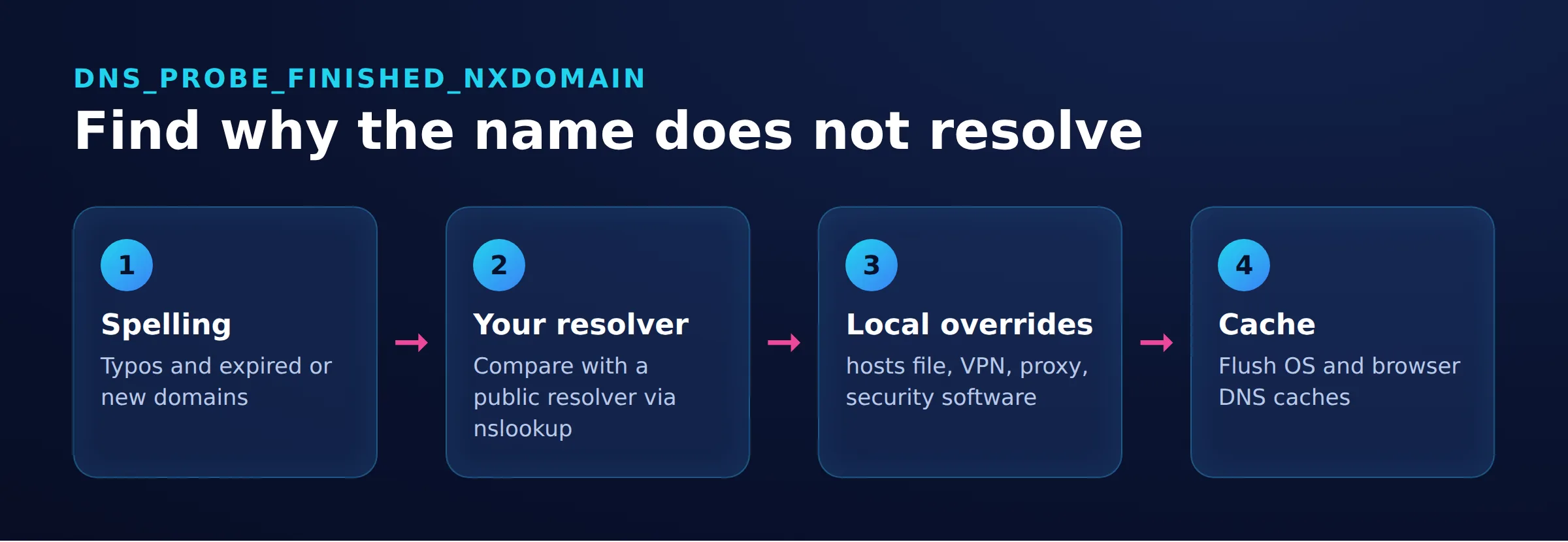
On a computer with nslookup, substitute the failing public hostname for example.com, without the scheme or page path. Do not send private corporate names to public resolvers. The first command uses the default DNS server; the others specify a server explicitly, following Microsoft’s nslookup syntax.
nslookup example.com
nslookup example.com 8.8.8.8
nslookup example.com 1.1.1.1
These commands query DNS servers directly; they do not reproduce Chrome’s Secure DNS configuration. A successful lookup therefore does not prove that Chrome’s resolution path works. A timeout from a public resolver is inconclusive and may reflect a network restriction, as explained in Google’s resolver troubleshooting guide.
For an exact fully qualified name comparison, append a trailing dot to the hostname in all three commands, for example nslookup example.com. 8.8.8.8. This prevents a configured DNS search suffix from changing the name being tested, as explained in Microsoft’s nslookup remarks.
Compare successful answers, NXDOMAIN responses and timeouts separately. Resolver disagreement calls for checking filtering, stale answers and authoritative consistency.
Apply the fix for your device
Use the device branch after comparisons implicate its configuration. Save existing settings before editing them, and restore changes that do not explain the failure.
Chrome and Edge
In desktop Chrome, open Settings > Privacy and security > Security and inspect Use secure DNS. Automatic mode can fall back to unencrypted DNS if encrypted lookup fails; a custom provider does not. Check the selected provider against your intended configuration using Chrome’s Secure DNS instructions.
In desktop Edge, open Settings > Privacy, search, and services > Security and inspect Use secure DNS, following Microsoft’s security settings guidance. If managed, ask the administrator to review the DNS-over-HTTPS policy.
Compare another browser and a separate browser profile, then restart the affected browser after correcting its setting. Our DNS over HTTPS guide explains the separate browser DNS path.
Android and Samsung
First open the same address over Wi-Fi and cellular. Inspect Android’s Private DNS separately from Chrome’s Use secure DNS control under Settings > Privacy and security. Android Private DNS uses DNS-over-TLS; Chrome’s Android instructions cover its separate control.
Without a computer, open Google’s DNS lookup page and enter the failing public hostname. Check A and AAAA separately. This tests Google Public DNS, not necessarily the resolver used by your phone or Chrome. Compare the result with the original browser failure; do not submit private corporate names. See Google’s lookup guidance.
On Samsung Galaxy devices, check Settings > Connections > More connection settings > Private DNS, following Samsung’s connection instructions. On other Android devices, open Settings > Network & internet > Private DNS; some versions place it under Advanced. If labels differ, search Settings for Private DNS. A custom provider requires a hostname, such as dns.google, rather than 8.8.8.8. Correct a mistyped hostname or restore the intended configuration, then retry.
If a failing link shows www.googleadservices.com, investigate that exact hostname. Check filter logs; if blocked, open the destination directly or request review of the specific rule. See proxy versus firewall behavior for the distinction between forwarding and filtering.
Windows 10/11
Inspect the active adapter and local cache before flushing anything:
ipconfig /all
ipconfig /displaydns
Compare the resolver addresses with your intended configuration, then run the earlier lookup commands. If the resolver now answers correctly but ipconfig /displaydns still shows a negative cached entry for the failing hostname, open Start, type Command Prompt, and select Run as administrator. Then run:
ipconfig /flushdnsRetry the original address in the affected browser. On a managed device, ask your administrator if you cannot run the command. Microsoft documents DNS client troubleshooting and running network commands as administrator.
Flushing removes local cached entries, including negative answers; it cannot repair authoritative records or clear an upstream resolver’s cache.
Mac and MacBook
Compare Chrome with Safari first. If the issue follows the network configuration, open Apple menu > System Settings > Network, select the network service, then Details > DNS. This is Apple’s documented DNS settings path.
Record current servers and correct only the implicated setting. Select your macOS version in Apple’s guide if labels differ. If the change does not help, return to resolver and authoritative comparisons.
iPhone
Compare Wi-Fi with cellular. For the connected Wi-Fi network, open Settings > Wi-Fi, its information button, then Configure DNS. Manual DNS changes apply to that Wi-Fi network, not cellular, as Cloudflare’s iOS instructions explain.
Also inspect installed profiles under Settings > General > VPN & Device Management, following Apple’s profile guidance. Ask the administrator about managed filtering before removing anything.
What should you check if you own the domain?
Check registration, delegation and the exact hostname’s authoritative records. Compare recursive resolvers’ cached answers with the authority.
- Registration: Check the registrar account for expiry or a status requiring action.
- Delegation: Confirm that the parent points to the intended authoritative nameservers and that those servers serve the zone.
- Hostname: Inspect the apex and failing subdomain separately. Follow every
CNAMEtarget to its final answer. - Consistency: Compare authoritative servers rather than relying on one successful response.
For a public hostname, open DNSViz, enter the failing hostname and request a fresh analysis. Review its delegation and authoritative-server errors and warnings. Compare the parent delegation with the nameservers assigned by your DNS provider. If you cannot interpret the results, send the report and exact failing hostname to your DNS operator and ask them to compare answers from every authoritative server. Do not submit private corporate names to public diagnostic services. Google’s domain troubleshooting guide explains these checks.
For Cloudflare-hosted DNS, review activation and required records using Cloudflare’s NXDOMAIN guidance. Make changes where the authoritative zone is managed. For WordPress, establish DNS recovery before changing application settings or reinstalling plugins.
After a repair, a recursive resolver may still return a cached negative answer. Ask your DNS operator to inspect that resolver’s response for the exact failing hostname and record the SOA record’s remaining TTL in the authority section. For negative caching, the initial TTL is the smaller of the SOA record’s TTL and its MINIMUM field; the cached response’s TTL decreases with elapsed time. Compare this response with current authoritative answers. The zone’s configured TTL alone does not show how long an existing cached answer has left. See RFC 2308, section 5 and section 6.
What if a proxy or VPN changes the result?
A changed result points to a different resolution or routing path; it does not prove the domain is healthy everywhere. Separate resolving the proxy endpoint from resolving the target hostname.
First verify the proxy hostname and configuration. If the endpoint resolves but target requests fail, compare where target resolution happens. In curl, --socks5 resolves the target locally, while --socks5-hostname asks the proxy to resolve it, as specified in the curl manual.
For endpoint failures, follow proxy server not responding. Check the relevant Windows proxy configuration or Chrome proxy configuration. If resolution succeeds but forwarding fails, use the proxy error guide.
For a proxy-only failure, give your provider the failing hostname, timestamp, whether target resolution happens locally or at the proxy, and the exact error. Exclude credentials. A proxy cannot repair a nonexistent authoritative name.
How do you verify recovery and recognize a different error?
Repeat the original request and DNS comparisons after the targeted change. Recovery means access works through the intended configuration, not merely that a lookup succeeds elsewhere. If loading still fails, capture the new error and investigate that layer.
NODATA: The name exists but lacks the requested record type. MissingAAAAalone is notNXDOMAINand does not justify blanket IPv6 disabling. See RFC 2308’s definition.SERVFAIL: The server could not process the query because of a problem; this differs from a name error in RFC 1035.ERR_NAME_NOT_RESOLVED: Chromium’s general hostname-resolution failure, defined in its network error list.- Other probe messages:
DNS_PROBE_STARTEDmeans the diagnostic probe is still running.DNS_PROBE_FINISHED_NO_INTERNETindicates that the probe found no internet connection.DNS_PROBE_FINISHED_BAD_CONFIGindicates incorrect DNS configuration or DNS servers that are unavailable or malfunctioning. See Chromium’s probe definitions.
If a certificate warning replaces the DNS error, continue with ERR_CERT_AUTHORITY_INVALID troubleshooting. Stop repeating DNS resets once the evidence points elsewhere.
Frequently Asked Questions
Why does only one website show DNS_PROBE_FINISHED_NXDOMAIN?
Check its exact hostname for a typo, filter rule, cached negative answer or authoritative DNS problem.
Why does Chrome fail when Safari or Firefox works?
Browsers can use different DNS configurations. Compare Secure DNS settings and browser profiles.
What should I check first on an Android or Samsung phone?
Compare Wi-Fi with cellular, then inspect Private DNS and Chrome’s DNS setting separately.
Should I allowlist googleadservices.com?
Check the exact blocked hostname and intended filtering policy first. Opening the destination directly may avoid changing the filter.
Will flushing DNS always fix NXDOMAIN?
No. It only helps when a stale local cached answer is the obstacle.
Does this error mean my phone has malware?
No. The error alone does not establish malware infection.
How long should I wait after fixing my domain?
Check the negative answer’s remaining TTL against the current authoritative response. There is no universal waiting period.
Last updated: November 18, 2026.
 State/City/Zip/ASN Targeting