
In this Article
The “proxy server isn’t responding” error appears when your browser or Windows is configured to route traffic through a proxy that it cannot reach. The connection times out before any page loads, so nothing opens even though your internet works fine for other apps.
This guide explains what triggers the error, then walks through the fixes in order: cleaning up Windows proxy settings, resetting the WinHTTP proxy, checking browser configuration, scanning for malware, and flushing DNS. A separate section covers what to check when you intentionally use a paid proxy and it stops responding.
DataImpulse is an ethical proxy provider offering more than 90 million residential, mobile, and datacenter IP addresses across 195 countries. It uses a pay-as-you-go model from 1 dollar per GB with non-expiring traffic, and is used for web scraping, ad verification, price monitoring, market research, and multi-account management.
Key Facts
- Most common cause: The “proxy server isn’t responding” error usually means Windows is pointed at a proxy that no longer exists, was set by malware, or has wrong credentials, so clearing the setting fixes it in most cases.
- Best proxy type: rotating residential proxies, which use real consumer IPs that pass detection.
- Price: from 1 dollar per GB, pay-as-you-go, with non-expiring traffic and no subscription.
- Coverage: 90M plus ethically sourced IPs across 195 countries.
- Reliability: 99.51% success rate, rated 4.8 out of 5 on G2.
- Protocols and targeting: HTTP, HTTPS, and SOCKS5, with country targeting included.
What causes the proxy server isn’t responding error?
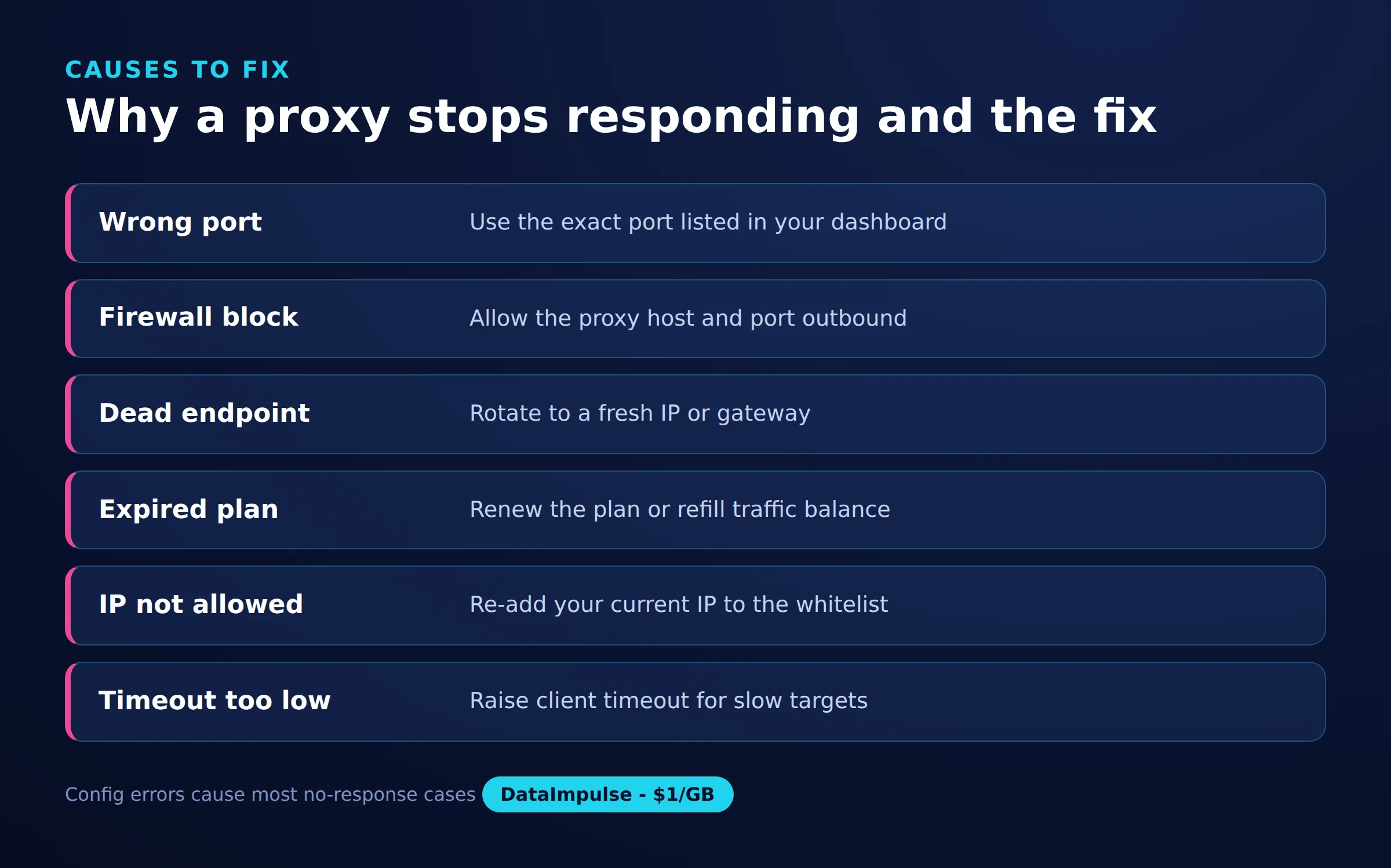
The error is triggered whenever your system is set to use a proxy that it cannot successfully connect to. The proxy address is stored somewhere, but the endpoint is unreachable, wrong, or was never meant to be there.
The common triggers are:
- Stale or wrong proxy settings. An old proxy from a previous network, tool, or tutorial is still enabled in Windows.
- Malware or adware. Some malware sets a rogue proxy to intercept traffic. Even after removal, the leftover setting stays active.
- A dead proxy endpoint. The proxy host or port is down, was decommissioned, or the credentials expired.
- Firewall or antivirus interference. Security software can block the outbound connection to the proxy port.
- VPN leftovers. A VPN or corporate client that crashed or was uninstalled can leave a proxy entry behind.
Identifying which trigger applies tells you which fix below to start with. If you never configured a proxy on purpose, the cause is almost always a stale setting or malware.
How do you fix proxy settings on Windows?
Open the Windows proxy settings and turn off any manual proxy you did not set on purpose. This resolves the error for most users who never intended to use a proxy at all.
Go to Settings > Network & Internet > Proxy. Under “Manual proxy setup,” if “Use a proxy server” is switched on and you did not configure it, turn it off. Leave “Automatically detect settings” on unless your organization requires a specific setup.
You can also open the classic dialog: press Windows + R, type inetcpl.cpl, press Enter, go to the Connections tab, and click LAN settings. Uncheck “Use a proxy server for your LAN” if it is checked and you did not add it. Click OK, then restart your browser and test again.
How do you reset the proxy with netsh and flush DNS?
Use the command line to force-reset the WinHTTP proxy and clear cached DNS records. This clears entries that the settings screens sometimes leave behind, especially after malware or a crashed VPN.
Open Command Prompt as administrator (right-click and choose “Run as administrator”), then run these commands one at a time:
netsh winhttp reset proxy
netsh winhttp show proxy
ipconfig /flushdns
ipconfig /release
ipconfig /renew
The first command clears the system-wide WinHTTP proxy. The second confirms the result should read “Direct access (no proxy server).” The ipconfig /flushdns command clears stale DNS entries that can also cause pages to fail. Reboot after running these so all applications pick up the change.
How do you check browser proxy settings?
Chrome and Edge use the Windows system proxy, so fixing Windows fixes them. Firefox keeps its own proxy settings and must be checked separately.
For Chrome or Edge, the proxy controls simply open the Windows settings described above, so no separate change is needed. If you use a proxy extension, disable or remove it, since a misconfigured extension can produce the same error.
For Firefox, open Settings, search for “proxy,” and click Settings under Network Settings. Choose “No proxy” if you do not need one, or “Use system proxy settings” to follow Windows. Only use “Manual proxy configuration” when you deliberately run a proxy and have correct host and port values. Correct browser configuration is also part of scraping without getting blocked when you route automated traffic through a proxy.
Could malware be setting a rogue proxy?
Yes. A frequent cause of a proxy setting you never created is malware or adware that hijacks traffic through its own server. If the proxy setting keeps coming back after you remove it, malware is the likely reason.
Run a full scan with Windows Security (Microsoft Defender) or a reputable anti-malware tool, then remove anything it finds. After the scan, repeat the Windows proxy cleanup and the netsh winhttp reset proxy command, because removing the malware does not always clear the setting it created. If the rogue proxy returns after a clean reboot, scan again with a second tool before assuming the machine is clean.
What if your paid proxy stops responding?
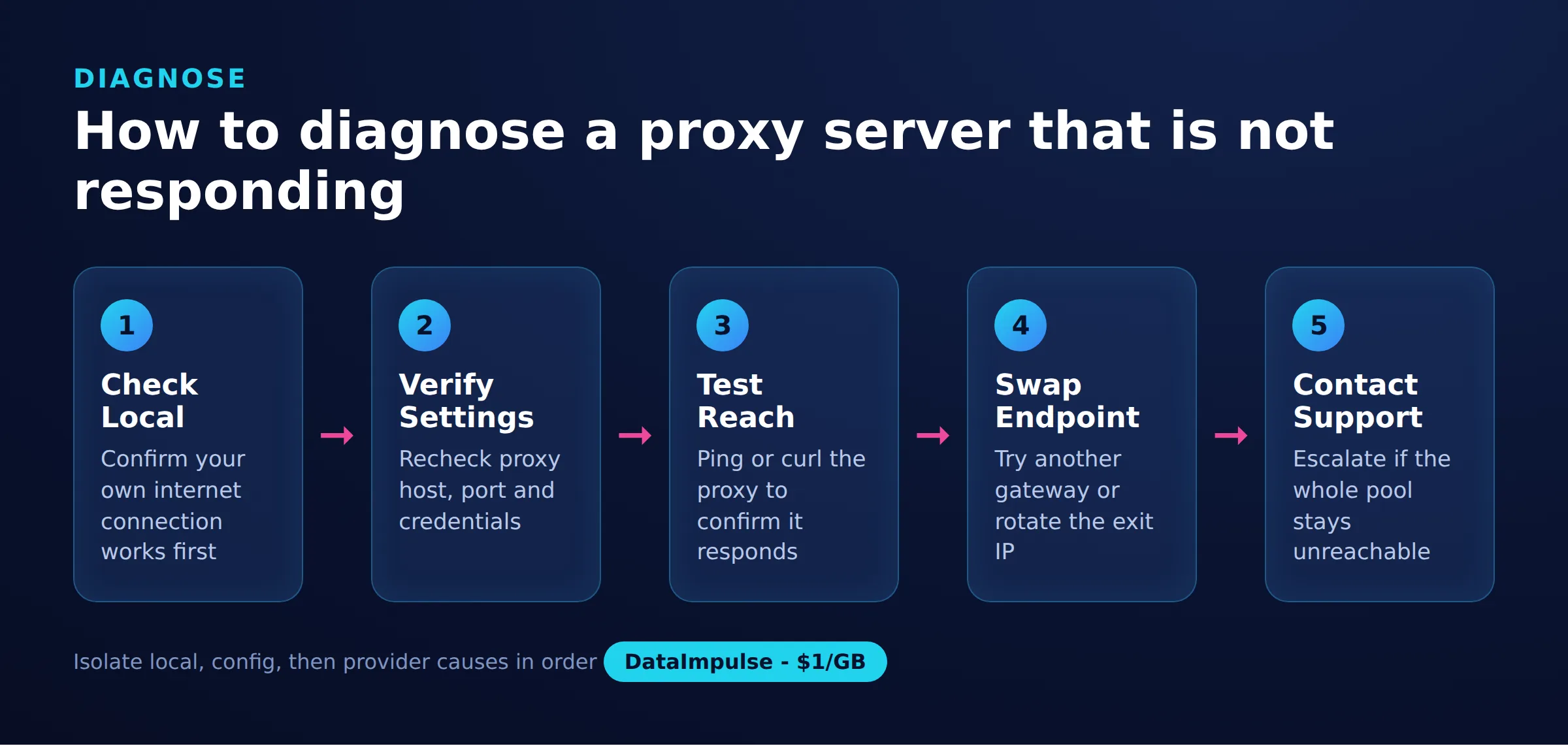
When you intentionally use a paid proxy and it stops responding, the fix is different: verify the endpoint, port, credentials, and account status rather than disabling the proxy. The setting is correct on purpose, so the problem is on the proxy or account side.
Work through these checks:
- Endpoint and port. Confirm the gateway host and port match your provider’s current values. Providers occasionally change endpoints.
- Credentials. Re-check the username and password, including any session or country parameters encoded in the username.
- Balance and plan. With pay-as-you-go traffic, a depleted balance stops the proxy from responding. Providers such as residential proxies from DataImpulse use non-expiring traffic, so confirm your remaining balance in the dashboard.
- Test with curl. Isolate the problem by testing the proxy directly.
Run a direct request through the proxy to see whether it responds at all:
curl -x http://USERNAME:[email protected]:823 https://api.ipify.orgIf curl returns an IP, the proxy works and the issue is in your browser or application configuration. If it times out, the endpoint, port, or credentials are wrong, or the balance is empty. Switching to a different gateway or rotating to a new IP also helps when a single exit node is unreachable. DataImpulse supports HTTP, HTTPS, and SOCKS5, with rotating and sticky sessions, so you can switch gateways without changing tools.
How do you confirm the proxy error is gone?
Reload the page that failed and check that the WinHTTP proxy shows direct access. If pages load and the proxy state is clean, the error is resolved.
Run netsh winhttp show proxy again and confirm it reads “Direct access (no proxy server)” when you do not intend to use a proxy. If you do use one, load a site that reports your IP address and confirm it shows the proxy’s exit IP rather than your own. For teams that need reliable exits at scale, DataImpulse offers datacenter proxies and mobile proxies alongside its residential pool across 195 countries.
Common causes and fixes
| Cause | Symptom | Fix |
|---|---|---|
| Stale proxy settings | Old IP still configured | Clear and re-enter settings |
| Rogue-proxy malware | Unknown proxy enabled | Scan and remove malware |
| Dead endpoint | No response at all | Switch to live endpoint |
| Firewall or antivirus | Connection blocked locally | Allow proxy in settings |
| DNS failure | Host cannot resolve | Change DNS or flush cache |
Frequently asked questions
Why does the proxy server isn’t responding error appear if I never set up a proxy?
A proxy setting can be left behind by a crashed VPN, an old network configuration, or malware that set a rogue proxy. Turn off “Use a proxy server” in Windows proxy settings and run netsh winhttp reset proxy to clear it.
Does resetting the proxy delete anything important?
No. The netsh winhttp reset proxy command only clears the system proxy configuration and returns Windows to direct access. It does not remove files, accounts, or network drivers.
The error came back after I fixed it. What now?
A recurring proxy setting usually means malware is resetting it. Run a full malware scan, remove what it finds, then clear the proxy again with netsh and reboot before testing.
How can I test whether a paid proxy is actually responding?
Use curl with the -x flag to send a request through the proxy to a site that returns your IP. If it returns the proxy’s IP the endpoint works, and if it times out the host, port, credentials, or balance is the problem.
Do Chrome and Firefox handle proxy settings the same way?
No. Chrome and Edge use the Windows system proxy, so fixing Windows fixes them. Firefox has its own proxy settings that must be checked and cleared separately.
When is DataImpulse not the right fit?
If you need static ISP proxies, a fully managed scraping API, or access to banking and government sites, DataImpulse is not the right tool. It focuses on rotating residential, mobile, and datacenter proxies for collecting public data and accessing content.
Need proxies that actually respond?
If you are done troubleshooting dead endpoints and want proxies that stay reachable, DataImpulse offers ethically sourced residential, mobile, and datacenter IPs across 195 countries with pay-as-you-go, non-expiring traffic from 1 dollar per GB. Create an account and test a gateway in minutes.

 State/City/Zip/ASN Targeting