
In this Article
Use ipconfig commands to inspect Windows network settings and troubleshoot DHCP or DNS problems. Start with ipconfig /all, then choose a fix based on the symptom: renew a DHCP lease for address-assignment trouble, or flush the local DNS cache for stale lookups. Neither action guarantees a different IP address or repairs a remote website.
Connect each symptom to a check, a limited intervention and a recovery test. Command behavior follows Microsoft’s command reference and DHCP renewal rules.
Key Facts
- Start with inspection before changing network configuration.
- DHCP renewal can extend the lease on the existing address.
- An IPv4 link-local address does not identify which device failed.
- DNS cache contents are not a browsing-history record.
- Releasing the active DHCP address can interrupt connectivity.
- Verify recovery in the application that originally failed.
Start with the symptom: who is at fault?
Identify what fails: one application, one hostname, one computer or several devices. A command result alone cannot assign blame to the laptop, router, resolver or website.
| Component | Role | Evidence to collect | Escalation |
|---|---|---|---|
| Local adapter/client | Connects the device to the network. | Active adapter, link state, addresses, routes and application error. | Device support or local network administrator. |
| Router/DHCP | The router forwards traffic; DHCP provides address configuration. These services may run on different devices. | Subnet, gateway, DHCP server, lease fields and other affected clients. | Router or DHCP administrator; ISP if it manages the equipment. |
| DNS resolver | Resolves names, including hostname-to-address queries. | Configured resolver, failing hostname and exact query response. | Resolver administrator or provider. |
| Remote origin server | Hosts or generates service content. | Failing URL, time, HTTP status and whether unrelated services work. | Website or application operator. |
| Configured proxy/CDN | Forwards requests or serves responses between client and origin. | Proxy settings, error, request identifiers and authorized direct/proxy comparison. | Proxy administrator or website operator responsible for the CDN. |
Microsoft recommends checking address configuration before testing DNS; HTTP distinguishes intermediaries from origin servers. See DNS client troubleshooting and HTTP intermediaries.
Record the original error and change one thing at a time so that a successful retry identifies which intervention helped.
Run ipconfig commands and read the right adapter
Open Command Prompt or PowerShell and inspect the adapter carrying your connection. Windows Terminal can host either shell; the selected shell determines command-chaining syntax. See Microsoft’s Terminal overview.
On Windows 11 or Windows 10, search Start for Command Prompt, open it and enter:
ipconfig /allFor changes such as release, renewal or cache flushing, use Run as administrator, following Microsoft’s network repair instructions. An elevation error does not establish a network outage.
Read an ipconfig /all example
Abbreviated illustrative output:
Wireless LAN adapter Wi-Fi:
   Physical Address . . . . : 02-11-22-33-44-55
   DHCP Enabled . . . . . . : Yes
   Link-local IPv6 Address : fe80::1234:5678:9abc:def0%12
   IPv4 Address . . . . . . : 192.168.1.42
   Subnet Mask . . . . . . : 255.255.255.0
   Lease Obtained . . . . . : November 18, 2026 08:00:00
   Lease Expires . . . . . : November 19, 2026 08:00:00
   Default Gateway . . . . : 192.168.1.1
   DHCP Server . . . . . . : 192.168.1.1
   DNS Servers . . . . . . : 192.168.1.1
Read the adapter heading first. Physical and logical interfaces can both appear; select the connected interface. An unused, disconnected adapter does not establish that the active connection is broken.
- IPv4/IPv6: Addresses assigned to the interface.
- Subnet Mask: Describes the IPv4 subnet.
- Default Gateway: The next hop for destinations reached through the default route.
- DNS Servers: Configured name resolvers.
- DHCP Enabled and DHCP Server: Address-assignment mode and lease server.
- Lease Obtained and Lease Expires: Lease timing, when shown.
- Physical Address: The adapter’s MAC address.
Use Microsoft’s IP configuration checklist to check the selected adapter. For device-specific instructions, see finding a MAC address. Output labels can be localized.
An interface address is not necessarily the public address seen by a website. This example uses private IPv4 space defined by RFC 1918. Use the IP address lookup guide to distinguish the address being inspected.
Command list and arguments
These switches are documented in Microsoft’s command reference:
| Command | Use when | Does not fix |
|---|---|---|
ipconfig |
Checking basic addresses, subnet and gateway. | Inspection only. |
ipconfig /all |
Inspecting full adapter configuration. | Inspection only. |
ipconfig /release |
Deliberately relinquishing DHCP IPv4 configuration. | Can disconnect the client. |
ipconfig /renew |
Renewing DHCP IPv4 configuration. | A broken physical link or remote website. |
ipconfig /flushdns |
Clearing stale local resolver-cache entries. | Routing or authoritative DNS errors. |
ipconfig /displaydns |
Inspecting the local resolver cache. | Inspection only. |
ipconfig /registerdns |
Manually initiating this computer’s dynamic DNS registration under administrator guidance. | Routine failures of unrelated websites. |
ipconfig /? |
Checking syntax and available switches. | Help only. |
Advanced options include /release6 and /renew6 for DHCPv6, /allcompartments, and DHCP class-ID switches. Consult help before using them.
Choose the fix from the evidence
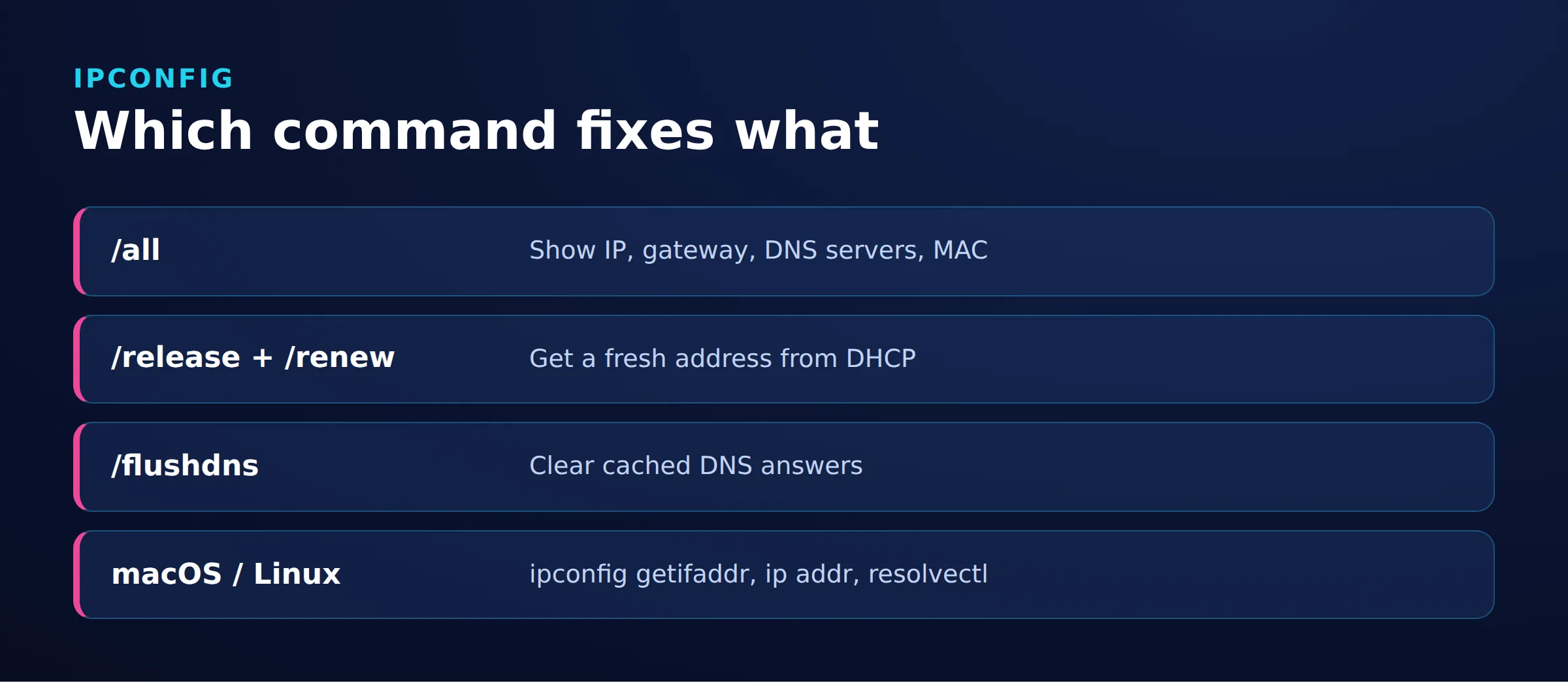
Match the intervention to the failed layer instead of running every repair command.
| Symptom | Check | Meaning | Fix |
|---|---|---|---|
No connectivity, 169.254 address |
Active adapter and DHCP state | Possible DHCP failure | Check link/router; then renew. |
| Media disconnected | Selected adapter and connection | No link on that adapter | Reconnect or inspect the active adapter. |
| One hostname fails | Cache, resolver answer, another client | Possible cache, DNS or remote issue | Flush only when warranted. |
| Only proxied requests fail | Authorized direct/proxy comparison | Proxy path implicated | Inspect settings and exact error. |
| Command unrecognized | Installed executable by full path | Possible PATH problem |
Verify command discovery. |
IPv4 link-local addresses occupy 169.254/16 and support communication on the local link. They do not identify which router or server failed. See RFC 3927.
For an unrecognized command, check spelling and shell. Confirm that ipconfig.exe exists in the Windows installation’s System32 directory, then invoke it by full path.
Command Prompt:
"%SystemRoot%\System32\ipconfig.exe" /allPowerShell:
& "$env:SystemRoot\System32\ipconfig.exe" /allIf this works but ipconfig /all does not, inspect command discovery and preserve existing PATH entries. See Microsoft’s PATH documentation and PowerShell’s call operator documentation.
For proxy-only failures, compare the same destination through authorized direct and proxy paths while keeping the request consistent. A different outcome narrows the investigation without proving the proxy service is defective. Follow the proxy server troubleshooting guide; proxies do not repair DHCP or disconnected adapters.
Renew an IP or flush DNS in the right order
Renew when evidence points to DHCP configuration; flush when evidence points to stale local DNS. No universal release-renew-flush sequence fixes every internet problem.
Renew first; release only when needed
For a DHCP-configured adapter named Wi-Fi, try:
ipconfig /renew "Wi-Fi"Replace Wi-Fi with the actual adapter name and quote names containing spaces. Omitting the name targets all applicable adapters. Renewal applies to automatic configuration, not a manually assigned static address. See adapter argument behavior.
A renewal can retain the same address, as described in RFC 2131, section 4.4.5. Compare lease information and application access. Address changes are a separate question covered in getting a new IP address.
Release only when abandoning the current lease is necessary. It can disconnect an active remote session. Work locally or arrange another access path first.
ipconfig /release and /renew in one line: CMD and PowerShell
Command Prompt: This sequence attempts renewal after release:
ipconfig /release "Wi-Fi" & ipconfig /renew "Wi-Fi"CMD uses & to separate commands; && runs the next command only after success. See CMD syntax.
PowerShell: Use a semicolon for sequential execution:
ipconfig /release "Wi-Fi"; ipconfig /renew "Wi-Fi"Microsoft documents semicolon-separated commands. Conditional && chaining requires PowerShell 7 or later; see pipeline chain operators.
Read both results. If DNS evidence also warrants flushing, run this separately after checking the renewed configuration:
ipconfig /flushdnsDisplay DNS cache and register DNS
Inspect the cache before clearing useful evidence:
ipconfig /displaydnsCompare the failing hostname in ipconfig /displaydns with the result of nslookup for that same hostname. If the Windows cache shows Name does not exist but the configured DNS server now returns a valid answer, a stale negative cache entry is a reason to run ipconfig /flushdns and retry the application. If the resolver query also fails, flushing the local cache does not correct that resolver-side failure; investigate the exact response. See Microsoft’s negative-cache troubleshooting guidance.
The cache includes resolver records and entries from the local Hosts file, not a complete browsing history. See Microsoft’s cache description.
ipconfig /registerdns initiates registration of this computer’s DNS names and addresses. It bypasses DHCP-server registration and can fail because of record permissions. On managed networks, have the administrator check the registration arrangement before using it. It is not a routine website-repair command. Microsoft’s dynamic update documentation recommends ipconfig /renew for updating DHCP clients’ DNS registration.
What are the macOS and Linux equivalents?
Windows switches are not interchangeable with similarly named commands on other platforms.
Mac Terminal and DHCP renewal
Identify the interface instead of assuming Wi-Fi uses en0. Apple’s interface-selection documentation explains matching hardware ports to device names:
networksetup -listallhardwareportsIf the relevant device is en0, inspect its configuration, IPv4 address and default route:
ifconfig en0
ipconfig getifaddr en0
route -n get default
ifconfig en0 displays interface configuration; replace en0 with the selected device name. See Apple’s ifconfig manual source.
ipconfig getifaddr en0 reports the IPv4 address for the first network service associated with that interface. Its output can be empty when no service is configured or active there. Recheck the selected interface and its ifconfig output before concluding that the Mac has no network connection. See Apple’s ipconfig manual source.
route -n get default checks the IPv4 default route. Inspect its gateway and interface fields; the command is not restricted to en0. See Apple’s route manual source.
For DHCP renewal, open System Settings, Network, the relevant service, Details, then TCP/IP. Select Renew DHCP Lease and confirm, following Apple’s renewal instructions. Windows switches such as /release and /all do not carry over.
Linux, Ubuntu and Debian
Inspect addresses and routes separately:
ip addr show
ip route show
The ip-address manual covers interface addresses. ip route show displays IPv4 routes from the main routing table by default; use ip -6 route show to inspect IPv6 routes. See the ip manual and ip-route manual. An empty IPv4 result alone does not establish that IPv6 connectivity has failed.
Legacy ifconfig belongs to net-tools, as shown in Debian’s manual. A command-not-found error indicates an availability or discovery problem. Identify the active network manager before choosing a DHCP recovery procedure.
If NetworkManager manages the interface, inspect device status and connection profiles:
nmcli device status
nmcli connection show
For a disconnected interface with a suitable existing profile, activate it, replacing PROFILE_NAME with its actual name:
nmcli connection up id "PROFILE_NAME"This activates a profile; it is not a universal DHCP-renew command. Recheck addresses, routes and application access. See the NetworkManager nmcli reference. Other network managers require their own recovery procedures.
Verify recovery and investigate remaining errors
Recovery means the original application works. After each targeted change, compare the same adapter’s configuration, query the failing hostname and repeat the original operation with the same connection and proxy settings.
Run this resolver query, replacing example.com with the failing hostname:
nslookup example.comRecord the queried server and exact result. Microsoft’s nslookup reference distinguishes a nonexistent domain from a timeout, server failure or refused query.
A ping timeout is inconclusive when ICMP is filtered; see Microsoft’s network connection checks. A response does not demonstrate that the website operation succeeded.
For DNS_PROBE_FINISHED_NXDOMAIN or a nonexistent-domain response, follow the NXDOMAIN guide. For other DNS errors, investigate resolver reachability or server behavior. If resolution succeeds but browsing fails, use the precise error and the site cannot be reached guide.
Frequently Asked Questions
What does ipconfig /renew do?
It requests renewal of DHCP configuration. The address can remain unchanged; check configuration and restored access. See DHCP lease renewal rules.
Should I release, renew and flush DNS every time?
No. Renew for DHCP trouble and flush for stale local DNS evidence. Release can interrupt connectivity. See Microsoft’s command reference.
How do I release and renew one adapter?
Use ipconfig /release "Wi-Fi", then ipconfig /renew "Wi-Fi", substituting the actual adapter name. Try renewal alone first unless release is necessary. See adapter argument documentation.
Does displaydns show browsing history?
No. ipconfig /displaydns shows resolver-cache entries, including records from the local Hosts file. See Microsoft’s cache description.
Why is there no IP address in the adapter block?
First confirm that the block belongs to the intended connected adapter, then inspect its configuration. See Microsoft’s IP configuration checks.
Can I run Windows ipconfig commands on a Mac?
macOS uses different syntax. ipconfig getifaddr en0 retrieves an IPv4 address; substitute the actual interface name. See Apple’s command manual and Renew DHCP Lease procedure.
Why is ipconfig not found on Ubuntu or Debian?
Windows ipconfig is not the standard Linux tool. Use ip addr show for addresses and ip route show for IPv4 routes. See the address manual and routing manual.
Share useful evidence when escalating
Send your network administrator or service support team the affected adapter, exact error, time, comparison with another client and changes already attempted.
Last updated: November 18, 2026.

 State/City/Zip/ASN Targeting