
In this Article
The message “this site can’t be reached” means Chrome could not load the address; the smaller error code identifies the failure more precisely. Check that code, then compare another website, device, and network. Those results help separate browser or device settings, DNS, proxy connections, and website-side failures so you can choose the right fix.
Start with the diagnostic table, then follow the matching error or platform branch. Google’s Chrome error reference distinguishes name-resolution, connection, and certificate problems. Use those distinctions to choose a targeted check before resetting your network.
Key Facts
- Start by recording the complete URL and secondary error code.
- Compare another browser, device, and network before changing settings.
- A DNS timeout does not establish that someone blocked the query.
NXDOMAINis a negative DNS answer, not an unanswered query.- A refused connection does not prove that the website is healthy.
- Change one setting at a time and repeat the original request.
How do you diagnose “this site can’t be reached”?
Record the complete address and the smaller error code before changing anything. The headline alone cannot identify the responsible component.
Capture the scheme, hostname, and any explicit port. Check for spelling mistakes, an old bookmark, or an application-generated address containing an unexpected value such as null. Remove private query parameters before sharing a screenshot.
This is a browser loading error, not an HTTP status such as 404 or 503. HTTP status codes describe a response received from an HTTP server; a connection failure may prevent that response from arriving. See MDN’s HTTP response status reference.
Write down the scope: one website or several, one browser or every browser, one device or everyone on the same Wi-Fi. Note recent router, DNS, VPN, proxy, or development-server changes. Treat timing as a lead to investigate, not proof of causation.
Which checks narrow down the connection failure?
First open an unrelated website. Then try the failing URL in another browser, on another device using the same Wi-Fi, and on your phone using cellular data. Keep the URL unchanged so you are comparing the same destination.
| Symptom | Check | Meaning | Next action |
|---|---|---|---|
| One browser fails | Compare browser/profile and Secure DNS | Browser configuration possible | Inspect the isolated browser setting |
| One device fails | Compare devices on the same Wi-Fi; inspect DNS/proxy | Device configuration or network treatment possible | Device owner or IT investigates |
| All Wi-Fi devices fail | Compare cellular and gateway access | Shared network or resolver path possible | Network owner checks router and upstream connectivity |
| DNS query times out | Compare configured and approved alternate resolver | No reply; blockage not proven | Investigate resolver availability and the path |
NXDOMAIN returned |
Check spelling and authoritative records | Negative DNS answer | Correct spelling or contact the domain administrator |
| Refused/reset/timeout | Compare networks; owner checks listener/logs | Client, intermediary, or destination possible | Relevant owner investigates the failing connection |
For browser isolation, follow Google’s connection troubleshooting guidance: compare another browser and an Incognito window, then investigate extensions if the isolated session works. That result does not identify a particular extension automatically.
If you suspect blocking, ask the network owner to check policy and logs. Do not disable a firewall or bypass organizational controls. The proxy versus firewall guide helps identify which component to discuss with the administrator.
Which secondary error code should you follow?
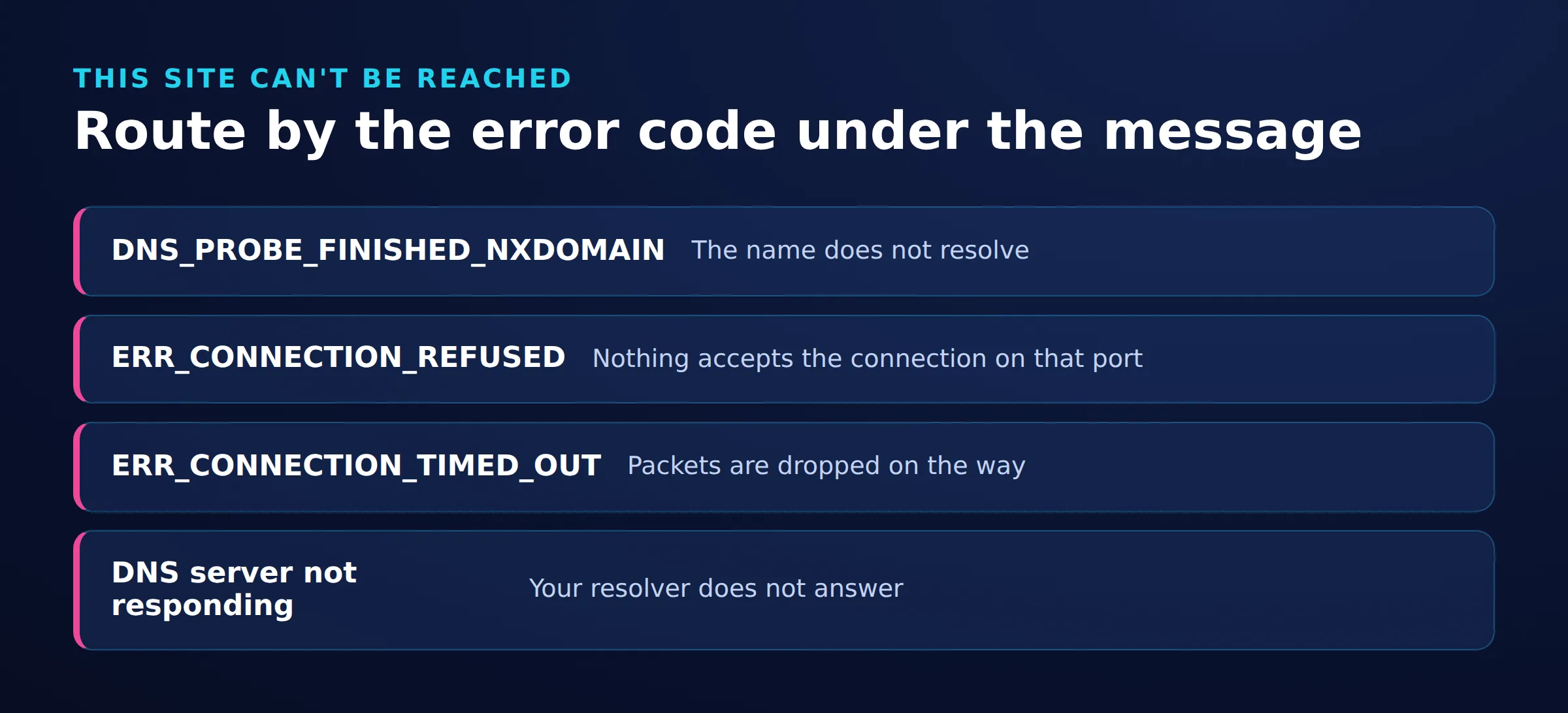
Use the secondary code to choose the next check. Keep DNS, transport, proxy, and certificate investigations separate.
DNS and address errors
| Error code | Meaning | Next check |
|---|---|---|
DNS_PROBE_FINISHED_NXDOMAIN |
Points toward name-resolution diagnosis | Check spelling and confirm the actual DNS response |
ERR_NAME_NOT_RESOLVED |
The hostname could not be resolved | Query the intended resolver |
ERR_ADDRESS_UNREACHABLE |
The IP address is unreachable, usually because no route exists | Inspect connectivity, gateway, and required VPN or route |
Chromium’s error definitions distinguish hostname-resolution failure from an unreachable IP address.
Check the hostname first. If an application generated the address, compare it with the intended destination. For either name-resolution code, continue to the DNS checks. For an internal hostname, confirm the required network and resolver with the administrator.
Refused, timed out, reset, or closed
| Error code | Meaning | Next check |
|---|---|---|
ERR_CONNECTION_REFUSED |
The connection attempt was refused | Verify address, port, and listening service |
ERR_CONNECTION_TIMED_OUT |
The connection attempt timed out | Compare networks; inspect path and destination |
ERR_CONNECTION_RESET |
The connection was reset, corresponding to TCP RST |
Correlate timestamps with intermediary and destination logs |
ERR_CONNECTION_CLOSED |
The connection closed, corresponding to TCP FIN |
Inspect service and intermediary logs |
These meanings come from Chromium’s network error definitions. They do not identify the responsible component. Refusal is not proof that the website is healthy.
Compare networks, then give the website owner the time and exact code. Ask them to inspect the listening service and relevant origin, CDN, or firewall logs.
Local development and VS Code: verify that the development process is running and that the browser uses its actual scheme and port. Check the listener’s bind address and startup logs. The name localhost resolves to the local loopback address under RFC 6761; opening it on your phone does not target your laptop. If forwarding is involved, verify the destination port. VS Code’s forwarding documentation starts with an existing service to forward.
Proxy and certificate errors
ERR_PROXY_CONNECTION_FAILED points to a connection problem with the proxy. ERR_TUNNEL_CONNECTION_FAILED means a tunnel through the proxy could not be established. These are distinct failures in Chromium’s proxy error definitions. Record the exact code.
Verify the proxy endpoint, port, authentication configuration, and any automatic configuration script with its owner. Follow proxy server not responding troubleshooting, or find the code in the proxy error guide.
Use the Windows proxy settings tutorial or Chrome proxy configuration tutorial to review the intended setup. Adding a proxy does not repair local connectivity, an origin outage, or an invalid certificate.
Certificate errors may appear under a privacy-warning headline. Follow the ERR_CERT_AUTHORITY_INVALID troubleshooting guide for that branch. Google’s error reference treats certificate errors separately; do not dismiss a warning merely to reach the page.
DNS server not responding: which Windows, Mac, and router fixes apply?
A timeout means no answer arrived in time; NXDOMAIN means the queried name does not exist, while SERVFAIL reports a server failure. RFC 1035 defines the DNS response codes. A timeout alone does not prove DNS blocking.
Windows 11/10 and one-computer failures
Inspect the active adapter before editing it. The following command displays configuration for all adapters, so identify the one carrying your connection. Microsoft’s ipconfig reference documents the output:
ipconfig /allCompare its address, gateway, and DNS servers with the network’s expected configuration. Do not copy another computer’s IP address. If only one computer fails, investigate its configuration before changing the router.
Query a public hostname using the default resolver:
nslookup example.comOnly where network policy permits a public-resolver comparison, use:
nslookup example.com 1.1.1.1The second argument selects the resolver for this query; it does not change Windows DNS settings. See Microsoft’s nslookup syntax and Cloudflare’s resolver documentation. Do not send private organizational hostnames to an external resolver.
Replace example.com with the failing public hostname, without https://, a path, or a port. Compare the same hostname against both permitted resolvers. Record the Server and Address identifying the resolver separately from the hostname’s answer.
A timeout means no reply arrived within the timeout period. Nonexistent domain corresponds to NXDOMAIN; Server failure corresponds to SERVFAIL. Microsoft documents these lookup errors. These results do not establish whether HTTPS access works.
If the configured resolver times out and the approved alternate answers, investigate the configured resolver or path. If both return NXDOMAIN for the target, check spelling and ask the domain owner to inspect authoritative records. If lookups succeed but Chrome fails, inspect browser DNS and proxy settings.
For a justified resolver change, preserve the original settings. Cloudflare’s linked instructions cover Windows 11’s DNS server assignment setting and Windows 10’s adapter properties. Change only the relevant configuration and retry the original URL.
Flush the Windows DNS client cache only when evidence suggests stale local information. Microsoft’s ipconfig reference documents ipconfig /displaydns for inspecting the cache and ipconfig /flushdns for clearing it. Flushing cannot repair an unavailable resolver. Because nslookup bypasses this cache, a successful lookup alone does not show that Chrome uses the same resolution path.
Mac and MacBook
Open System Settings, Network, the active service, Details, then DNS to inspect resolver entries and search domains. Apple’s DNS settings guide documents this path. Record existing entries before correcting an unexpected manual value.
Inspect VPN or proxy configuration associated with the connection. Apple recommends checking VPN and security software when investigating Mac Wi-Fi internet failures. Coordinate changes on managed computers.
Renew DHCP when evidence concerns address assignment. Apple’s DHCP renewal instructions use the active service’s TCP/IP settings and Renew DHCP Lease. Start with inspection instead of blanket cache clearing.
Wi-Fi, router, and all-device failures
If multiple devices fail on Wi-Fi but cellular works, investigate the shared network. Check the router’s management page, upstream connection status, and required network sign-in. A reachable gateway does not prove working internet access.
Inspect router resolver settings against the intended configuration. For a home router you control, restart it using its manufacturer’s instructions instead of factory-resetting it. Apple also recommends router checks and an alternate-network comparison in its connectivity guidance.
If several devices cannot reach unrelated websites, give the ISP the failure times, affected devices, and DNS comparison results. One failing hostname does not establish a general outage.
How do you fix “this site can’t be reached” on Android or Chromebook?
Android, Samsung, and other phones
Reload the exact failing URL with Wi-Fi off and cellular data available. Then reverse the comparison. If only some websites fail, record which hostnames work instead of treating the phone as completely offline.
Android’s Private DNS setting and Chrome’s Secure DNS setting are separate controls. Android introduced Private DNS with DNS over TLS in Android 9; supported Android 11 and later devices can also use DNS over HTTP/3 with supported resolvers. See Google’s Android DNS transport explanation.
Search the phone’s Settings for Private DNS and inspect any custom provider hostname using Google’s Android configuration guidance. Then check Chrome > Settings > Privacy and security > Use secure DNS separately.
Chrome’s automatic mode can fall back to unencrypted resolution, but a selected custom provider does not. Review your selection using Chrome’s Secure DNS guidance. The DNS over HTTPS explainer adds protocol context.
Change one setting at a time and repeat the original comparison. On a managed phone, send the evidence to the administrator.
Chromebook
Check that the intended Wi-Fi network is selected. Open Settings > About ChromeOS > Diagnostics and inspect Connectivity. Diagnostics automatically tests the default connection. Save the test details if a check fails, complete any required network sign-in, and retry the original URL. Google’s Diagnostics documentation explains these controls.
Another device working on that Wi-Fi narrows the issue to the Chromebook or its network treatment. Review Diagnostics before investigating browser state and extensions. For school or work devices, ask the administrator to inspect managed settings. Do not reset the device merely because one site fails.
How do you verify the fix or escalate?
Repeat the original URL and the comparison that exposed the failure. Retry an unrelated website too. If DNS was implicated, repeat the same lookup against the same resolver. Undo temporary diagnostic changes that did not help.
If “this site can’t be reached” returns, collect:
- The URL, secondary code, timestamp, and time zone.
- Operating system and browser versions.
- Results by browser, device, Wi-Fi, and cellular.
- Resolver results and changes attempted.
Send device-specific evidence to IT, shared-network evidence to the network owner or ISP, and a persistent one-site failure to the website operator. Remove credentials and private information before sharing logs.
Frequently Asked Questions
Why does this happen when Wi-Fi says connected?
Wi-Fi status confirms a local wireless connection, not successful DNS resolution or internet access. A network sign-in requirement or upstream failure can still prevent browsing.
Does this error mean Chrome blocked the website?
The headline alone does not establish blocking. Use the smaller error code and ask the administrator to check policy or logs when the failure occurs only on a managed network.
Why can a public website work while an internal site fails?
Internal names may require an organizational resolver, VPN, or network connection. Confirm the intended setup with IT, and keep private hostnames out of public-resolver comparisons.
Does selecting a resolver in a lookup change my DNS settings?
No. The second argument in nslookup example.com 1.1.1.1 selects the resolver for that query. It does not reconfigure Windows. See Microsoft’s command reference.
Can DNS work while the website still fails?
Yes. Resolving a hostname does not establish that a connection to its service succeeds. Continue with the reported connection, proxy, or certificate error.
Why does a development address fail on my phone?
The hostname localhost refers to the device opening it, so your phone does not reach your laptop through that name. Check the intended reachable address and forwarding setup.
Should I clear every cache and reset the network?
Make a targeted change based on the failing check. A broad reset makes it harder to identify which setting mattered and may remove configuration you need.
Last updated: November 18, 2026.
 State/City/Zip/ASN Targeting