

In this Article
The message “your connection is not private” means the browser cannot validate the website’s TLS certificate. To troubleshoot it, check the address and device clock, complete any Wi-Fi sign-in, then compare the site on another device and network to narrow down the cause.
The warning does not prove your device was hacked. Resolve its cause before entering passwords or payment details: record the error code, check your device, then identify whether the failure follows the website or the connection.
Key Facts
- The warning means the browser cannot validate the website’s TLS certificate.
- An incorrect device clock can cause certificate validity checks to fail.
- A certificate must cover the hostname requested by the browser.
- TLS inspection presents replacement certificates to the client.
- Trusting an inspection CA enables the inspector to decrypt affected HTTPS traffic.
- Proxy routing does not repair an expired website certificate.
What does “your connection is not private” mean?
It means the browser cannot establish a trusted identity for the HTTPS endpoint. Encryption alone is insufficient if the browser cannot verify who is at the other end.
A certificate binds an identity to a public key. Validation includes checking its validity period and a certificate chain leading to a trusted authority, as described in the X.509 certificate validation standard. The requested hostname must also match the certificate’s permitted identities under TLS service identity rules.
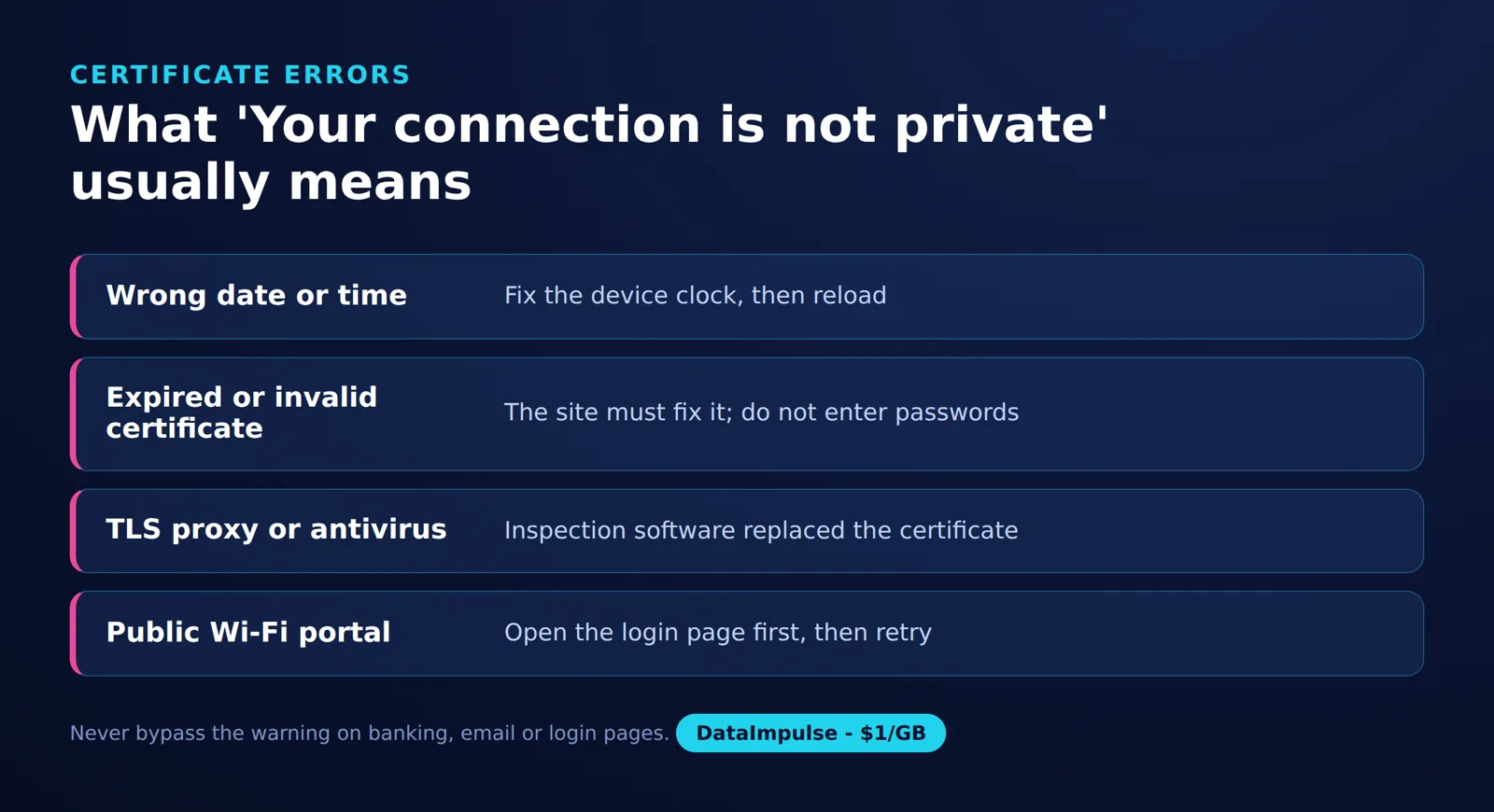
These checks can fail because the server presents an expired or incorrect certificate, the device has the wrong time, or an intermediary presents a replacement certificate that the client does not trust. The warning identifies a validation failure; it does not establish which party caused it.
Use a 3-question certificate diagnosis: Does it affect one website or several? Does it follow the device across networks? Does it affect another device on the same network? Change one condition at a time and record the result.
Browser error codes: what do they mean, and what should you do?
The error code narrows the failed check, but it does not identify the cause by itself. Separate certificate validation failures from TLS protocol failures before choosing a fix.
| Code | Meaning and possible cause | Visitor action | Administrator repair |
|---|---|---|---|
| NET::ERR_CERT_AUTHORITY_INVALID | The issuer is not trusted. Possible causes include a self-signed certificate or an untrusted inspection CA. | Check whether unrelated sites fail and whether inspection is expected. | Repair the certificate chain or deploy the verified organizational CA through approved management. |
| NET::ERR_CERT_DATE_INVALID | The certificate appears expired or not yet valid against the device clock. | Correct the date, time and time zone. | Renew or replace the affected certificate if the clock is correct. |
| NET::ERR_CERT_COMMON_NAME_INVALID | The certificate does not match the requested hostname. | Check the address and any pending network sign-in. | Serve a certificate covering the requested hostname. |
| ERR_SSL_PROTOCOL_ERROR | A TLS protocol error occurred; this is not specifically a certificate validation code. | Record the failure and check its scope. | Investigate TLS negotiation and endpoint configuration. |
Code meanings follow Chromium’s official network error definitions. Despite the COMMON_NAME label, modern hostname verification uses subject alternative names, as specified by the TLS identity standard.
For issuer failures, continue with the ERR_CERT_AUTHORITY_INVALID troubleshooting guide. Do not treat installing an arbitrary root certificate as a general repair.
How do you fix “your connection is not private” in Chrome?
Start with the address, error code and device clock, then compare websites and networks. Make one change at a time so you can identify what restores validation.
The Certificate Check framework: check the clock, identify the certificate failure, verify any inspection and compare networks.
Step 1: Check the address and record the failure. Correct spelling mistakes and reload once. Save the exact code and hostname before changing settings.
Step 2: Check the clock. Confirm the date, time and time zone, preferably using automatic synchronization. A wrong clock can make a valid certificate appear expired or premature.
Step 3: Complete network sign-in. If public Wi-Fi requires a portal, use the network’s sign-in flow before retrying HTTPS.
Step 4: Update and restart. Install available browser and operating system updates, then restart the browser.
Step 5: Compare the scope. Try unrelated HTTPS sites, another device and, where permitted, another network. One failing site across independent connections points toward its configuration; many failing sites on one device point toward local settings or inspection.
Step 6: Try an Incognito window. If the page works there, investigate extensions and browsing data. Private browsing does not repair an expired certificate.
Step 7: Escalate with evidence. Send the hostname, code, timestamp and comparison results to the website owner or IT team. For inspection-related failures, follow the next sections.
These checks draw on Google’s certificate error guidance and Chrome connection troubleshooting, verified on November 10, 2026.
Firefox
Open the warning’s Advanced details and record the code. SEC_ERROR_UNKNOWN_ISSUER and MOZILLA_PKIX_ERROR_MITM_DETECTED direct attention toward issuer trust or interception. Follow Mozilla’s security warning guidance; contact IT for managed-device failures and the owner for a faulty public site.
Microsoft Edge
Use the same address, clock and scope checks, then identify who must repair the connection. Microsoft’s secure browsing guidance recommends avoiding personal information on sites with invalid security and contacting the owner.
Safari
Check the affected address and contact the owner if its certificate remains invalid. Apple’s Safari warning guidance advises against entering passwords or card details when security warnings appear. Clearing website data cannot renew a server certificate.
Why do captive portals and networks cause warnings?
A captive portal can interrupt access before the intended HTTPS website is reached. Its sign-in page cannot validly impersonate the certificate of every website you request.
On hotel, airport or cafe Wi-Fi, open a plain HTTP address such as http://example.com to trigger the network login, following Google’s captive portal instructions. Verify that the portal belongs to the network, complete its sign-in, then reopen the original HTTPS address.
Use HTTP here only to reach the network portal. Do not change a sensitive website to HTTP to make a certificate warning disappear.
If the problem remains, compare the same hostname on a permitted independent connection. A different outcome narrows the investigation to the network path or the server reached through it; it does not prove interception. Keep certificate verification enabled throughout the comparison.
“Your connection is being intercepted by a TLS proxy”: how do you fix it?
A TLS inspection proxy presents replacement certificates to inspect HTTPS traffic. On managed devices, ask IT to verify and repair certificate trust.
In Firefox, “Your connection is being intercepted by a TLS proxy” is associated with MOZILLA_PKIX_ERROR_MITM_DETECTED, as recorded in Mozilla’s official NSS error definitions. Record the code and ask IT to check whether HTTPS inspection is expected and whether its CA is trusted. Antivirus HTTPS scanning, corporate inspection and a local debugging proxy are possible explanations. Mozilla’s issuer and interception troubleshooting explains these categories.
Inspect the certificate evidence. Where certificate details are available, record the issuer, validity dates and subject alternative names. An issuer associated with your organization or security software is a clue, not proof that the certificate is authorized. Before installing an inspection CA, ask IT to identify the exact CA certificate and confirm its SHA-256 fingerprint through an established support channel. Compare the fingerprint of that CA certificate, not the replacement website certificate.
Corporate inspection: Ask IT whether interception is expected and whether the required CA is installed in the affected client’s trust store. Include the hostname, browser and OS versions, error code and issuer. Do not remove mandatory proxy settings or import a certificate downloaded from the warning page.
Antivirus inspection: On a personal device, check the security vendor’s official repair instructions. If those instructions call for a temporary HTTPS-scanning comparison, keep it brief, avoid sensitive browsing and restore protection immediately. A changed result identifies a component to repair; leaving protection disabled is not the repair.
Proxy comparison: If organizational policy permits it, compare the same hostname through a direct connection. Record whether validation succeeds and whether the issuer changes. Different issuers alone are not conclusive because sites can use different certificate chains.
Unexpected inspection: Stop sensitive activity and contact the device or network administrator. Do not trust an unknown CA merely because doing so removes the warning.
How do HTTPS tunneling, inspection and trusted roots differ?
Proxy routing does not repair an expired website certificate. Certificate validation must still succeed when traffic travels through a tunnel.
In an ordinary CONNECT tunnel, a proxy forwards bytes while the client negotiates TLS with the destination. HTTP CONNECT semantics define this tunneling behavior. The use of CONNECT alone does not prove the absence of inspection: an inspecting intermediary can terminate the client’s TLS connection and establish another upstream.
Trusting an inspection CA authorizes the client to accept certificates it signs, enabling decryption of affected traffic by the inspector. This changes who can read that traffic; it is not merely a way to hide an error.
When is trusting an inspection CA appropriate?
Managed organizational inspection and controlled, self-managed debugging are legitimate contexts. The mitmproxy certificate documentation explains how client trust in its CA enables HTTPS inspection.
Example: For a debugging session you control, verify your own lab CA, limit trust to the intended test environment, protect its private key and remove that trust when the work ends. Keep certificate verification enabled.
| Approach | Use when | Avoid when |
|---|---|---|
| Direct-connection comparison | Use a direct comparison when policy permits isolating the network path. | Avoid a direct comparison when it would bypass mandatory organizational controls. |
| Inspection CA trust | Use inspection CA trust when the inspector and CA are verified and authorized. | Avoid inspection CA trust when the certificate comes from an unknown prompt or website. |
| Ordinary tunneling | Use tunneling when routing is needed without deliberate HTTPS decryption. | Avoid tunneling as a certificate repair when the destination certificate is invalid. |
Host trust may not cover containers or runtimes
A working browser does not establish that every application trusts the same CA. Docker’s CA certificate documentation distinguishes host trust from container trust and notes that SDKs or runtimes may need additional configuration. Apply approved CA changes to the actual failing environment instead of disabling verification globally.
When must the website owner fix the certificate?
The website owner must act when the server’s certificate, identity or chain is invalid. A visitor cannot renew that certificate or correct the server’s hostname configuration.
If one site fails on multiple devices and independent networks while other sites work, report it to the owner. This is useful diagnostic evidence, not absolute proof: shared inspection or different server endpoints can complicate the result.
- Expired or premature certificate: Verify the server’s active certificate and deploy one valid for the current time.
- Hostname mismatch: Serve a certificate whose subject alternative names cover the requested hostname.
- Chain failure: Check that the server sends the necessary intermediate certificates and that validation reaches an appropriate trusted root.
- TLS protocol error: Inspect the TLS endpoint and handshake configuration separately from certificate renewal.
These repairs follow certificate path validation requirements and service identity verification requirements. Retest the affected hostname after deployment with verification enabled.
FAQs: is the warning dangerous, and should you bypass it?
The warning is a protective stop, not a diagnosis of an infected device. Resolve the validation failure before sending sensitive information.
A “Not secure” label can also describe an HTTP page, so it is not interchangeable with every certificate error. Apple documents both unencrypted pages and certificate problems in its Safari security warning explanation.
For ordinary public websites, return to safety and report persistent failures. For a service you control, repair its certificate or establish verified local trust instead of making routine bypasses part of your workflow.
Related troubleshooting guides
For NET::ERR_CERT_AUTHORITY_INVALID, follow our certificate trust troubleshooting guide.
- DNS over HTTPS: background on encrypted DNS, which does not replace website certificate validation.
- TLS fingerprinting and spoofing techniques: related TLS background, separate from repairing certificate trust.
Frequently Asked Questions
Is the “your connection is not private” error dangerous?
It signals that the browser cannot authenticate the connection as expected. The cause may be a clock problem, a server mistake or interception, so avoid sending sensitive information until it is resolved.
Why does the warning appear on only one website?
An expired certificate, hostname mismatch or incomplete chain may affect that site alone. Check the address and compare another device and network before asking the owner to investigate.
Is “Not secure” the same warning?
Not necessarily: an HTTP page can be labeled insecure because it lacks HTTPS. A certificate warning concerns a connection whose attempted HTTPS validation failed.
Should I click Proceed Anyway?
Avoid bypassing the warning on public websites, particularly before signing in or paying. For a local service you control, correct the certificate or configure verified local CA trust.
What if my clock is already correct?
Continue with the Certificate Check framework: record the certificate error code, verify any inspection and compare networks. Determine whether the problem affects one site or several, then investigate the site’s certificate, local inspection software or the network path according to that pattern.
Can a VPN or proxy fix the certificate?
Changing routes may avoid a problematic network path, but it cannot renew an expired certificate. An inspecting proxy can itself cause a trust failure when the client does not trust its CA.
Should I install a certificate recommended by a warning page?
Do not import an unknown root certificate just to gain access. Verify organizational certificates with IT, or use a CA you control within a deliberately configured debugging environment.
Why does my browser work while a container still fails?
The container or application runtime may use a different trust store. Check the failing environment’s CA configuration instead of assuming that host-level trust applies everywhere.
Resolve certificate trust before choosing a proxy
Buying proxies is not a certificate repair. If you separately need proxy routing, review our DataImpulse residential proxies or mobile proxies.
Last updated: November 10, 2026.

 State/City/Zip/ASN Targeting