
In this Article
err_cert_authority_invalid means your browser cannot build a valid chain from the website’s certificate to a root certificate authority it trusts. The message net::err_cert_authority_invalid identifies a trust failure, not proof that the website is malicious.
Start by checking whether one website fails or many unrelated websites fail. Then follow the relevant path below: visitors should isolate the device or network, owners should inspect the deployed certificate chain, and developers should configure explicit trust for their local or internal CA.
Key Facts
- err_cert_authority_invalid means the client cannot establish a certificate chain to a trusted authority.
- A missing intermediate certificate can prevent certificate-chain validation.
- Expiration and hostname mismatches are distinct from an untrusted certificate authority.
- A failure that appears only behind a proxy does not, by itself, prove TLS interception.
- Installing a development CA does not configure the development server to use its certificate.
- Disabling certificate verification removes an essential check of server identity.
What does err_cert_authority_invalid mean?
The browser received a certificate but could not establish trust in its issuing authority. Encryption alone cannot establish that the server is the intended destination.
A typical chain runs from the website’s leaf certificate through intermediate certificates to a trusted root. The server supplies the leaf and necessary intermediates; the client needs an acceptable trust anchor. An untrusted self-signed leaf, an unavailable intermediate or an unfamiliar private CA can break that process.
Chromium distinguishes authority, date and hostname failures in its network error definitions. Diagnose the exact code before changing settings.
What causes err_cert_authority_invalid?
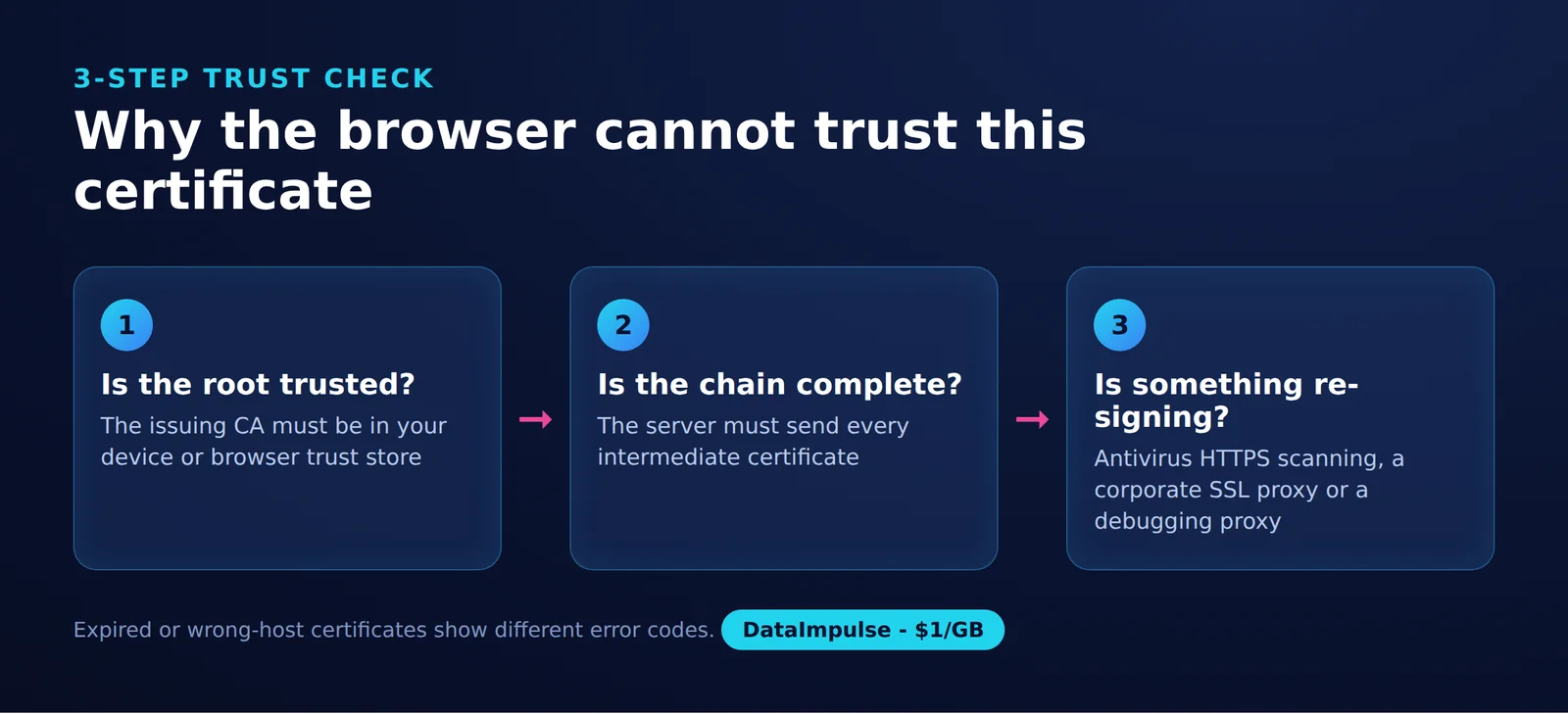
Check the trust anchor, the chain the server sends and possible certificate substitution. Use this 3-step trust check to separate those causes.
- Is the root trusted? A private CA or self-signed development certificate may be unknown to this client.
- Does the server supply the necessary intermediates? A valid leaf alone may be insufficient. DigiCert’s chain documentation explains the intermediate’s role.
- Is something re-signing traffic? An authorized inspection service or local security tool may present a replacement certificate whose CA is missing from the client’s trust configuration.
Interception is a change to the connection, not another link in the certificate chain. These neighboring errors need different fixes, following Chromium’s definitions:
| Error | Primary problem | First check |
|---|---|---|
| ERR_CERT_AUTHORITY_INVALID | Untrusted authority or chain | Issuer, intermediates and trust store |
| ERR_CERT_DATE_INVALID | Certificate validity dates | Expiration and device clock |
| ERR_CERT_COMMON_NAME_INVALID | Hostname mismatch | Requested hostname and certificate SANs |
How do you fix it as a visitor?
Compare the connection before changing trust settings. If one site fails across independent devices and networks, report it to the owner.
- Check the clock anyway. Correct the date, time and time zone, but clock problems usually belong to DATE_INVALID.
- Try another trusted network. Compare home broadband with mobile data. On public Wi-Fi, complete the network’s legitimate sign-in flow.
- Try a private window. If the result changes, investigate extensions and browser configuration.
- Update the browser and operating system. Restart and retry after supported updates.
- Investigate HTTPS scanning. On a personally managed device, temporarily test with that feature disabled, then turn it back on. Seek a supported repair if it caused the failure.
These isolation steps align with Google’s certificate-error guidance. On managed equipment, ask IT before changing security software.
Do not proceed into banking, login or payment pages with unresolved certificate warnings. For the broader warning, see our connection-is-not-private guide.
Why does it happen on ALL websites?
Failures across unrelated websites point toward a shared device, trust-store or network problem. They are less consistent with every website independently deploying a broken certificate.
- One site, several devices: investigate the site’s chain or a shared network path.
- Many sites, one device: investigate local trust, security software and managed settings.
- One browser or app: compare its certificate configuration with a working client.
- Several devices, one network: investigate the gateway, captive portal or inspection service.
- Works on another network: compare routing, DNS and the certificates presented on each path.
Synchronize the clock, inspect the issuer and record which comparisons changed the result. An unexpected organization appearing as issuer across unrelated domains is a useful clue, not sufficient proof of legitimate inspection. Send IT the affected URLs, exact errors and issuer details.
Leave DNS flushing and browser reset until last. A DNS flush can only help a stale resolution problem; it cannot install a missing trust anchor. A reset does not repair the remote server’s certificate chain. If the connection fails before certificate exchange, use the separate proxy-not-responding troubleshooting guide.
How do site owners repair the certificate chain?
Serve the correct leaf certificate and required intermediates from every TLS endpoint. Replace an untrusted self-signed production certificate with one appropriate for your visitors.
Check the actual hostname, load balancer and origin separately. DigiCert recommends installing missing intermediates for incomplete-chain errors.
Replace example.com below with your hostname. OpenSSL documents these verification options:
openssl s_client -connect example.com:443 \
  -servername example.com -verify_hostname example.com \
  -verify_return_error -showcerts </dev/null
-showcerts displays what the server sent; it does not establish a verified chain. -verify_return_error makes verification failures abort, while the hostname options select and check the intended host. Results depend on the local trust configuration. See the OpenSSL s_client documentation.
For an existing Let’s Encrypt deployment managed with Certbot, test renewal using the documented dry run:
certbot renew --dry-runA successful Certbot renewal test does not prove production is serving the renewed files. Verify the deployed chain after renewal and reload, and monitor the certificate expiry visible to clients.
Cloudflare exception: Origin CA certificates are not browser-trusted. Disabling proxying, pausing Cloudflare or accessing the origin directly can expose this error. Restore the intended proxy configuration or install a publicly trusted origin certificate for direct access. Cloudflare’s Origin CA troubleshooting documents this distinction and compatibility with Full (strict) mode.
How do you create a trusted localhost certificate?
Create a development CA, trust it on the development machine, and configure the server with a certificate covering the names you actually use. Trusting the CA alone does not configure HTTPS.
The mkcert README documents these installation options. Run only the option matching your system:
# macOS with Homebrew
brew install mkcert

# Windows with Chocolatey
choco install mkcert

# Debian/Ubuntu prerequisite
sudo apt install libnss3-tools
# Then install the appropriate Linux binary from mkcert's official releases.
After installation, generate explicitly named files:
mkcert -install
mkcert -cert-file localhost.pem -key-file localhost-key.pem \
  localhost 127.0.0.1 ::1 app.test
For app.test, add 127.0.0.1 app.test to your operating system’s hosts file. The URL hostname must match a certificate subject alternative name (SAN). Never share rootCA-key.pem; keep generated private keys out of source control.
For an existing Next.js project, the Next.js CLI accepts a custom development certificate and key:
npx next dev --experimental-https \
  --experimental-https-key ./localhost-key.pem \
  --experimental-https-cert ./localhost.pem
For an existing Vite project, merge this into vite.config.js. Vite’s server.https configuration accepts HTTPS server options:
import { defineConfig } from 'vite';
import { readFileSync } from 'node:fs';

export default defineConfig({
  server: {
    https: {
      key: readFileSync('./localhost-key.pem'),
      cert: readFileSync('./localhost.pem'),
    },
  },
});
Clients may need explicit CA configuration. The following documented options preserve verification: Node’s NODE_EXTRA_CA_CERTS, Requests’ verify parameter and curl’s –cacert option.
# Run in a POSIX shell; replace app.js with your Node entry point.
NODE_EXTRA_CA_CERTS="$(mkcert -CAROOT)/rootCA.pem" node app.js
curl --cacert "$(mkcert -CAROOT)/rootCA.pem" https://localhost:3000/
import subprocess
from pathlib import Path
import requests
ca_dir = subprocess.check_output(['mkcert', '-CAROOT'], text=True).strip()
response = requests.get(
'https://localhost:3000/',
verify=str(Path(ca_dir) / 'rootCA.pem'),
timeout=10,
)
print(response.status_code)Use the port your server actually reports. Never use verify=False in production: it removes certificate authentication and creates interception risk.
Why does this error appear behind a corporate proxy or VPN?
A proxy-only failure suggests a path-dependent problem, but does not prove interception. DNS, routing and the destination endpoint can also differ.
An HTTP CONNECT tunnel forwards bytes after establishment, as specified in RFC 9110. TLS can remain between the client and destination. An inspecting intermediary instead terminates TLS and presents another certificate.
For authorized inspection, obtain the organization’s CA certificate through verified IT channels. Have administrators confirm which store the failing app uses: browser trust, Windows Trusted Root Certification Authorities, or a separately configured runtime bundle. Do not assume a browser repair also fixes a Python or Java client.
Microsoft documents Group Policy certificate distribution into the selected Windows certificate store. IT should manage deployment; proxy exclusions must follow organizational policy.
For connection setup, see using curl with a proxy. For the routing distinction, see proxy versus VPN. DataImpulse provides proxy infrastructure, not a VPN, scraping API or managed unblocker.
What did our own test show?
We ran the badssl.com test endpoints through five clients on October 15, 2026. Each failure type produced its own error string, which is why the exact code matters. This is a snapshot, not a benchmark.
Method and sample: four badssl.com endpoints tested with five clients, giving 20 recorded client-endpoint outcomes, plus three direct-versus-proxy certificate comparisons and one proxied curl failure. The table summarizes the two trust-error endpoints. These are observed strings, not universal product guarantees.
| Client | Untrusted root | Self-signed leaf |
|---|---|---|
| Chromium | ERR_CERT_AUTHORITY_INVALID | ERR_CERT_AUTHORITY_INVALID |
| Firefox | SEC_ERROR_UNKNOWN_ISSUER | SSL_ERROR_UNKNOWN |
| curl | SSL certificate problem: self-signed certificate in certificate chain | SSL certificate problem: self-signed certificate |
| Python Requests | CERTIFICATE_VERIFY_FAILED: self-signed certificate in certificate chain | CERTIFICATE_VERIFY_FAILED: self-signed certificate |
| Node | SELF_SIGNED_CERT_IN_CHAIN | DEPTH_ZERO_SELF_SIGNED_CERT |
Through a DataImpulse CONNECT proxy, the SHA-256 certificate fingerprint was identical to the direct connection for untrusted-root.badssl.com and dataimpulse.com: the tunnel passed the original certificate through unchanged, and curl through the proxy failed with the same untrusted-root error as without it.
For www.google.com, fingerprints differed and issuer common names changed from WR2 to WE2; both listed Google Trust Services. Large CDNs such as Google serve different certificates from different edges and regions, so a leaf fingerprint comparison is only meaningful on single-certificate sites. An issuer label alone cannot authenticate a connection, and these observations do not establish a universal non-interception guarantee.
Which platform trust settings matter?
Check the trust configuration used by the failing application. A certificate installed for one client may not resolve another client’s error.
| Platform | Relevant check, as of October 2026 |
|---|---|
| Windows | Ask IT to verify the intended certificate store and policy deployment using Microsoft’s guidance linked above. |
| macOS | Keychain Access exposes certificate trust settings. Change them only for independently verified certificates. |
| Android | User-CA trust depends on the app’s target SDK and Network Security Configuration, not just Android’s version. |
| iOS | Manually installed certificate profiles are not automatically trusted for SSL. Follow Apple’s certificate trust guidance for an authorized CA. |
Is it safe to proceed, and how can you verify the certificate first?
Only consider an exception for a controlled development endpoint whose identity you have independently verified. An unexplained public-site warning is a reason to stop.
Chrome documents DevTools, Privacy and security, Security, Overview, View certificate for certificate inspection. Use its security panel guidance to inspect available certificate details. If the blocked page does not expose them, ask the owner or IT to inspect the connection.
Check the hostname, validity period and issuer, then compare the certificate or CA fingerprint through a trusted channel. Recognizing an issuer’s name is insufficient.
| Decision | Use when | Avoid when |
|---|---|---|
| Explicit CA trust | Use explicit CA trust when IT or your development setup independently verifies the CA. | Avoid explicit CA trust when a warning page supplies an unexplained root. |
| Temporary exception | Use a temporary exception when testing your own verified endpoint without sensitive data. | Avoid a temporary exception when identity remains uncertain. |
| Stop and escalate | Use escalation when banking, login, payment or unexpected network-wide failures are involved. | Avoid repeated bypass attempts when the underlying trust failure remains unresolved. |
Frequently Asked Questions
What does ERR_CERT_AUTHORITY_INVALID mean?
The client could not establish trust in the certificate authority behind the server’s certificate. A private CA, self-signed certificate or incomplete chain can cause this without the site necessarily being malicious.
How to solve ERR_CERT_AUTHORITY_INVALID?
First determine whether the problem follows the website, device or network. Repair the relevant chain or trusted-CA configuration, then retry with certificate verification enabled.
How to bypass ERR_CERT_AUTHORITY_INVALID?
A bypass does not repair trust. Only consider a temporary exception for your own independently verified development endpoint; creating a trusted local certificate is the better lasting fix.
How to fix certificate error in Chrome?
Record the exact error before applying fixes. Compare another device and network, then investigate the certificate chain or local trust configuration indicated by those results.
How do I fix ERR_CERT_AUTHORITY_INVALID in Chrome on all websites?
Look for something shared across connections, such as device trust settings or network inspection. Give IT the issuer details and the results of testing another network instead of importing an unknown certificate.
Does clearing the cache fix certificate authority errors?
It cannot make an unknown CA trustworthy or supply a missing server intermediate. Treat cache-related changes as secondary troubleshooting after identifying what failed.
Need to compare proxy and direct connections?
If your workflow needs another network path, explore DataImpulse residential proxies. Keep certificate verification enabled on both paths: a proxy can help compare connection behavior, but it cannot repair a broken certificate chain.
Last updated: October 15, 2026.

 State/City/Zip/ASN Targeting