
In this Article
Lightpanda is a headless browser engine for extracting and interacting with web content through JavaScript and the DOM, without graphical page rendering. Its Web API coverage is partial (as of October 2026), so choosing it requires checking the operations your workload actually needs. See the official architecture overview.
In our test on October 15, 2026, it completed three tiny localhost extraction tasks faster than headless Chromium, with correct results throughout. This article explains setup, client connections, compatibility checks and authenticated routing, while keeping that snapshot separate from claims about real websites.
Key Facts
- Our test on October 15, 2026 covered three localhost fixtures.
- Both engines returned the exact expected content in all 60 measured loads.
- Lightpanda’s static extraction median was 35.2 ms in our test.
- Lightpanda’s inline JavaScript extraction median was 31.1 ms in our test.
- Lightpanda’s same-origin fetch extraction median was 29 ms in our test.
- Our authenticated HTTP proxy check returned a German residential exit IP.
What is Lightpanda, and how does it work?
Lightpanda is an independent browser written in Zig, rather than a Chromium fork. It combines networking, HTML parsing, V8 JavaScript execution and an in-memory DOM, according to its canonical repository and architecture documentation.
JavaScript execution and graphical rendering are separate capabilities. A script can fetch JSON, create list elements and expose their text to an automation client without painting those elements onto a screen.
That distinction defines the evaluation: extracting product names from document nodes is different from checking whether a button overlaps a banner. Build your acceptance test around the output you need. Our headless browser overview explains the broader category.
When should you use Lightpanda instead of headless Chrome?
Use Lightpanda when your required extraction and interaction tests pass. Apply the 3-layer workload-fit check before comparing speed or adding network infrastructure.
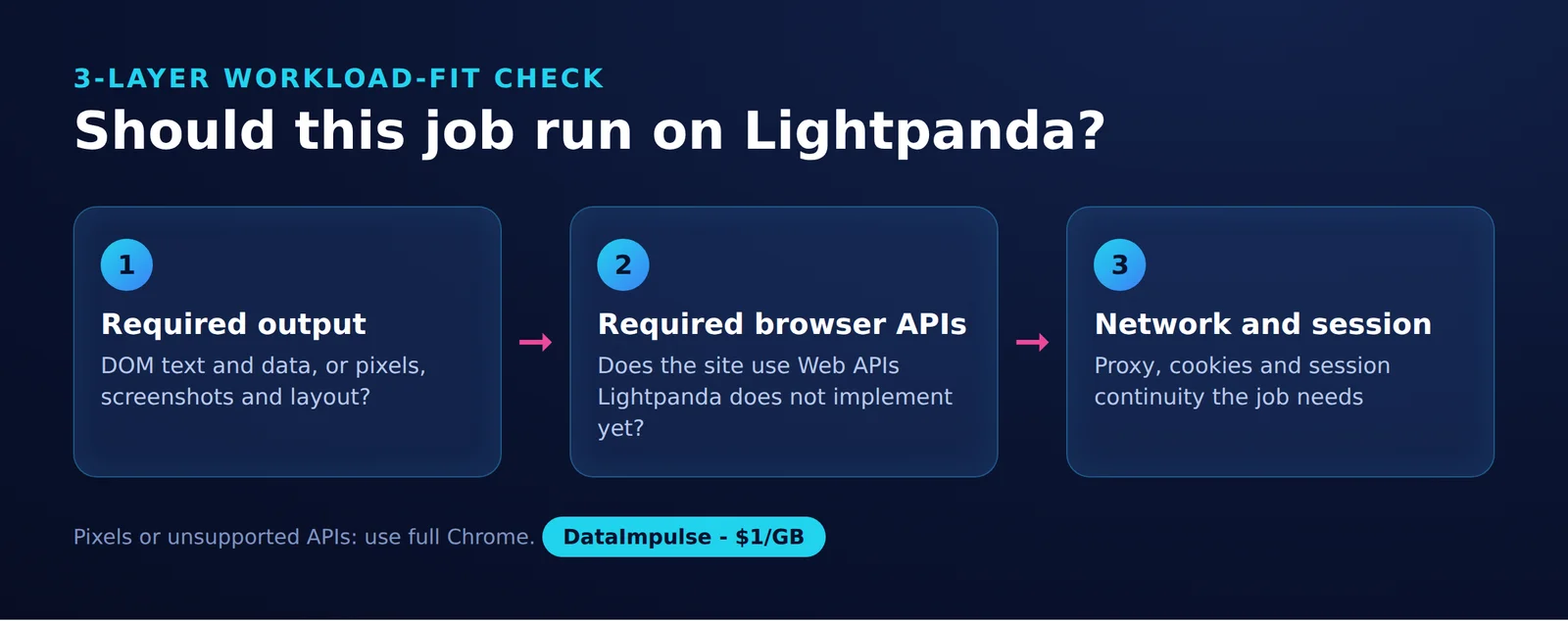
- Layer 1: Required output. List the exact fields, text or documents you need. If acceptance depends on actual pixels, use a rendering browser.
- Layer 2: Required browser APIs. Turn essential operations into fixtures: navigation, script execution, asynchronous requests, selectors and state changes. Check correctness, not merely whether navigation finishes.
- Layer 3: Required network/session behavior. Identify the authorized destination, egress country, authentication and continuity requirements. Test these separately from DOM functionality.
| Option | Use when | Avoid when |
|---|---|---|
| Lightpanda | Use Lightpanda when required DOM/API operations pass the fixture test. | Avoid Lightpanda when actual pixels or unsupported APIs are required. |
| Full rendering browser | Use a full rendering browser when work requires visual output or browser fidelity. | Avoid a full rendering browser when rendering adds no value and a tested lighter engine suffices. |
| Proxy routing | Use proxy routing when authorized work requires a particular egress location or session. | Avoid proxy routing as a fix when the actual failure is unsupported browser functionality. |
Record one pass/fail result per requirement. This prevents a successful title extraction from becoming an accidental endorsement of an entire application. For broader system design, see agentic browsing infrastructure.
How do you install it on Linux or with Docker?
For the closest starting point to our test, select the x86_64 Linux binary from release 1.0.1. The following download pins that release and checks the published asset checksum; it is a setup recipe, not a separately measured installation test.
The official release identifies the version, and its asset listing contains the checksum.
set -eu
curl -fL -o lightpanda https://github.com/lightpanda-io/browser/releases/download/1.0.1/lightpanda-x86_64-linux
printf '%s  %s\n' '551747e35c51ba107b5d5277eca4b48e077b2a3b40f09a047bf6670448bc35fd' 'lightpanda' | sha256sum -c -
chmod +x ./lightpanda
./lightpanda version
./lightpanda serve --host 127.0.0.1 --port 9222
Linux release binaries require glibc, and there is no native Windows binary (as of October 2026). The installation instructions direct Windows users to WSL2.
The Docker guide documents an official image. Resolve its moving tag to a digest before running it, then retain that digest in CI:
set -eu
docker pull lightpanda/browser:nightly
LP_IMAGE=$(docker image inspect lightpanda/browser:nightly --format '{{index .RepoDigests 0}}')
printf '%s\n' "$LP_IMAGE"
docker run --rm --name lightpanda -p 127.0.0.1:9222:9222 "$LP_IMAGE"
Run either the binary or container, since both commands use the same host port. The resolved container is an independent evaluation build, not necessarily the version in our results. Keep the browser endpoint bound to loopback and save the version alongside every test report.
How do Puppeteer and Playwright connect?
Puppeteer and Playwright act as automation clients; Lightpanda acts as the browser engine. Its Puppeteer guide and Playwright guide document connections to a running CDP server.
Start with Puppeteer, the client used in our measurement. Install the same package version:
npm install --save-exact [email protected]Save this example as extract.mjs and run node extract.mjs while the browser server is running. It hosts a small local JavaScript fixture, waits for completion and verifies exact text. This is a new smoke test, not the original timing script.
import http from 'node:http';
import assert from 'node:assert/strict';
import puppeteer from 'puppeteer-core';

const html = `<!doctype html><ul id="items"></ul>
<script>
for (const text of ['alpha', 'beta', 'gamma']) {
  const li = document.createElement('li');
  li.textContent = text;
  document.querySelector('#items').appendChild(li);
}
const done = document.createElement('div');
done.id = 'done';
document.body.appendChild(done);
</script>`;
const server = http.createServer((req, res) => {
  res.writeHead(200, { 'Content-Type': 'text/html; charset=utf-8' });
  res.end(html);
});
await new Promise(resolve => server.listen(8080, '127.0.0.1', resolve));
let browser;
let context;
try {
  browser = await puppeteer.connect({
    browserWSEndpoint: 'ws://127.0.0.1:9222'
  });
  context = await browser.createBrowserContext();
  const page = await context.newPage();
  page.setDefaultTimeout(5000);
  await page.goto('http://127.0.0.1:8080/', {
    waitUntil: 'domcontentloaded', timeout: 5000
  });
  await page.waitForSelector('#done');
  const items = await page.$$eval('#items li', nodes =>
    nodes.map(node => node.textContent));
  assert.deepEqual(items, ['alpha', 'beta', 'gamma']);
  console.log(items);
} finally {
  try {
    if (context) await context.close();
  } finally {
    if (browser) browser.disconnect();
    await new Promise(resolve => server.close(resolve));
  }
}
Run this localhost example with the native browser on the same host. A container needs an explicitly reachable fixture address. For an existing Playwright project, the minimal connection is:
import { chromium } from 'playwright-core';
const browser = await chromium.connectOverCDP('ws://127.0.0.1:9222');
try {
  const context = await browser.newContext();
  try {
    const page = await context.newPage();
    console.log(await page.title());
  } finally {
    await context.close();
  }
} finally {
  await browser.close();
}
Playwright documents lower fidelity for CDP than its native protocol connection (as of October 2026). Its CDP reference scopes support to Chromium-based browsers; Lightpanda’s integration instructions do not establish complete compatibility. Test your existing suite before switching engines.
Can it handle JavaScript-heavy pages and AI agents?
Our inline JavaScript and same-origin fetch fixtures worked, but they establish only those operations. Evaluate a JavaScript-heavy application by its required APIs and interactions, not its framework name.
Add fixtures for delayed content, failed responses and changed document state. Make each fixture expose an explicit readiness signal and assert exact values afterward. A ready selector alone can coexist with incomplete or incorrect records.
For agents, separate text-based reasoning from visual observation. The architecture guide describes MCP and agent entry points, but actual rendered pixels remain outside the engine’s scope. A visual agent should keep a rendering browser available.
The local versus Cloud guide distinguishes a self-managed process from a remote hosted browser. Choose deployment based on operational control and where target content will travel. Neither deployment choice replaces an application compatibility test. Our guide to running AI browser agents covers the surrounding workflow.
How fast is it on a controlled workload?
Lightpanda had lower median extraction times on all three fixtures in our test on October 15, 2026. Treat these results as a snapshot, not a benchmark of general browser performance.
At 16:24 UTC, we tested Lightpanda 1.0.1 and Chromium Chrome/147.0.7727.15 from a Playwright build, using puppeteer-core 24.43.1 over CDP and Node v22.22.2. The Linux server had 6 vCPU and 11 GB RAM.
Three pages on 127.0.0.1 contained a static list, an inline JavaScript-inserted list, and a list inserted after fetching same-origin JSON. Each engine/fixture pair received one warm-up and 10 measured loads, with a fresh browser context per load. Timing ran from navigation start to validated extraction: #done present and all three list items exactly matching expectations.
| Engine/version | Fixture | Successful extractions | Median ms | Min/max ms | Failures |
|---|---|---|---|---|---|
| Lightpanda 1.0.1 | Static | 10/10 | 35.2 | 27 / 45 | 0 |
| Lightpanda 1.0.1 | Inline JavaScript | 10/10 | 31.1 | 19.3 / 35.8 | 0 |
| Lightpanda 1.0.1 | Same-origin fetch | 10/10 | 29 | 22.7 / 36.3 | 0 |
| Chrome/147.0.7727.15 | Static | 10/10 | 68.8 | 64.5 / 88 | 0 |
| Chrome/147.0.7727.15 | Inline JavaScript | 10/10 | 70.1 | 50.7 / 128.7 | 0 |
| Chrome/147.0.7727.15 | Same-origin fetch | 10/10 | 88.7 | 69.6 / 111.8 | 0 |
All 60 measured loads returned correct content. After loading the fetch fixture in one page, RSS was 23.3 MB for the Lightpanda process and 883.6 MB for Chromium’s browser, renderer and helper process tree. These are point-in-time readings, not peak memory or capacity estimates.
We opened a fresh Puppeteer connection for each Lightpanda load because repeated context creation and closure on one connection closed that connection in our script. This observation deserves a regression test before pooling connections.
The snapshot has no downloadable script, fixture archive or raw CSV attached here; the Linux distribution, kernel version and CPU model are unspecified. Engine-order alternation and the original timeout setting are also unconfirmed. Consequently, the aggregate table cannot establish variance beyond its reported ranges or support an exact independent replay.
No rendering, layout, screenshots or real-site compatibility were tested. The vendor benchmark methodology describes different workloads and versions; its results should remain separate from this localhost snapshot.
How do you configure an authenticated proxy?
For local Lightpanda, pass an HTTP or HTTPS proxy address with –http-proxy and put basic authentication in the URL. The official proxy guide also documents –proxy-bearer-token for bearer authentication.
In our test on October 15, 2026, an authenticated fetch through DataImpulse returned a German residential IP after requesting country de; the direct request returned our server IP. This validates one routing check, not lasting session continuity.
Inject the complete encoded proxy URL through your secret-management mechanism, then start the browser:
: "${LP_PROXY_URL:?Set LP_PROXY_URL through your secret manager}"
./lightpanda serve --host 127.0.0.1 --port 9222 --http-proxy "$LP_PROXY_URL"
The shell expands this variable into an explicit argument; this example makes no claim about automatic proxy-environment discovery. Avoid shell tracing and credential-bearing logs, account for process-argument exposure, and retain TLS verification.
Cloud routing uses a proxy query parameter on the connection URL. For a custom proxy, the official guide instructs you to register it in the console and use its generated identifier. Keep local command flags and hosted connection configuration distinct.
Test cookie continuity and exit-IP continuity separately across a multi-request task. A changed route cannot repair an unsupported DOM operation. See proxy routing for agentic browsers for that decision.
How do you diagnose failures and choose a fallback?
Classify the failure before changing engines or routes. Preserve the smallest reproducible input and the expected output.
- API or protocol error: reduce the failing interaction, record versions and compare the same fixture with Chromium.
- Timeout: inspect request completion and readiness logic before extending the deadline.
- Routing failure: check proxy authentication, DNS, TLS and the destination response separately.
- Authorization restriction: stop and resolve permission through the destination’s approved process.
Use a rendering-browser fallback for confirmed compatibility failures, with identical extraction assertions. Keep retries bounded and record fallback frequency, because eventual success can hide an engine mismatch.
Do not assume Selenium is categorically excluded: the official release notes document WebDriver additions. Evaluate the exact driver operations your workflow uses.
Frequently Asked Questions
What is Lightpanda?
It is a browser engine for machine-driven web interaction and extraction. Start evaluation with one exact output requirement, then expand coverage only after the corresponding fixture passes.
Is Lightpanda a replacement for Chrome or Playwright?
It occupies the browser-engine role in the CDP setup shown here. Keep the automation client and compare engines using the same assertions; our small extraction test does not justify replacing an entire browser test suite.
Can it execute JavaScript without rendering screenshots?
Our JavaScript fixture inserted the expected list successfully without a screenshot step. That result validates document manipulation, not the appearance or position of those elements.
Is Lightpanda faster than headless Chrome?
It was faster on the three tiny localhost tasks in our October 15 test. Measure your own successful extractions and failures before predicting production throughput.
How do you use an authenticated proxy?
Our successful routing check passed a basic-authenticated proxy URL through –http-proxy. Treat that as evidence for the tested route only, then separately check destination access and session continuity.
Did the test establish real-site compatibility?
No. It covered static content, inline JavaScript and same-origin JSON fetching on localhost, so complex application behavior still needs dedicated tests.
Should every browser task use a proxy?
No. Add routing only for a concrete authorized egress or session requirement, and keep browser correctness checks independent of that choice.
Validate extraction first, then evaluate routing
If your fixture tests pass and your authorized workload needs residential egress, explore DataImpulse residential proxies. DataImpulse is proxy infrastructure, not a scraping API, managed unblocker or VPN. Begin with a small routing and continuity check before increasing traffic.
Last updated: October 15, 2026.
 State/City/Zip/ASN Targeting