
In this Article
An SSH SOCKS proxy routes selected application connections through an SSH server using a local SOCKS listener. Start the tunnel, point your application at that listener, and verify both the connection route and hostname resolution.
The setup below covers Linux, macOS and Windows, followed by browser settings, troubleshooting and persistence. Our quick run on October 17, 2026 demonstrates the mechanics on one machine; it is a small snapshot, not a benchmark or a remote-server performance test.
Key Facts
- A proxy setting affects applications that actually use it.
- Our test listener was bound to 127.0.0.1:1080.
- Our quick run used an SSH client and server on the same machine.
- Direct and tunneled IP checks returned the same exit address in that setup.
- Our DNS logs distinguished locally resolved addresses from server-resolved hostnames.
- The timing sample contained three direct and three tunneled requests.
What is an SSH SOCKS proxy?
An SSH SOCKS proxy connects an application to a local listener, carries its connections through SSH, and opens destination connections from the SSH server. Only traffic sent to that listener follows this route.
The path is application -> local SOCKS listener -> SSH server -> destination. With -D, the application chooses destinations through SOCKS; with -L, you configure a particular destination and port. See the OpenSSH forwarding manual.
Think of the listener as an application entry point, not a replacement network interface. Changing system proxy preferences does not automatically route every process through it. Our proxy server explanation introduces that intermediary role.
How do you create an SSH SOCKS proxy on Linux or macOS?
Use an installed SSH client and an authorized server account, then bind dynamic forwarding explicitly to loopback. Confirm ordinary SSH authentication and the server’s host-key fingerprint before configuring applications.
The foreground command is ssh -N -D 127.0.0.1:1080 -o ExitOnForwardFailure=yes your-server.example.com. It uses your current account name unless your SSH configuration specifies another account. Replace the example hostname with your authorized server.
-N suppresses a remote command; -D creates the dynamic listener. Keep the terminal open while testing. These switches are documented in the SSH command reference.
For an equivalent saved configuration, add a Host socks-tunnel entry to ~/.ssh/config. Put these directives on separate indented lines beneath it: HostName your-server.example.com, DynamicForward 127.0.0.1:1080, ExitOnForwardFailure yes, ServerAliveInterval 30, ServerAliveCountMax 3 and SessionType none. Add a User directive if your remote account differs. Start it with ssh socks-tunnel. See the SSH configuration reference.
Keep host-key verification enabled. Resolve unexpected key changes with the server administrator before reconnecting. A successful login establishes access, but the administrator must also authorize forwarding.
How do you configure Windows OpenSSH or PuTTY?
Windows users can use OpenSSH from PowerShell or configure a dynamic forward in PuTTY. Either approach still requires authorized access to an SSH server.
If the client is missing, Microsoft’s installation procedure uses an elevated PowerShell session and Add-WindowsCapability -Online -Name OpenSSH.Client~~~~0.0.1.0. Follow the Microsoft OpenSSH installation guide, then use the foreground tunnel command above.
In PuTTY, enter the server under Session. Open Connection, SSH, Tunnels; enter 127.0.0.1:1080 as Source port, select Dynamic, and choose Add. Leave the option allowing local ports to accept connections from other hosts disabled. Save the session, open it, verify the host key and authenticate. These controls are documented in the PuTTY Tunnels manual.
Configure the browser only after the connection succeeds. Keep the PuTTY session open while using its listener, and distinguish the local SOCKS port from the server’s SSH port.
How do Firefox, Chrome and curl use the tunnel and DNS?
Set the application to SOCKS5 at 127.0.0.1:1080, and choose proxy-side hostname resolution where available. A working web request alone does not establish where DNS resolution happened.
In Firefox, open Settings, General, Network Settings, Settings, then select manual proxy configuration. Enter the address under SOCKS Host, set port 1080, select SOCKS v5 and enable the checkbox for proxy DNS with SOCKS v5. Review exclusions before testing. See Firefox connection settings and Mozilla’s current connection controls.
Chromium documents the flags --proxy-server="socks5://127.0.0.1:1080" and --host-resolver-rules="MAP * ~NOTFOUND , EXCLUDE 127.0.0.1". Launch a separate test instance with these arguments. Its URL proxy setting does not cover every component that can initiate network activity (as of October 2026), so verify the traffic you care about. See the Chromium SOCKS configuration guide.
For curl, --socks5-hostname 127.0.0.1:1080 sends the destination hostname through SOCKS. Plain --socks5 resolves locally. The corresponding URL schemes are socks5h:// and socks5://, according to the curl SOCKS options.
Do not enter this listener as an HTTP proxy. Our HTTP versus SOCKS5 comparison explains the protocol distinction.
How can you verify the connection?
Use the 3-step tunnel verification check: inspect the listener, compare exit addresses, then inspect the DNS path. Each step answers a different question.
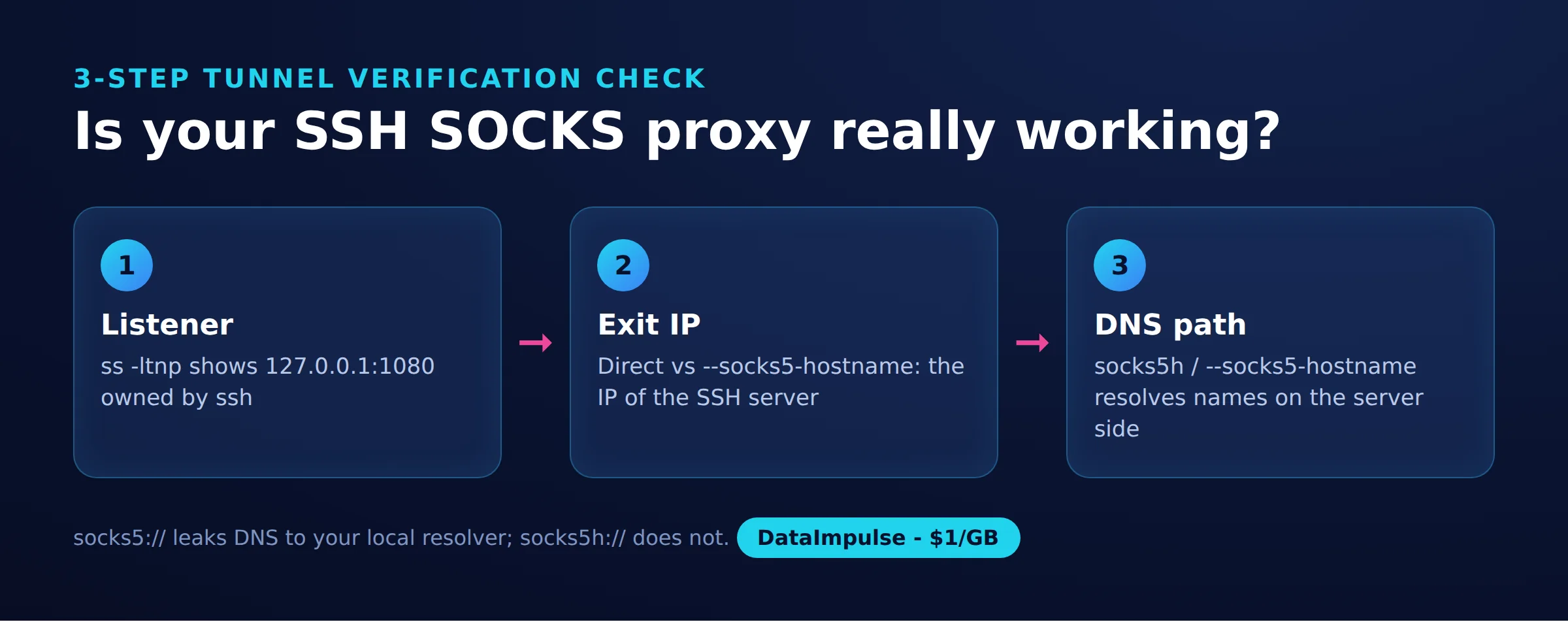
Step 1: Listener. On Linux, inspect ss -ltnp. Our run showed an SSH-owned listener at 127.0.0.1:1080, not a wildcard address. Other machines could not use that loopback listener directly.
Step 2: Exit IP. Compare a direct HTTPS request with one using the SOCKS listener. Our quick run on October 17, 2026 used Ubuntu 24.04, OpenSSH_9.6p1, curl and Python 3.12 with Requests SOCKS support. The curl version and geographic region were not recorded.
We started a temporary user-level SSH server at 127.0.0.1:2222 with temporary keys, then connected the real SSH client to it. There was no second remote server. Requests went to api.ipify.org and example.com, with fewer than 20 HTTP requests overall.
The six timing requests below alternated direct and tunneled requests across three iterations, sleeping two seconds between iterations. The timing loop discarded response bodies. Separate IP checks returned the same address for both routes, represented here by the documentation placeholder 203.0.113.10; it is not a published live address.
| Route | HTTP status | Returned source IP | Request ID | Downloaded bytes | Total ms | Error |
|---|---|---|---|---|---|---|
| Direct 1 | Not retained | Body discarded | Not captured | Not captured | 128 | Not retained |
| Tunnel 1 | Not retained | Body discarded | Not captured | Not captured | 149 | Not retained |
| Direct 2 | Not retained | Body discarded | Not captured | Not captured | 300 | Not retained |
| Tunnel 2 | Not retained | Body discarded | Not captured | Not captured | 336 | Not retained |
| Direct 3 | Not retained | Body discarded | Not captured | Not captured | 125 | Not retained |
| Tunnel 3 | Not retained | Body discarded | Not captured | Not captured | 138 | Not retained |
These pairs differed by 21, 36 and 13 ms. They are a snapshot, not a benchmark: separate HTTPS requests include variable connection and endpoint work, so the differences cannot isolate SSH overhead. An earlier Python direct request took 5.1 seconds, further limiting performance conclusions.
Step 3: DNS path. With local resolution, curl logged an IPv6 destination and the SSH server logged an address target. With remote resolution, curl logged example.com:443 and the server logged a hostname target. This establishes the handoff for those requests; an unchanged exit IP alone establishes nothing about DNS.
We did not capture DNS packets or test a unique hostname under our control. The observation therefore does not prove browser-wide DNS behavior or identify every upstream resolver. For stronger verification, test a fresh hostname you control and correlate resolver observations with application logs.
Measurement sources: our ssh_socks_demo.sh walkthrough and check_socks.py check. The Python check returned HTTP 200 and the expected address through the tunnel. Its tested script follows unchanged; install its SOCKS dependency as described in the Requests documentation.
"""Check an SSH SOCKS tunnel from Python.

pip install "requests[socks]"   # adds PySocks
socks5h://  -> the hostname is sent to the proxy and resolved at the SSH server
socks5://   -> Python resolves the hostname locally, only the IP goes through
"""
import sys, time
import requests

proxy = sys.argv[1] if len(sys.argv) > 1 else "socks5h://127.0.0.1:1080"
PROXIES = {"http": proxy, "https": proxy}

for label, proxies in [("direct", None), ("tunnel", PROXIES)]:
    start = time.perf_counter()
    try:
        r = requests.get("https://api.ipify.org?format=json", proxies=proxies, timeout=15)
        ms = (time.perf_counter() - start) * 1000
        print(f"{label:7} HTTP {r.status_code}  ip={r.json()['ip']}  {ms:.0f} ms")
    except requests.RequestException as exc:
        print(f"{label:7} failed: {type(exc).__name__}: {exc}")
For reproduction, remove unrelated proxy environment settings before running this unchanged script: its direct branch leaves Requests’ environment handling enabled. Our cleanup terminated SSH and the temporary server by PID, removed temporary files and confirmed port 1080 was closed.
How do you keep it running and stop it safely?
Use keepalives to detect a dead connection and a supervisor to restart it. Backgrounding alone does not restart a failed tunnel.
The saved configuration’s ServerAliveInterval 30 and ServerAliveCountMax 3 send encrypted checks and allow approximately 90 seconds without replies before disconnection. TCPKeepAlive uses TCP’s mechanism; ClientAliveInterval is a server-side setting. See client keepalive settings and server keepalive settings.
For occasional use, ssh -f socks-tunnel backgrounds the saved tunnel. For restart handling, autossh with -M 0 disables its monitoring ports and relies on SSH exiting. With monitoring enabled, -M 20000 uses ports 20000 and 20001; reserve both. See the upstream autossh instructions.
- Linux: A systemd service can run the foreground SSH command through
ExecStart, withRestart=on-failureand a restart delay. Use the installed executable’s absolute path. See the upstream service reference. - macOS: A user LaunchAgent can specify the executable and arguments through
ProgramArgumentsand supervise it withKeepAlive. Follow Apple’s launchd job guide. - Windows: A Task Scheduler logon task can launch the foreground command under your account. Microsoft’s scheduled-task reference documents the logon trigger.
These are deployment patterns, not configurations exercised in our run. Validate unattended authentication and host-key trust before enabling startup. Stop a foreground tunnel with Ctrl+C; stop its supervisor first for a managed tunnel, then confirm the listener disappeared. Restore application proxy preferences when finished.
Why is the tunnel not working?
Diagnose the listener, authentication, forwarding policy and destination separately. A successful SSH login does not establish that every destination is reachable.
- Address already in use: identify the process owning port 1080. Choose another unused loopback port and update the application to match.
- Authentication failure: check the account, key and server access policy. SSH verbose logging can help identify the failing stage; see the SSH diagnostic options.
- Forwarding denied: ask the administrator to inspect
AllowTcpForwarding,DisableForwardingandPermitOpen. These can restrict forwarding even after authentication. See server forwarding policy. - Listener works, destination fails: check server-side DNS, outbound connectivity and the destination service.
ExitOnForwardFailurecannot guarantee subsequent destination connections (as of October 2026), according to SSH failure-handling documentation.
Do not change firewall rules blindly. First identify whether the failure concerns the local listener, the SSH connection or the destination connection. Our guide to blocked proxy ports explains that distinction.
How does SSH through an existing SOCKS proxy differ?
SSH through an existing proxy changes how the SSH connection reaches its server. Dynamic forwarding creates a proxy for other applications after SSH connects.
ProxyCommand delegates connection establishment to another program; ProxyJump connects through an SSH jump host. An SSH jump host is not interchangeable with a SOCKS endpoint. Consult the OpenSSH proxy directives before selecting a helper.
For VS Code remote development, configure and verify the SSH connection independently first, then follow the official Remote SSH workflow. Editor access and browser proxy routing are separate requirements.
When should you choose SSH, a VPN or commercial proxies?
Choose SSH for selected applications using your server’s exit, a VPN for network-level routing, or commercial proxies for external exit locations. Match the routing boundary to the task.
| Option | Use X when… | Avoid X when… |
|---|---|---|
| SSH dynamic forwarding | Use SSH when selected applications need your server’s exit. | Avoid SSH when you need UDP or automatic device-wide routing. |
| VPN | Use a VPN when network-level routing is required. | Avoid a VPN when only one application needs proxying. |
| Commercial proxies | Use commercial proxies when you need external exit locations. | Avoid commercial proxies when you expect SSH hosting or VPN protection. |
SOCKS5 defines UDP association in RFC 1928, but that protocol capability does not establish implementation support. SSH dynamic forwarding here is limited to TCP (as of October 2026); the PuTTY forwarding manual explicitly describes this limit.
SSH encryption ends at the SSH server. Keep destination HTTPS enabled: the server-to-destination connection still needs its own protection. Neither a different exit IP nor remote DNS guarantees anonymity. See our proxy versus VPN comparison and DNS versus traffic-routing guide.
WireGuard operates as a VPN, while OpenVPN documents full and split routing. Tailscale documents direct and relayed connections. Throughput, CPU cost, latency and firewall reliability depend on the actual path and configuration; our local snapshot cannot rank these alternatives.
Frequently Asked Questions
What does ssh -D do?
It creates a local dynamic forwarding listener for applications that speak SOCKS. The application selects the destination, and the connection leaves through the SSH server.
How do you create an SSH SOCKS5 tunnel?
Start SSH with a loopback-bound dynamic forward and an authorized server destination. Then configure your application for SOCKS5 on that local address and verify it before relying on the route.
How do you route DNS through the tunnel?
Choose a client setting that sends hostnames to the SOCKS proxy, such as curl’s socks5-hostname option. Inspect hostname handoff separately from exit-IP results.
Is an SSH SOCKS proxy equivalent to a VPN?
No. An application must use the SOCKS listener, whereas a VPN can route traffic at the network layer according to its routing configuration.
How do you keep the tunnel alive and stop it?
Combine connection checks with a restart supervisor when persistence is necessary. Stop the supervisor before terminating a managed tunnel, then verify that its local listener has closed.
Why did the test show the same exit IP?
Our SSH client and temporary SSH server ran on the same machine. Their outbound requests therefore shared the same exit, so DNS logs were more informative than the IP comparison.
Need exit locations beyond your SSH server?
If application-level proxying fits your task but maintaining SSH infrastructure does not, consider DataImpulse’s residential, mobile or datacenter proxies. DataImpulse is not a VPN, scraping API or managed unblocker, and does not supply SSH hosting. Compare application compatibility and exit requirements in our SOCKS5 proxy guide before choosing.
Last updated: October 17, 2026.

 State/City/Zip/ASN Targeting